

Before you start
- You need Owner/Admin access to manage Team.
- Do not send invitations, approve weeks, or change statuses when you are only reviewing.
- Use realistic US-market data when you need to add services or notes.
1. Open hours review
- Go to Settings > Team.
- Click View hours.
- Choose the week you want to review.
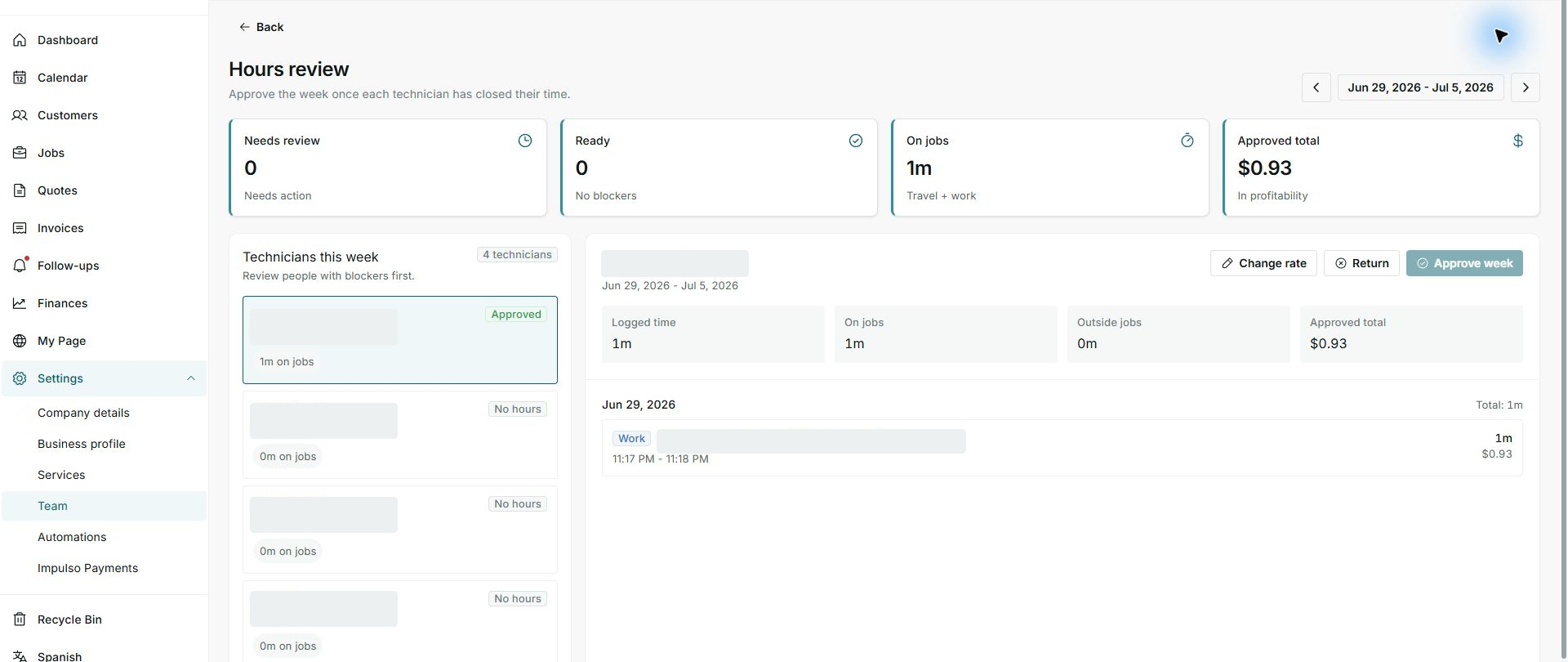
2. Read the top metrics
- Needs review shows pending items.
- Ready shows people without blockers.
- On jobs and Approved total summarize time and cost.
3. Review each person
- Select a person from the left list.
- Review logged time, time on jobs, and time outside jobs.
- Do not approve the week until the details are complete.
Statuses and options you may see
- Needs review
Meaning: There are details to close or review.
Next step: Start with those people.
- Ready
Meaning: There are no blockers for that person or week.
Next step: Continue with final review.
- Approved
Meaning: The hours count as approved.
Next step: Avoid approving again without reviewing changes.
- No hours
Meaning: No time was logged that week.
Next step: Confirm whether the person was expected to work.