

Before you start
- Confirm you are in Finances before comparing amounts.
- Use period filters only when you need to review another month.
- Do not press Save, Export CSV, or Send when you are only reviewing information.
1. Read costs against revenue
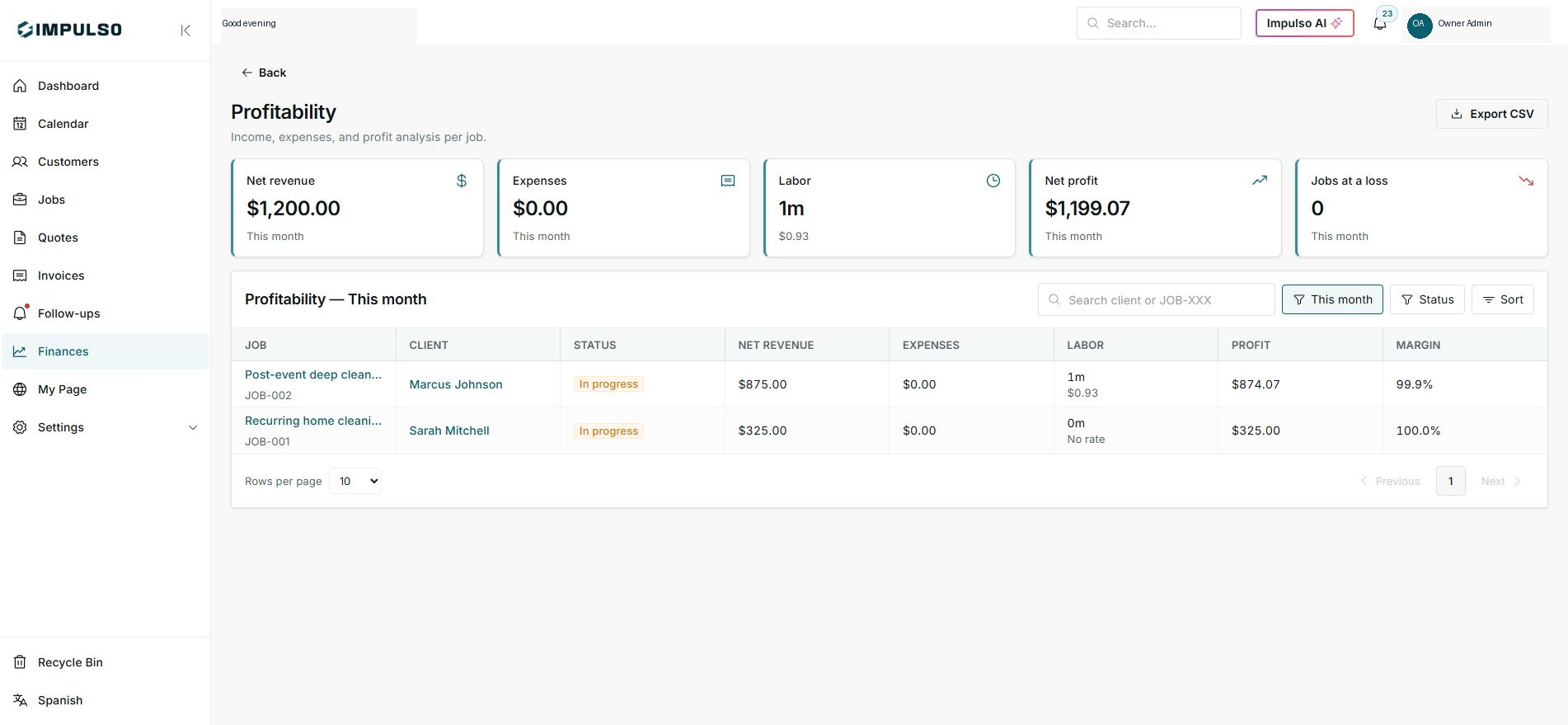
- Open Finances > Profitability.
- Compare Net revenue with Expenses and Labor.
- Profit decreases when expenses or recorded hours increase.
2. Review labor
- Each job can show team minutes or hours.
- If you see No rate, time exists but cost is not calculated.
- Adjust rates or hours from Team if you need more precise profit.
3. Connect expenses to jobs
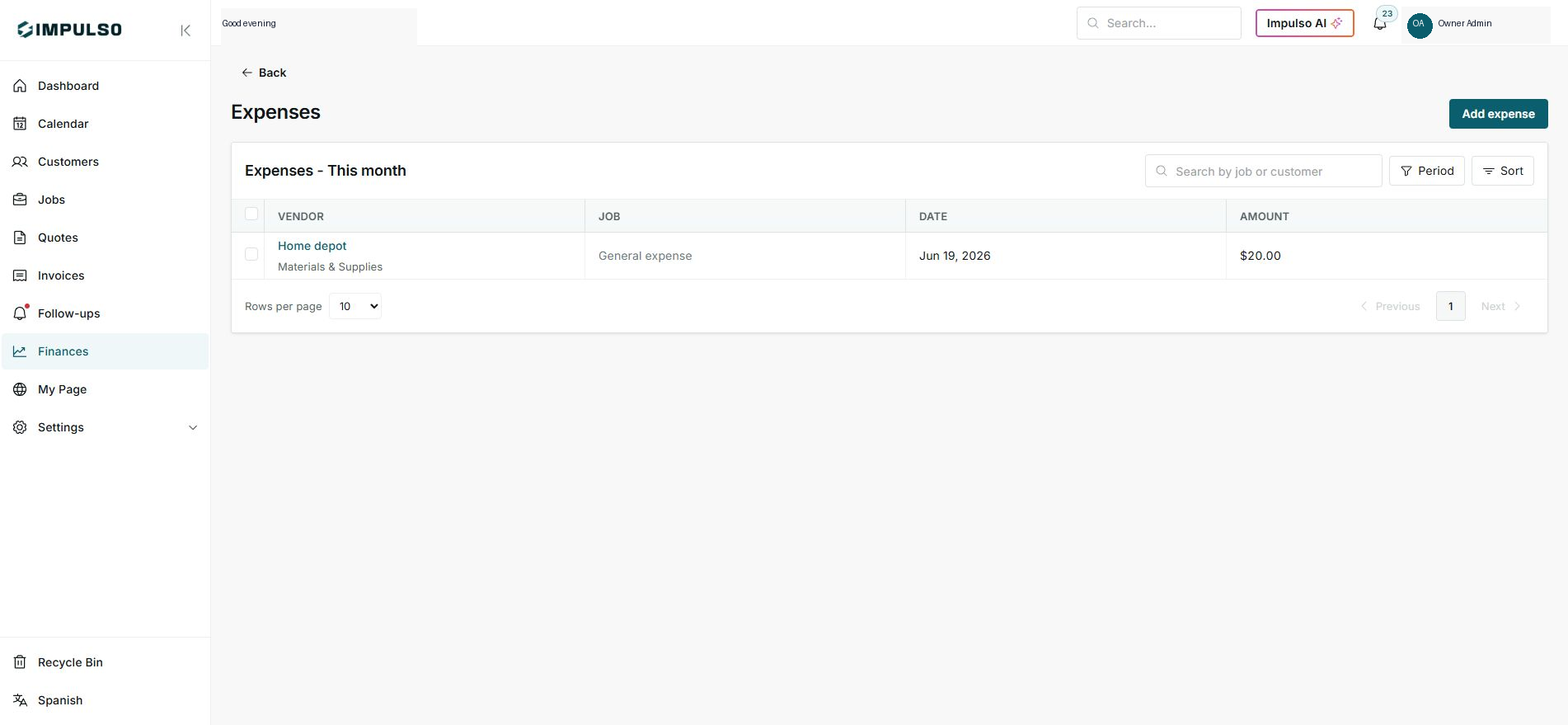
- Open Expenses to review vendor, category, date, and amount.
- If an expense belongs to a job, connect it to the right job when recording it.
- General expenses can stay without a linked job.
Statuses and options you may see
- Expenses
Means: Recorded costs that reduce profit.
Next step: Review category and related job.
- Labor
Means: Cost of team time recorded.
Next step: Confirm rates when values look unexpected.
- No rate
Means: Time is recorded, but no hourly cost is set.
Next step: Add a rate when you want actual cost.
- Profit
Means: Revenue minus expenses and labor.
Next step: Use it to compare jobs.