

Before you start
- Use My Page from an Owner/Admin account.
- Do not press Save, Delete, Publish, Copy link, Download, or Send when you are only reviewing.
- Public-facing data may be in English when the business serves customers in the United States.
1. Open the public page
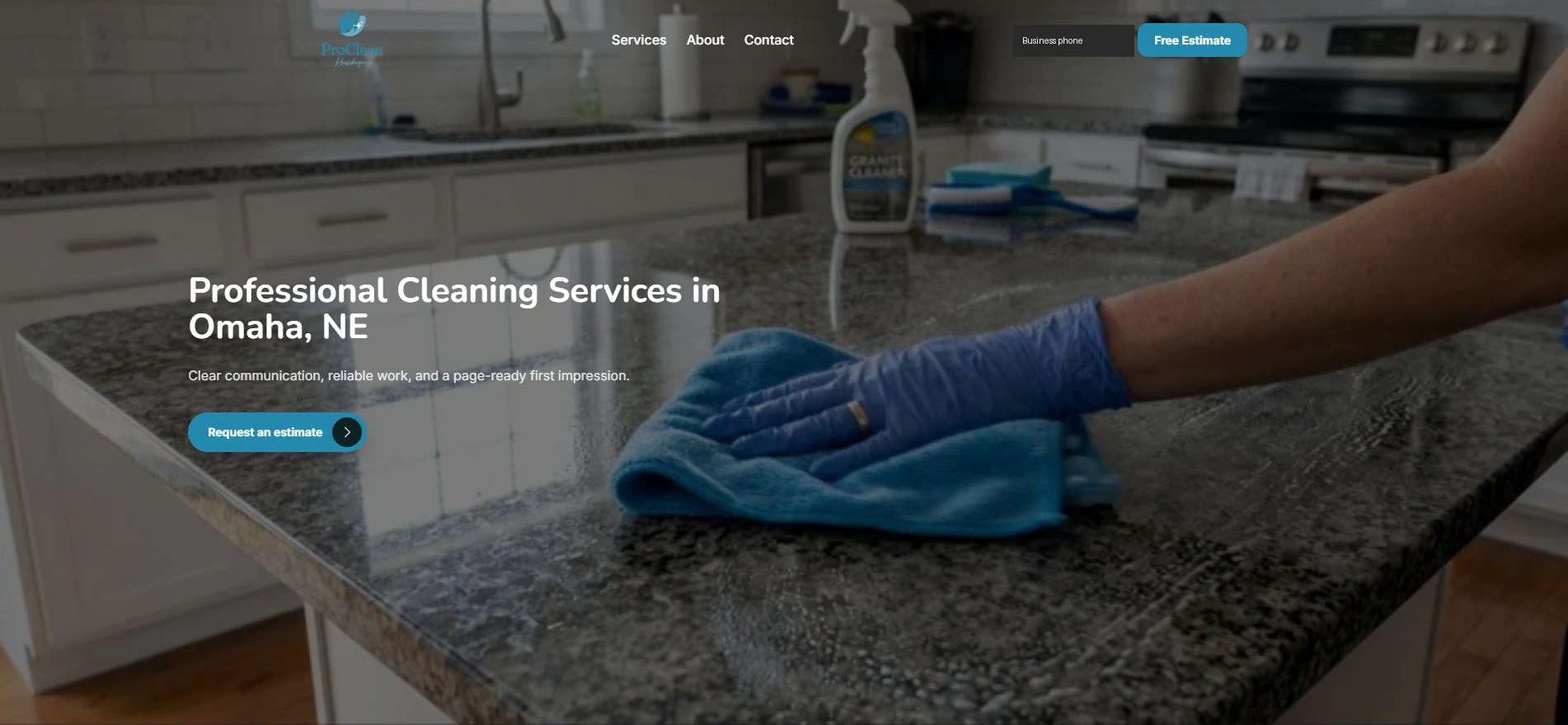
- The visitor enters the published domain.
- They can use Free Estimate or Request an estimate.
- The page moves to the contact section.
2. Review the fields
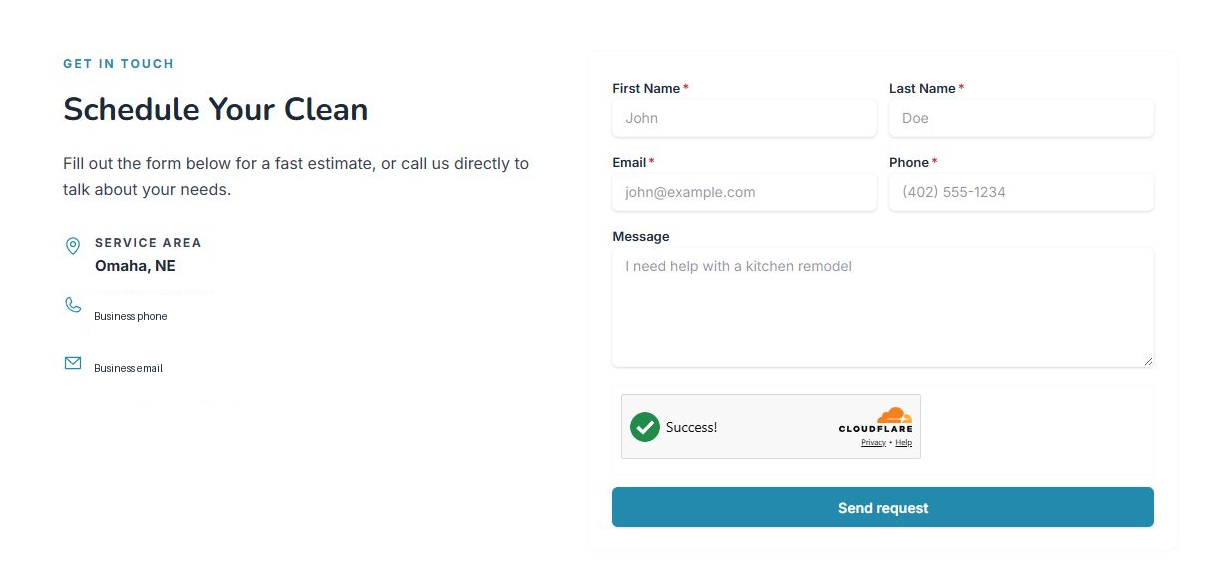
- The form asks for first name, last name, email, phone, and message.
- The visitor must complete required fields before sending.
- The anti-spam check helps protect the form.
3. Sending creates a lead
- Send request sends the request to the business.
- Do not press send when you are only reviewing.
- After a request arrives, review it in My Page > Leads.
Statuses and options you may see
- Free Estimate
Means: CTA that moves to the form.
Next step: Use it to request an estimate.
- Required fields
Means: Name, email, and phone can be required.
Next step: Enter real details before sending.
- Success
Means: The anti-spam check is ready.
Next step: Send request still has to be pressed.
- Send request
Means: Sends the request.
Next step: Do not press it during review.