

1. Open Company details
- Go to Settings > Company details.
- Review Company details, Address, Preferences, and Business hours.
- Use business information your customers will recognize on quotes and invoices.
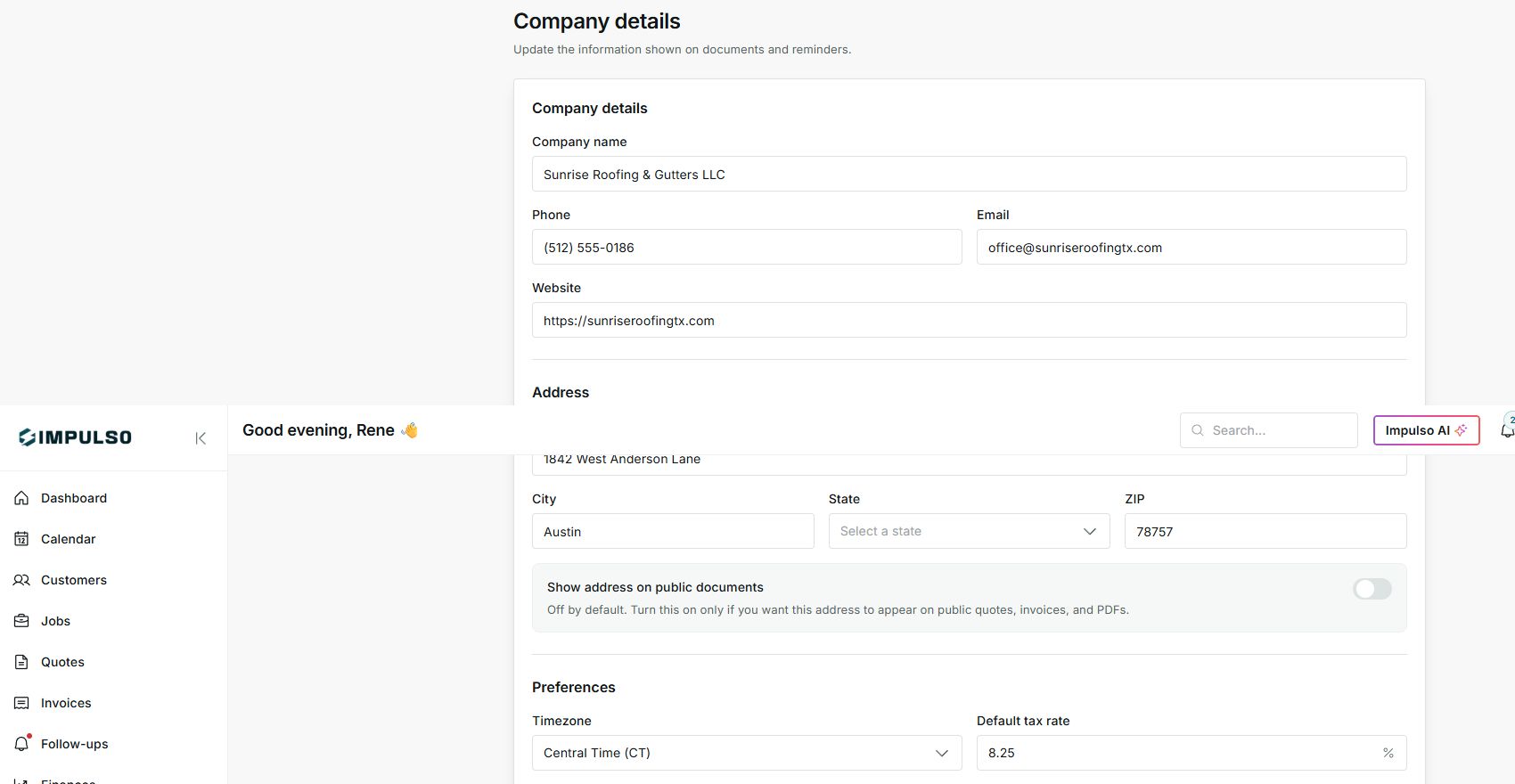
2. Complete contact details and address
- Enter the company name, phone, email, and website.
- Add street address, city, state, and ZIP when you want those details ready for documents.
- Turn on Show address on public documents only when customers should see that address.
3. Review preferences before saving
- Set timezone, default tax rate, and payment terms.
- Review business hours if customers will see them on documents or reminders.
- Click Save only when you are ready to keep the changes.
States you may see
- Saved
The changes were kept successfully.
Next step: Open a new quote or invoice if you want to confirm how they look.
- Error
Impulso Pro could not save the change.
Next step: Review required fields and try again.
- Incomplete setup
Required information is missing for a section.
Next step: Complete the marked fields before continuing.