

Before You Start
- You need access to the account where your domain was purchased or managed.
- Your My Page should be published so customers can open it.
- In Impulso Pro, enter only the domain, without https:// and without www. Example: bluepinepainting.com.
- Do not delete email records such as MX, SPF, DKIM, or DMARC. Those records keep emails like hello@bluepinepainting.com working.
1. Open My Page settings
- Go to My Page.
- Click Configure.
- In Overview, find the Custom domain card.
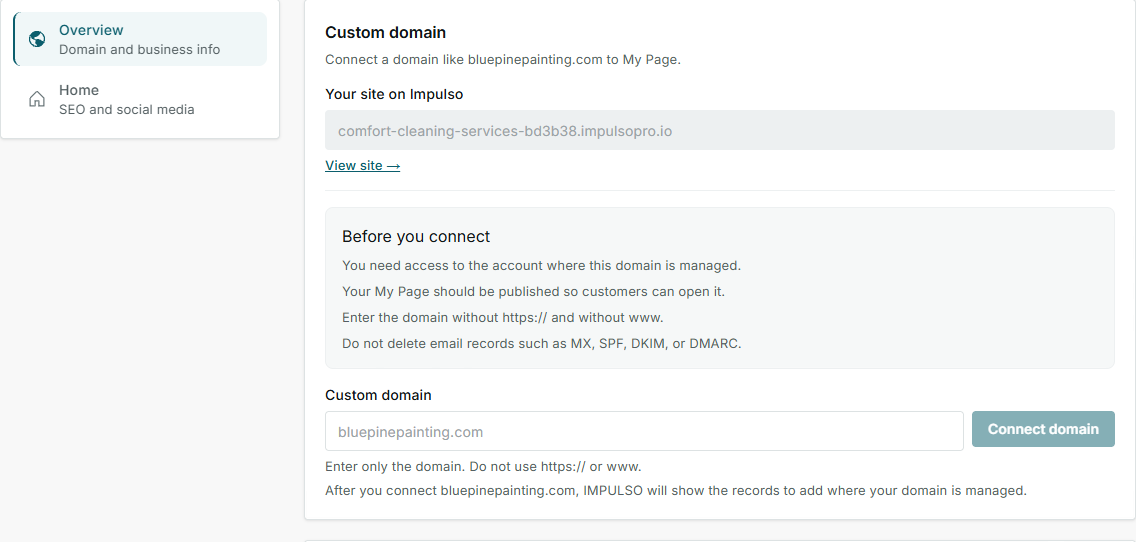
2. Enter the domain in Impulso Pro
- In Custom domain, enter the business domain, for example bluepinepainting.com.
- Confirm that the Before you connect checklist applies to your business.
- Click Connect domain.
- After you connect the domain, Impulso Pro will show the records to add where your domain is managed.
3. Copy the records for your domain
DNS records are details you add in your domain account to tell that domain where to open your My Page. In Impulso Pro, the Records to copy block shows Type, Name, Value, and What it does.
| Type | Name | Value | What it does |
|---|---|---|---|
A | bluepinepainting.com or @ | 76.76.21.21 | Makes the root domain open My Page. |
CNAME | www or www.bluepinepainting.com | cname.vercel-dns-0.com | Makes a www version or subdomain open My Page if Impulso Pro tells you to use that record. |
TXT | The name Impulso Pro shows | The full value Impulso Pro shows | Confirms you are allowed to use that domain. |
- Copy each value exactly as shown. Do not shorten or rewrite it.
- If Impulso Pro shows a copy button, use it to avoid typing mistakes.
- If someone else manages your domain, send them the full records table.
4. Add the records outside Impulso Pro
- Open the account where your domain is managed, usually the company where you bought it.
- Find the DNS, Records, or Manage domain section.
- Add the records Impulso Pro shows. Use the same Type, Name, and Value.
- Do not remove existing email records.
- Save the changes in that external account.
The change can take a few minutes or up to 24-48 hours. During that time, some people may see the page before others.
5. Return to Impulso Pro and check the status
- Go back to My Page > Configure.
- Click Check status.
- If the status stays Pending, wait a bit and try again later.
- When the status changes to Active, open the domain in a new tab and review the public page.
States and options you may see
- Your site on Impulso Pro
Meaning: The current link for your page while you connect the custom domain.
Next step: You can use it until the custom domain is active.
- Connect domain
Meaning: Saves the domain you entered and prepares the records to copy.
Next step: Review the records block and add those records where your domain is managed.
- Records to copy
Meaning: The exact list to add in your domain account.
Next step: Copy Name and Value without changing anything.
- TXT record for DNS
Meaning: Impulso Pro needs to confirm that the domain is yours or that you are allowed to use it.
Next step: Add it exactly as shown, then check the status.
- Pending
Meaning: Impulso Pro cannot confirm the records yet.
Next step: Review that the details were copied correctly and wait for the change to update.
- Active
Meaning: The domain opens your My Page.
Next step: Open the domain and share it with your customers.
- Needs review
Meaning: Impulso Pro saved the domain, but the site connection needs review.
Next step: Contact support before changing more records.
- Error
Meaning: Impulso Pro could not check or save the domain at that moment.
Next step: Review the domain you typed and try again.
- Checking...
Meaning: Impulso Pro is checking whether the DNS records are ready.
Next step: Wait for it to finish before clicking again.
Frequently Asked Questions
Should I use bluepinepainting.com or www.bluepinepainting.com?
Start with the domain without www, as the screen says. If you also want www.bluepinepainting.com to open the same page, contact support to review that version before adding more records.
Will this change my business email?
It should not change your email if you keep the existing email records, especially MX, SPF, DKIM, and DMARC.
Why is it still pending after I added the records?
The change may still be updating, there may be a typo, or an old record may still point somewhere else. Review Name and Value, wait a bit, and click Check status.