

Before you start
- Use My Page from an Owner/Admin account.
- Do not press Save, Delete, Publish, Copy link, Download, or Send when you are only reviewing.
- Public-facing data may be in English when the business serves customers in the United States.
1. Open the editor
- Click Edit website.
- Wait for the preview to load.
- Confirm you can see the hero and CTA.
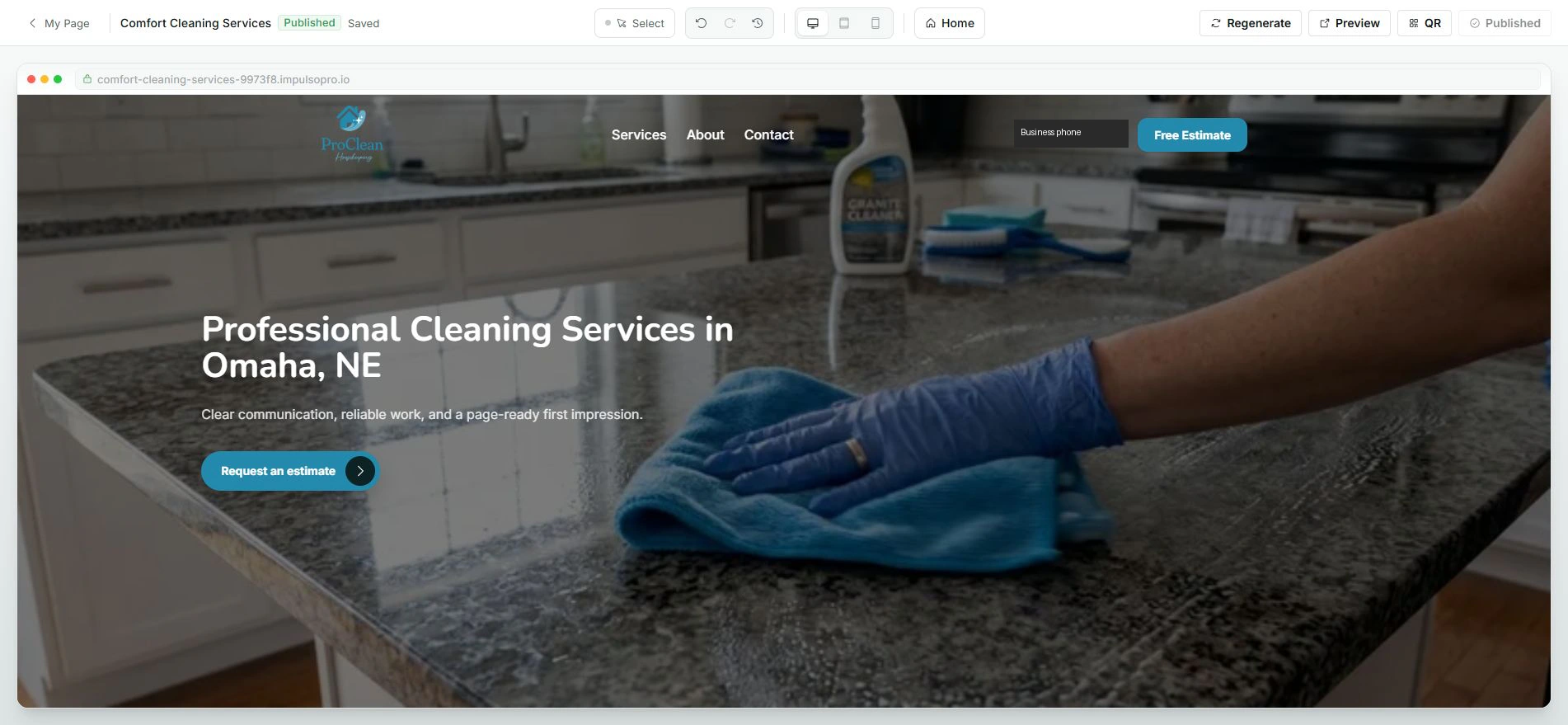
2. Review what is visible
- Check logo, services, phone, CTA, and main content.
- Use view controls if you need another format.
- Do not save if text looks wrong.
3. Publish or correct
- If everything is correct, continue with saving or publishing.
- If something is wrong, edit before sharing the link.
- Do not use Regenerate when you only want to review.
Statuses and options you may see
- Preview
Means: Shows the page before sharing.
Next step: Review it before saving.
- Published
Means: The current version can be active.
Next step: Do not assume new edits are already published.
- Saved
Means: Current changes are saved.
Next step: Wait for confirmation if you edited.
- Regenerate
Means: Can change content.
Next step: Use it only when you want new copy.