

Before you start
- Use My Page from an Owner/Admin account.
- Do not press Save, Delete, Publish, Copy link, Download, or Send when you are only reviewing.
- Public-facing data may be in English when the business serves customers in the United States.
1. The customer sends a request
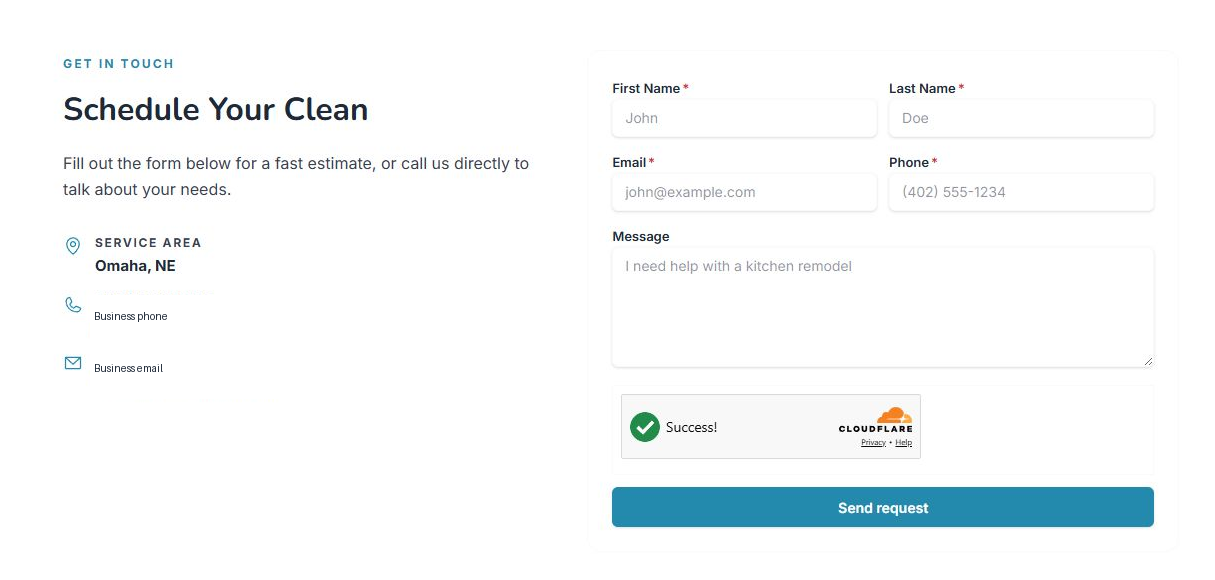
- The customer opens your page and completes the form.
- The request needs contact details and a message.
- Do not send your own forms just to check the flow.
2. Review the inbox
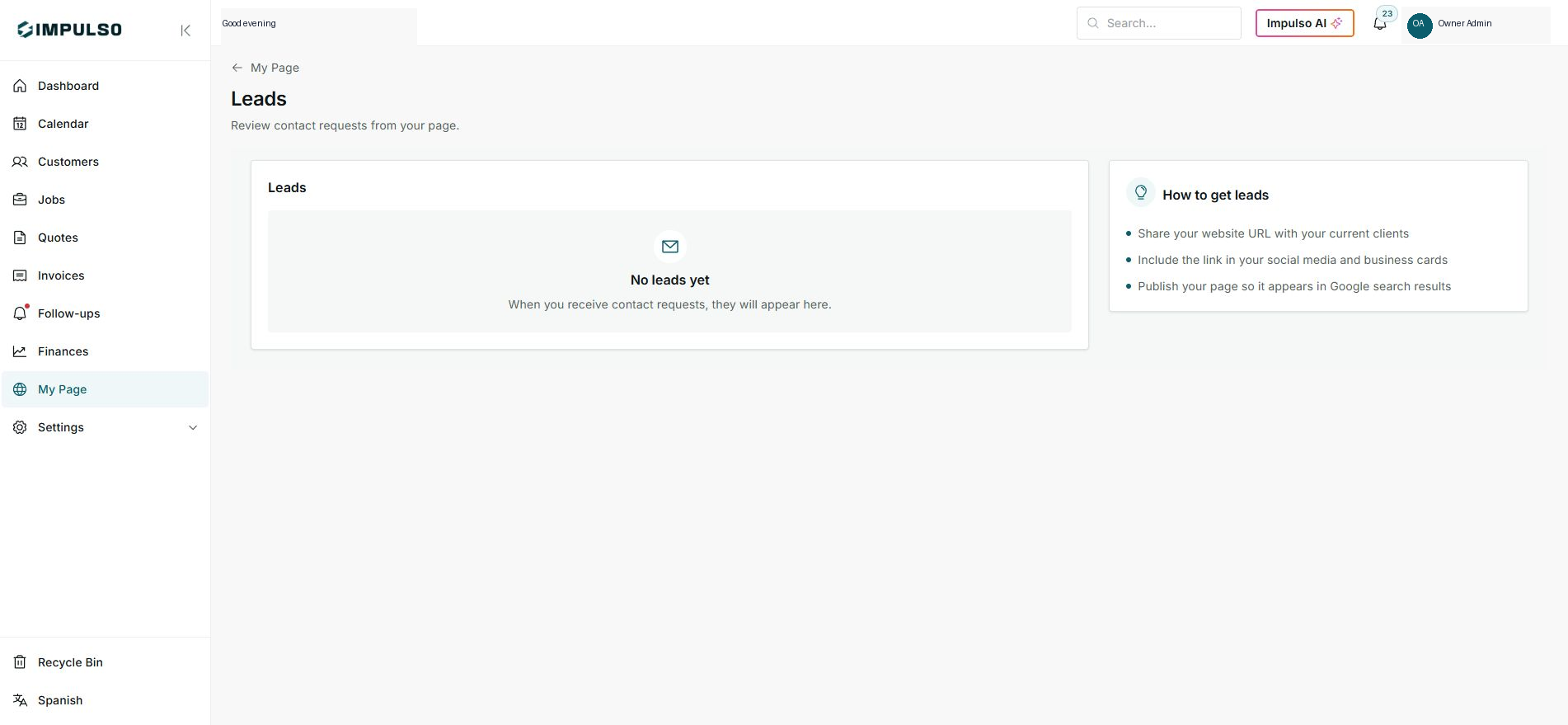
- Go to My Page > Leads.
- If there are no leads, you will see No leads yet.
- When requests arrive, they appear in this list.
3. Work each lead
- Open the lead to review details.
- Contact the customer before converting it.
- Convert or dismiss only when the result is clear.
Statuses and options you may see
- No leads yet
Means: No requests have arrived yet.
Next step: Share the page or QR to generate leads.
- Send request
Means: The customer sends the request.
Next step: Do not use it during internal review.
- New lead
Means: New request waiting for review.
Next step: Open it and contact the customer.
- Converted
Means: Lead converted into a customer.
Next step: Use it after qualifying the request.