

1. Open the Invoice
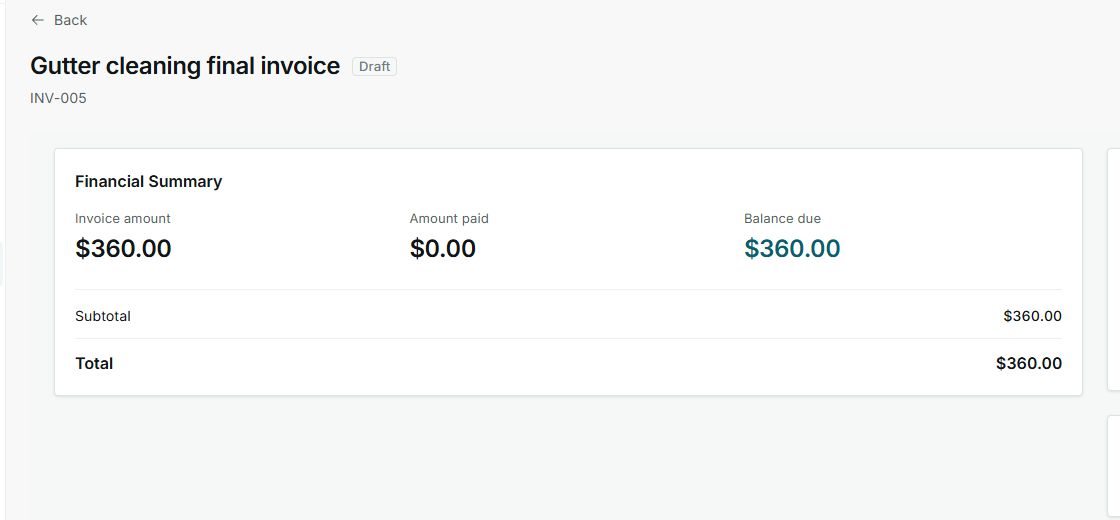
- Open a Draft invoice.
- Review the financial summary.
- Click Send.
2. Review the Email
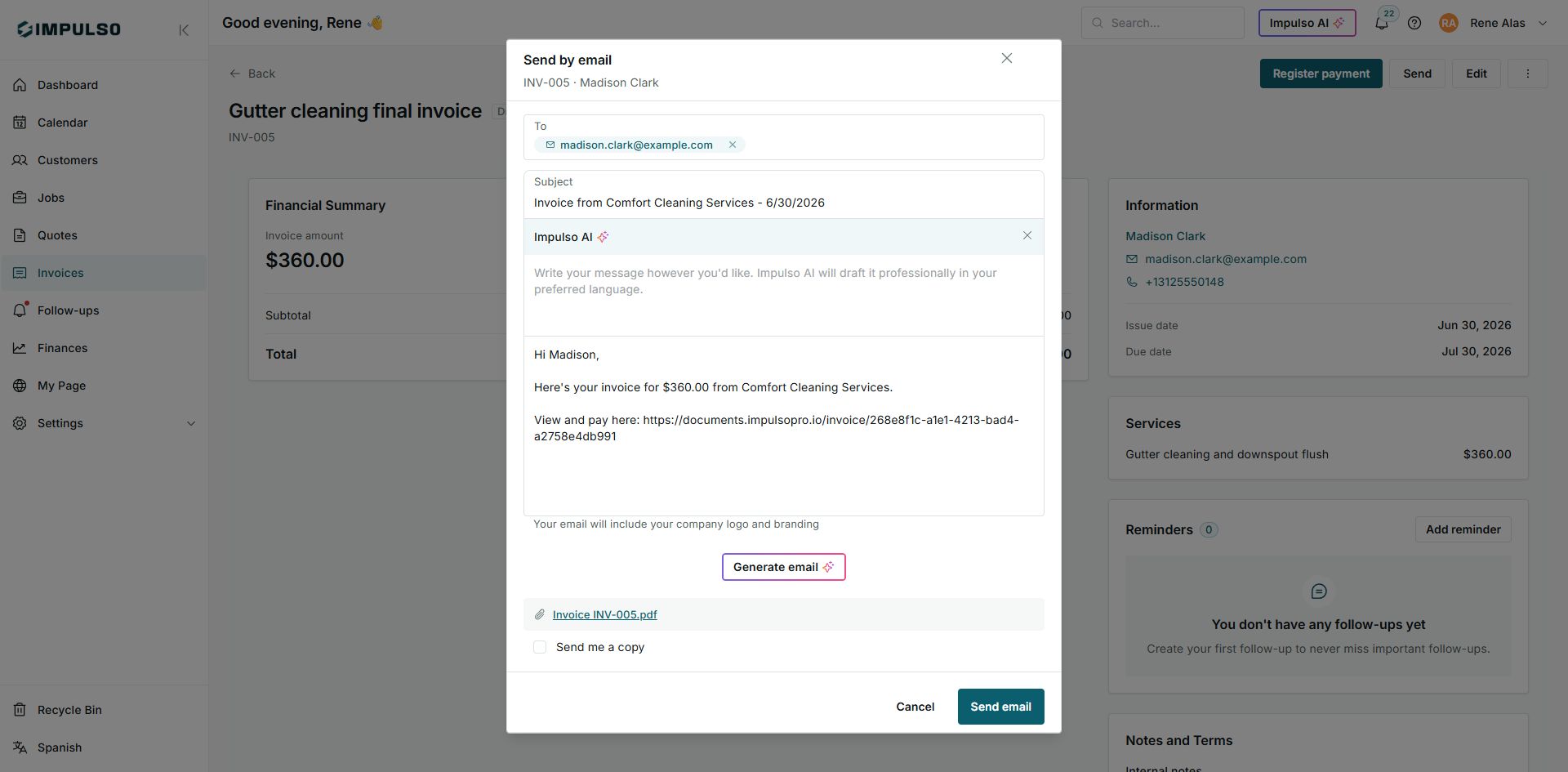
- Choose Email.
- Review recipient, subject, message, and PDF.
- Click Send email only when ready.
States You May See
- Draft
Meaning: The invoice exists, but it has not been sent to the customer yet. Where it appears: Invoice list and detail. Next step: Review and send it when ready. It does not mean: It does not mean the customer received it.
- Sent
Meaning: The invoice was sent to the customer and may still need payment. Where it appears: Invoice list and detail. Next step: Follow up or record payment when appropriate. It does not mean: It does not mean it is paid.
- Paid
Meaning: The invoice has no remaining balance. Where it appears: Invoice list and detail. Next step: Review history or receipts if needed. It does not mean: It does not automatically change the job status.
- Balance due
Meaning: There is still an amount to collect. Where it appears: Financial summary. Next step: Record payment or send a reminder when appropriate. It does not mean: It does not mean the customer viewed the invoice.