

Before you start
- You need Owner/Admin access to review payments.
- Do not open Stripe or save changes when you are only reviewing settings.
- For customer data, use realistic US-market services such as roofing, HVAC, gutters, or exterior painting.
1. Open Impulso Pro Payments
- Go to Settings.
- Open Impulso Pro Payments.
- Review the status at the top before changing any option.
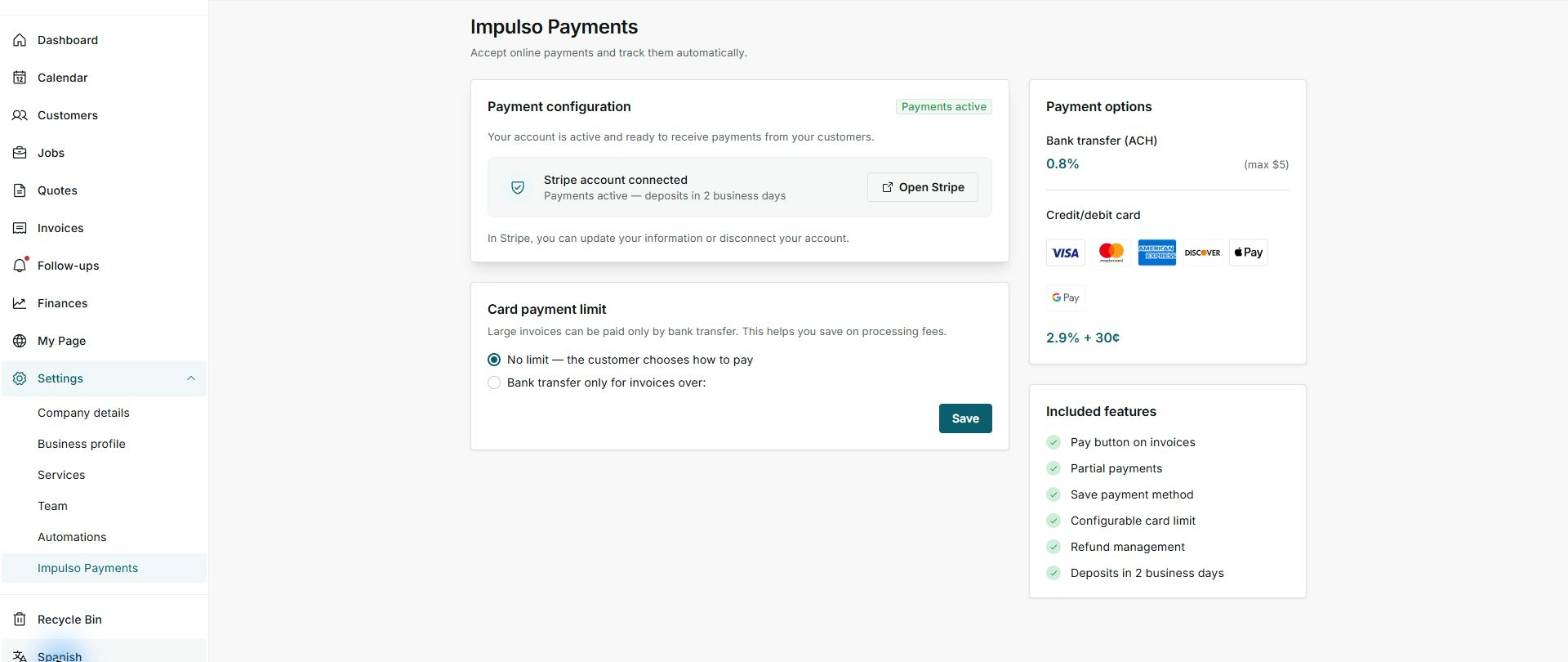
2. Confirm connection and methods
About the image: This capture preserves the earlier screen location and must not be used as a reference for fees, payout timing, or saved methods. The current behavior is described below.
- Look for Payments active and Stripe account connected.
- Review Credit/debit card and Bank transfer (ACH) separately.
- If ACH is pending, open Stripe and complete the requested information. Card payments may remain available.
3. Review the card limit
- Use No limit when customers can choose card or ACH.
- Use Bank transfer only for invoices over when you want to prevent card payments above a chosen amount; this limit does not block ACH.
- Check Stripe for current fees and payout timing. Impulso Pro does not show a universal percentage, fixed charge, or exact payout promise.
- Click Save only when you are ready to apply the change.
Statuses and options you may see
- Card active
Meaning: Customers can pay eligible invoices by card.
Next step: Send the invoice when it is ready.
- ACH active
Meaning: Customers can also choose an ACH bank transfer.
Next step: No additional setup is needed.
- ACH pending
Meaning: Stripe still needs to finish activation or receive more information.
Next step: Open Stripe and complete the request; card payments may stay active.
- No limit
Meaning: The customer can choose card or ACH with no threshold.
Next step: Leave it selected if you do not want to restrict cards.
- Bank transfer only
Meaning: Card is not offered above the chosen amount; ACH remains available when active.
Next step: Enter the amount and save only if you want to apply the change.