

Before you start
- Use the email for your Impulso Pro account, or the email address that received your team invitation.
- Have your password ready, or use Google if your account was created that way.
- If you came from an invitation, open the invitation link first so Impulso Pro can continue the right flow.
1. Open the sign-in page
- Go to app.impulsopro.io/en/sign-in.
- Confirm that you are on the Welcome back page.
- Use the ES or EN selector if you want to switch the page language before signing in.
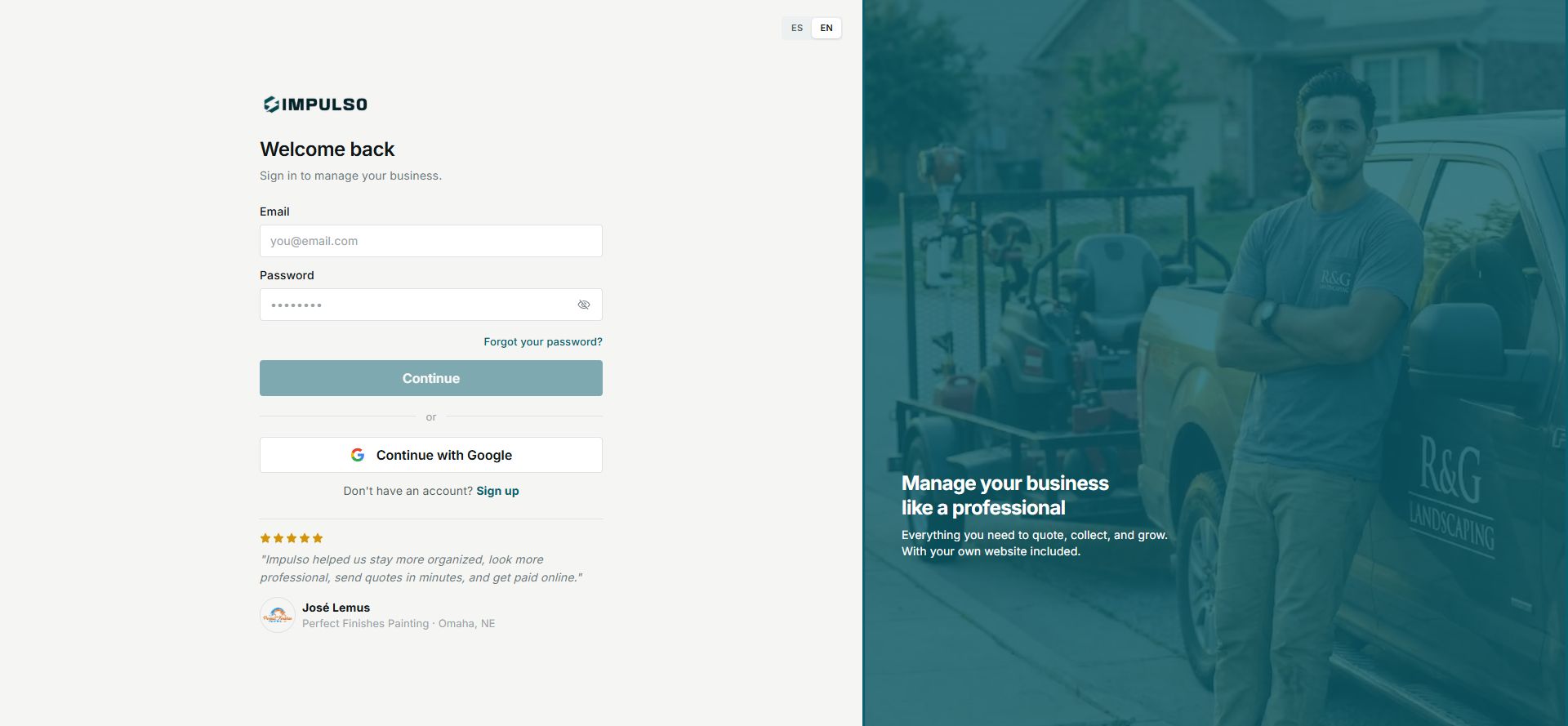
The page includes email, password, password recovery, Google, and sign-up options.
2. Sign in with email and password
- Enter your Email.
- Enter your Password.
- Click the eye icon if you need to check what you typed.
- Click Continue.
Tip
If Impulso Pro sent you here while you were trying to open another area of the app, signing in takes you back there.
3. Use Google, sign up, or recover access
- Click Continue with Google if your account uses Google.
- Click Forgot your password? if you need password recovery instructions.
- Click Sign up only if you do not have an Impulso Pro account yet.
4. Messages you may see
These are not job or document statuses. They only explain what is happening during access.
- Loading
Means: Impulso Pro is checking your details. Next step: wait for it to finish. Does not mean: sign-in failed.
- Error
Means: Impulso Pro could not complete sign-in with the details submitted. Next step: check email and password or recover access. Does not mean: your business was deleted.
- Not authenticated
Means: you tried to open a page that requires a session. Next step: sign in and try again. Does not mean: you do not have permission.