

Before you start
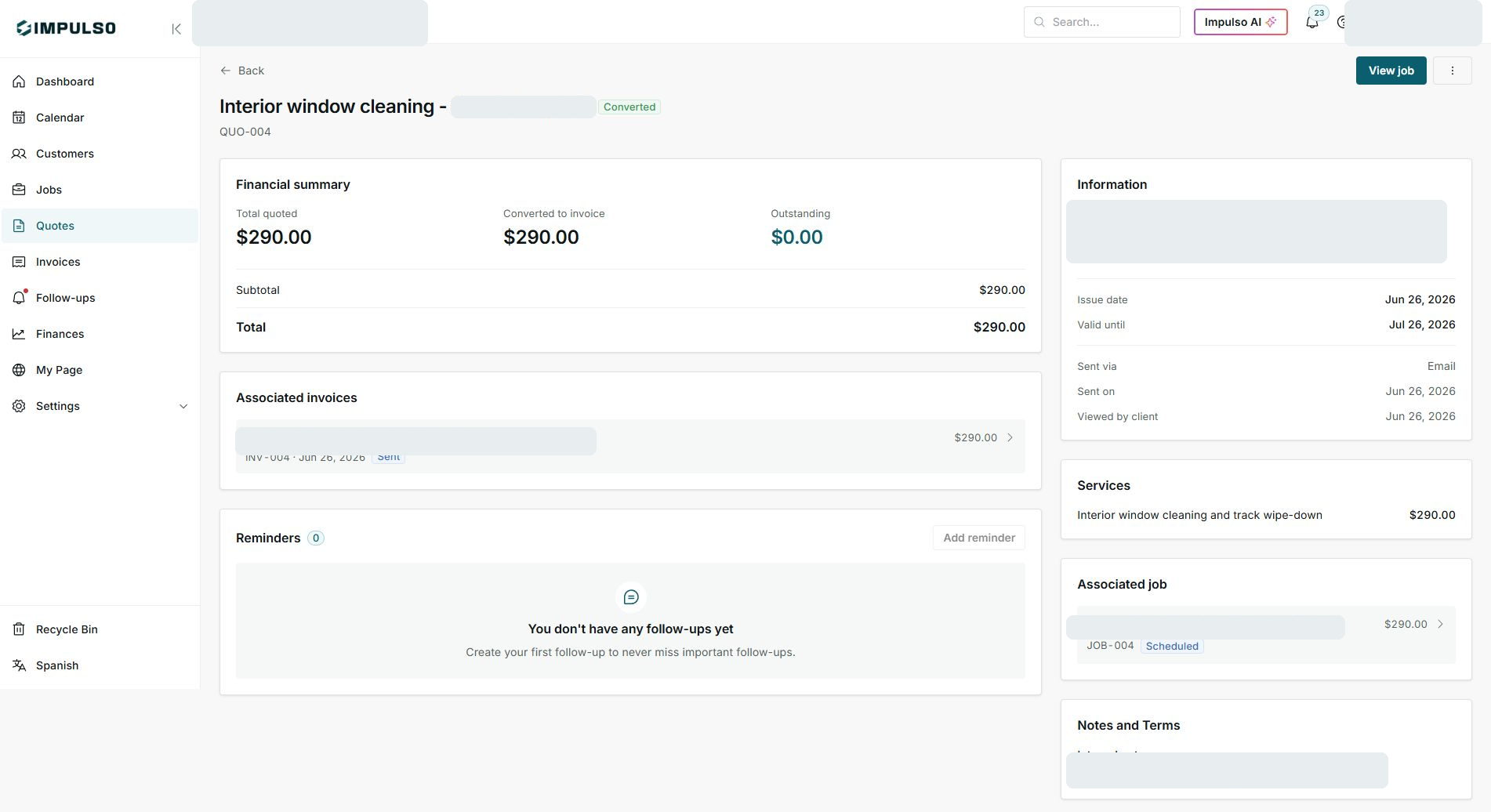
- Confirm you are on the correct quote before opening the job.
- Do not archive, resend, or schedule a follow-up when you are only reviewing.
- Use real United States service names such as roofing, gutters, HVAC, or window cleaning.
1. Review the quote
- Open the quote from Quotes.
- Confirm the status beside the title.
- Review the financial summary for total, converted to invoice, and outstanding amount.
2. Open the related job
- If you see View job, the quote already has a related job.
- Use the Associated job card to confirm JOB-004 and its status.
- Continue scheduling, visits, and work from Jobs.
3. Review invoice and follow-up
- If the quote already has an associated invoice, open that invoice instead of creating another one.
- Review Sent via, Sent on, and Viewed by client.
- Use follow-ups if you need to remember the next contact.
States and options you may see
- Converted
Means: The quote is already connected to a job.
Next step: Work from the related job.
- Sent
Means: The associated invoice has been sent.
Next step: Follow up on payment when needed.
- Scheduled
Means: The related job is on the calendar.
Next step: Coordinate visits and team.
- Outstanding $0.00
Means: No amount remains outstanding on this quote.
Next step: Confirm invoice and payment before closing follow-up.