

Before you start
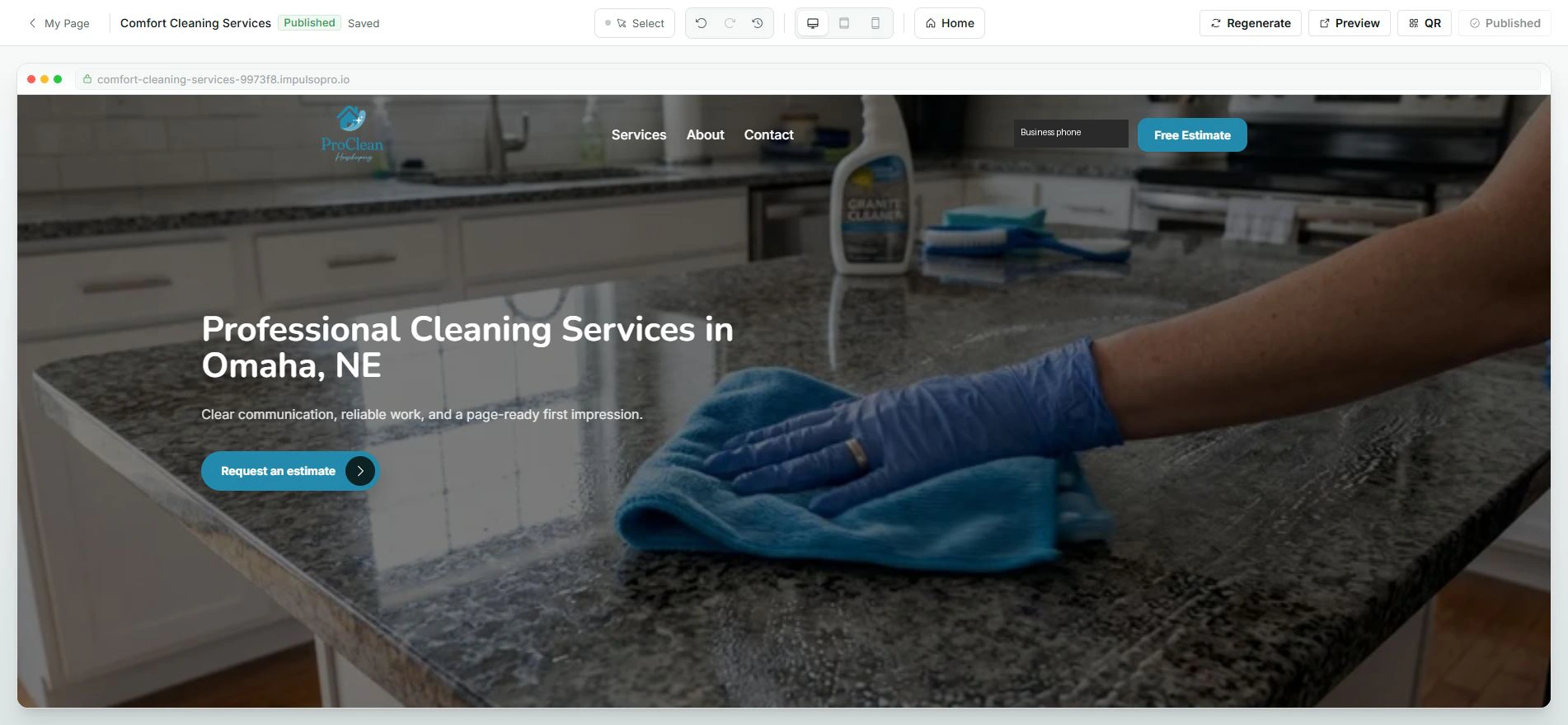
- Open My Page from an Owner/Admin account.
- Know which services you want to promote, such as roofing, gutters, HVAC, siding, drywall, pressure washing, or exterior painting.
- Do not use Regenerate unless you want to change the draft content you are reviewing.
1. Open the editor
- Go to My Page and open the editor.
- Confirm you are editing the correct page before reviewing the copy.
- Check whether Published, Saved, and Regenerate are visible.
2. Prepare what you want to say
- Read the current content as if you were a customer.
- Decide whether it should be clearer, shorter, or more focused on your main services.
- If you regenerate, review every sentence before saving.
3. Review before saving
- Use the preview to confirm how the page looks.
- Make sure the copy does not promise services you do not offer.
- Save only when the content is ready to publish.
Statuses and options you may see
- Published
Means: The page is active for customers.
Next step: Review changes carefully before saving.
- Saved
Means: The current version is saved.
Next step: If you change copy, wait for confirmation before leaving.
- Regenerate
Means: Can create a new version of the content.
Next step: Use it only when you want a rewrite and can review the result.
- Preview
Means: Shows what customers will see.
Next step: Review it before publishing or sharing.