

1. Open Settings
- In the sidebar, click Settings.
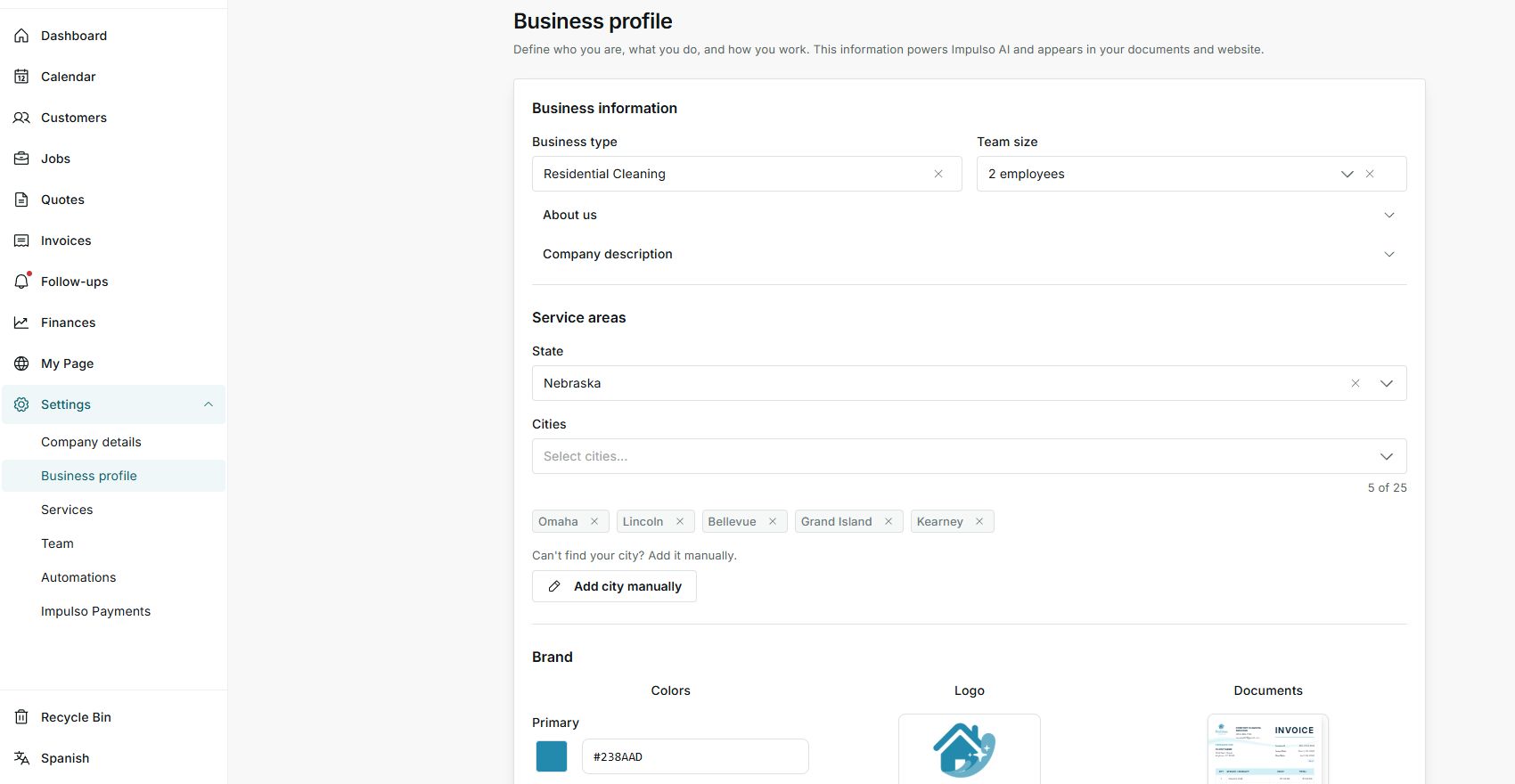
- Impulso Pro opens a Settings section and keeps the settings menu visible.
- Choose Company details, Business profile, Services, Team, Automations, or Impulso Pro Payments based on what you need.
2. Move between sections
- Use the submenu to move between settings sections without leaving the Settings area.
- Check the page title to confirm which section you are viewing.
- If you need Spanish, use the Spanish link at the bottom of the sidebar.
3. Review before saving
- Some sections only show information; others include a Save button.
- Before saving, review whether the change affects documents, payments, team access, or automations.
- If you do not want to keep a change, use Cancel or leave the section before saving.
States you may see
- Owner only
Options reserved for the account owner.
Next step: Ask the owner to make the change or review your role.
- No permission
Your role cannot open that section or action.
Next step: Request access if you need to work there.
- Requires setup
A required detail is missing before that area can be used.
Next step: Open the indicated section and complete what is needed.
- Connected / Not connected
An integration or service can be ready or pending.
Next step: Review the state before relying on that feature.