

Before you start
- This screen shows field-assigned work, not every office job.
- If you do not see jobs, there may be no assigned visits for the visible period.
- You do not need to change anything to review this list.
1. Open Field Jobs
- Go to Field > Jobs.
- Review the This week tab.
- Use Next 7 days to review upcoming work.
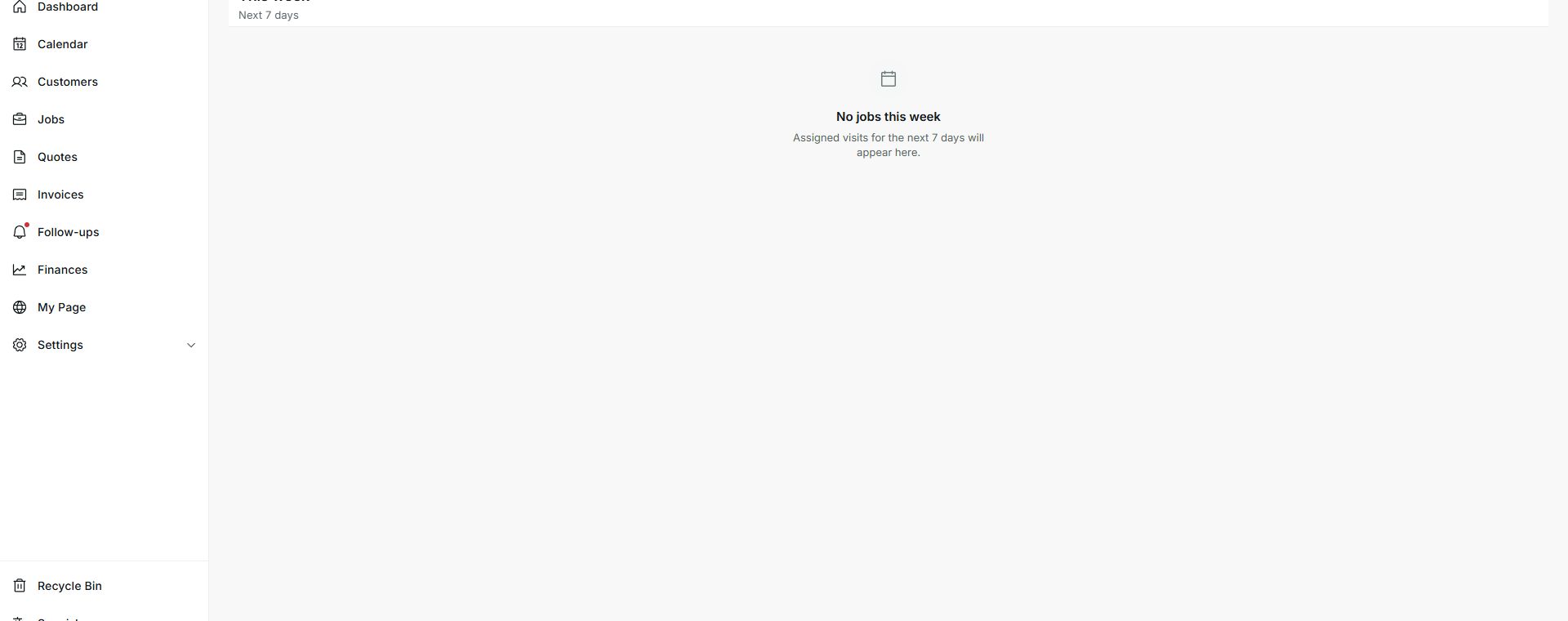
2. Understand the empty state
- No jobs this week means no visits are assigned for that period.
- When visits are assigned, they appear on this screen.
- If you expected to see a job, confirm the assignment from Calendar or Jobs.
Statuses and options you may see
- This week
Meaning: View of assigned visits for the current week.
Next step: Check here first during field work.
- Next 7 days
Meaning: View of upcoming work beyond today.
Next step: Use it to prepare ahead.
- No jobs this week
Meaning: No visits are assigned for the visible period.
Next step: Confirm assignments if you expected work.