

Before you start
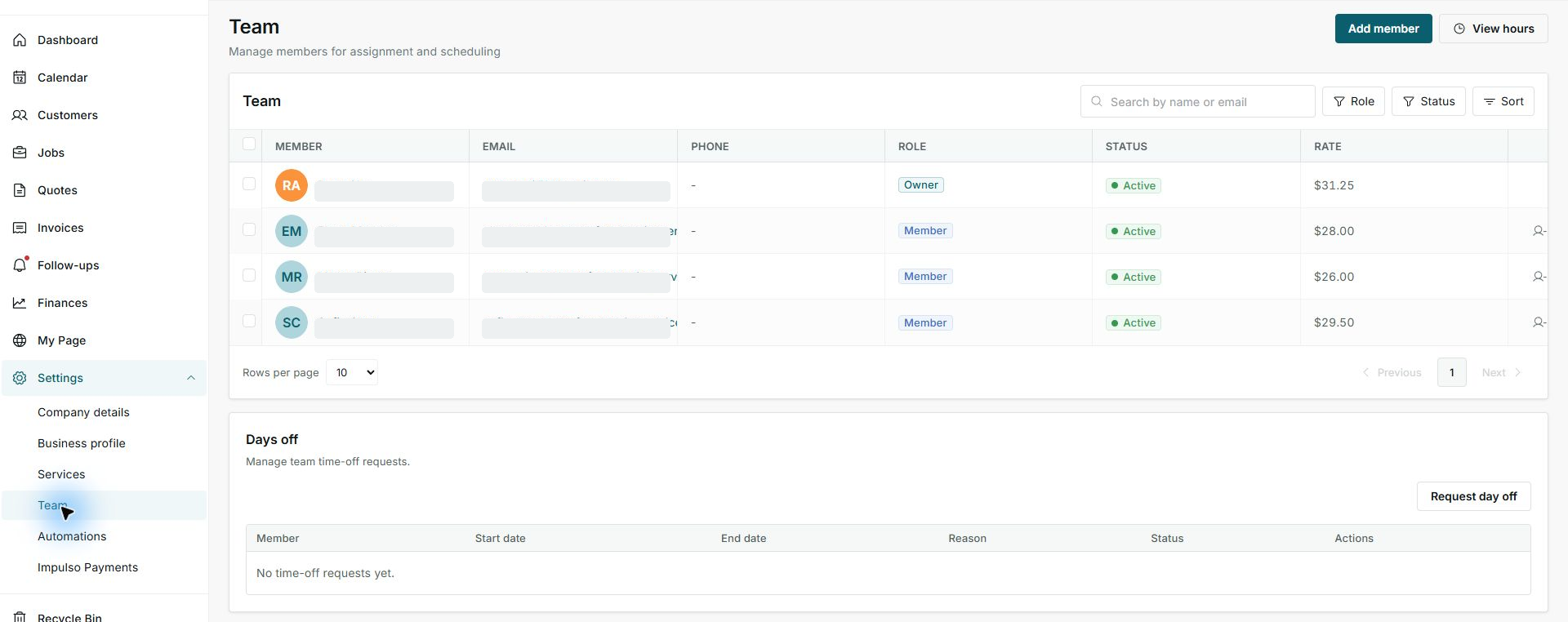
- Review roles from Settings > Team with an Owner/Admin account.
- Use Field for shifts, activities, and assigned jobs.
- Do not change roles, permissions, assignments, or schedules if you are only reviewing.
1. Review the role in Team
- Open Settings > Team.
- Find the Role column.
- Confirm whether the person is a Member, Admin, or Owner.
2. What to review in Field
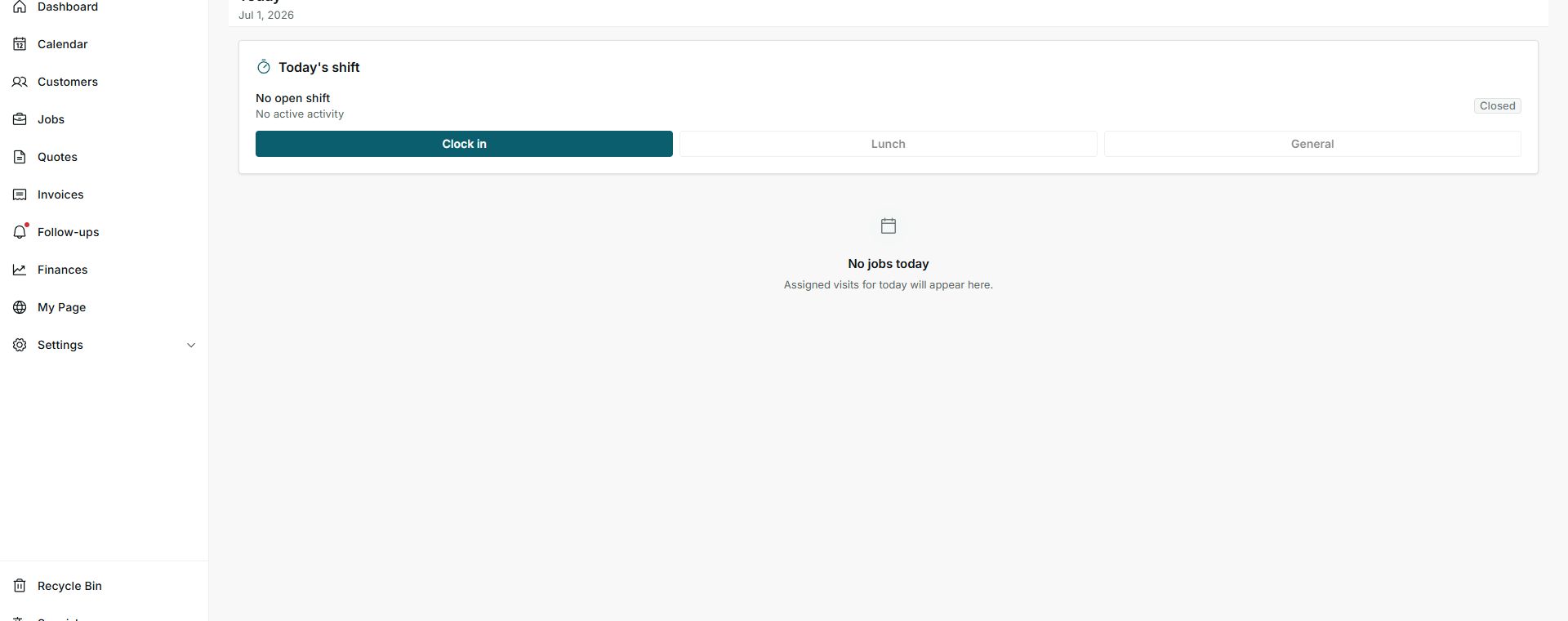
- In Field Today, review the shift and current activity.
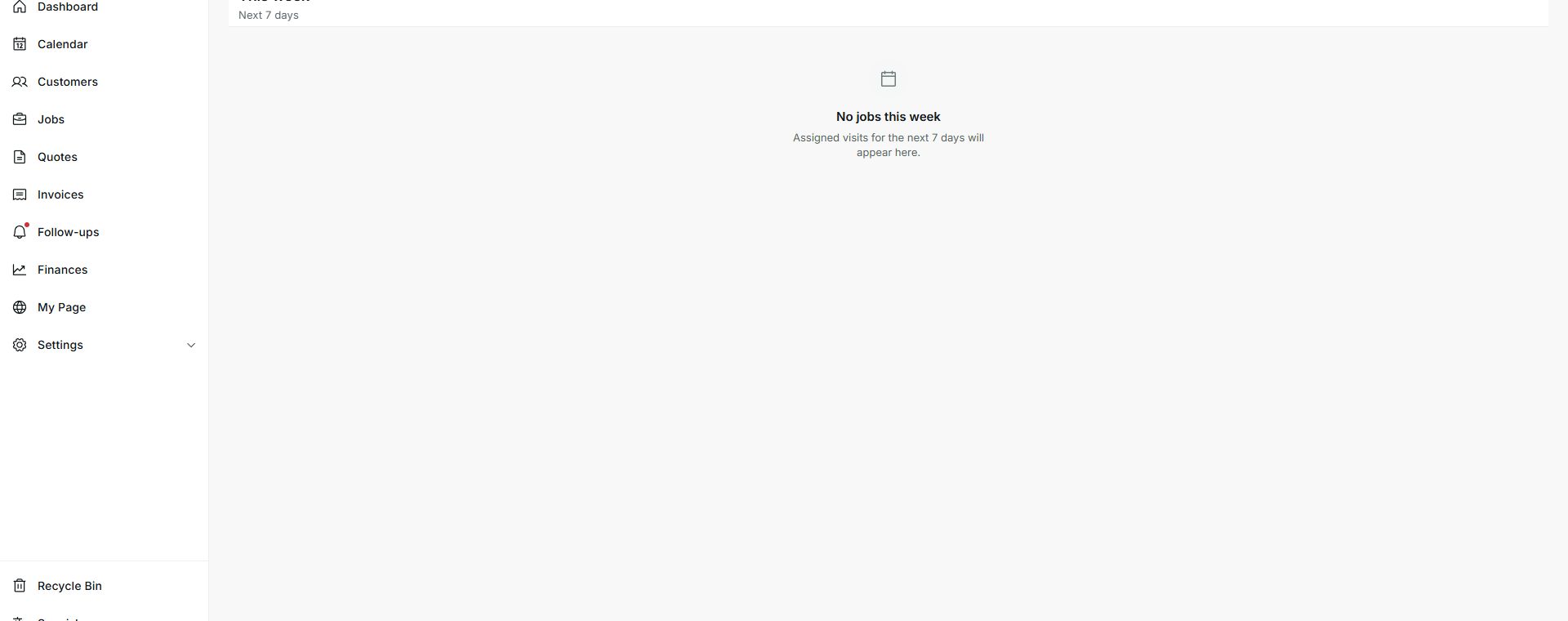
- In Field Jobs, review assignments by period.
- If jobs do not appear, confirm the date, visit, and assignment from the office workflow.
3. What Owner/Admin should review
- Role, hourly pay, and member status are reviewed in Team.
- Assignments, visits, and jobs are reviewed from the office workflows.
- Billing, finances, customers, and settings should be reviewed with an administrative role.
Statuses and options you may see
- Member
Means: The person works with assignments and operational tasks.
Next step: Use this role for field staff.
- No open shift
Means: The shift has not started.
Next step: Start the shift only when real work begins.
- No active activity
Means: Lunch, General, or another activity is not running.
Next step: Use an activity only when it matches the real work moment.
- Closed
Means: The shift is closed.
Next step: Review before starting the day.
- No jobs this week
Means: No visits are assigned for the visible period.
Next step: Confirm date and assignment.