

Before you start
- Know which services or materials you are quoting.
- Confirm prices, quantities, and whether tax applies for that customer or service.
- Use service names the customer will recognize, such as roofing, gutter replacement, or roof leak repair.
- Saving a quote creates or updates real information; review the summary before using Save.
1. Add service lines
- In the quote, go to the Service / Material table.
- Select the service or enter the line you want to quote.
- Use Add line when you need another service or material.
- The delete icon removes a line from the quote before saving.
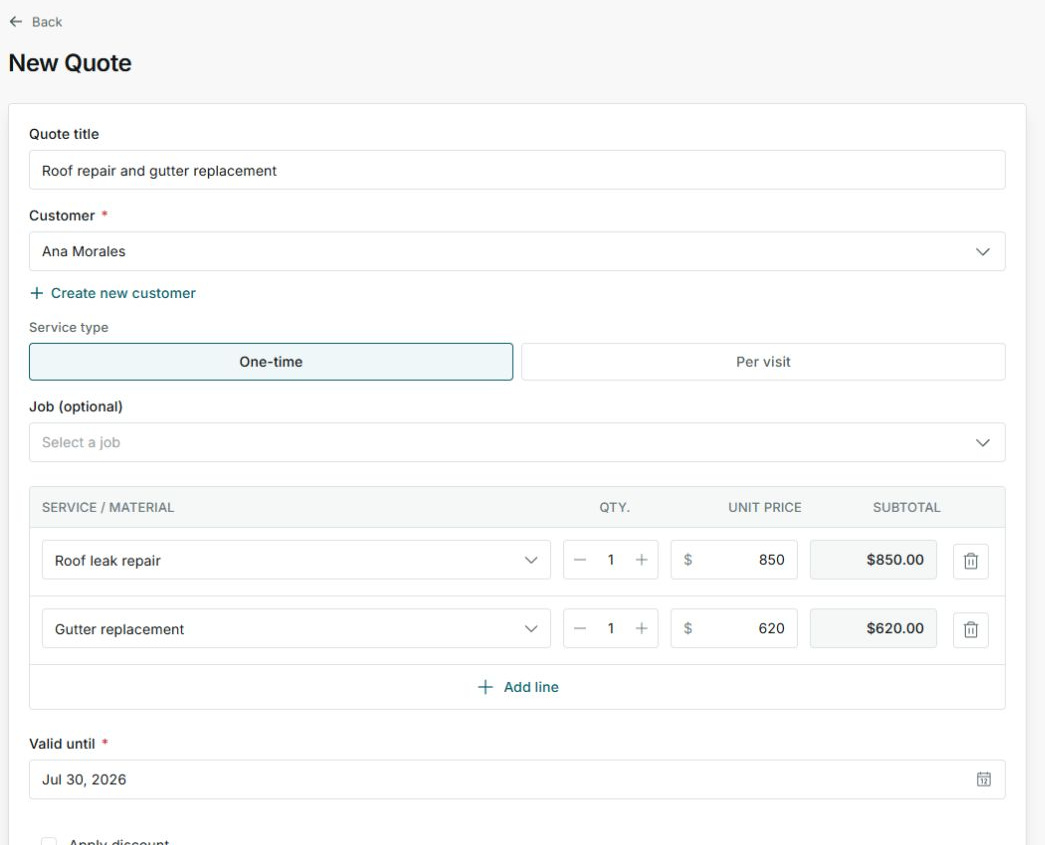
In this example, the quote includes roof leak repair and gutter replacement.
2. Review quantity, unit price, and subtotal
- Use Qty. to increase or decrease the quantity.
- In Unit price, confirm the price charged for that line.
- Review Subtotal on each row to confirm quantity and price calculate as expected.
- If you change quantity or price, review the quote summary again before saving.
3. Apply tax and discount
- Turn on Apply tax when the quote should charge tax.
- Enter the correct Tax rate before saving.
- Use Apply discount only when you are reducing the total for the customer.
- Before saving, check that the Discount and Tax lines in the summary show the right amounts.
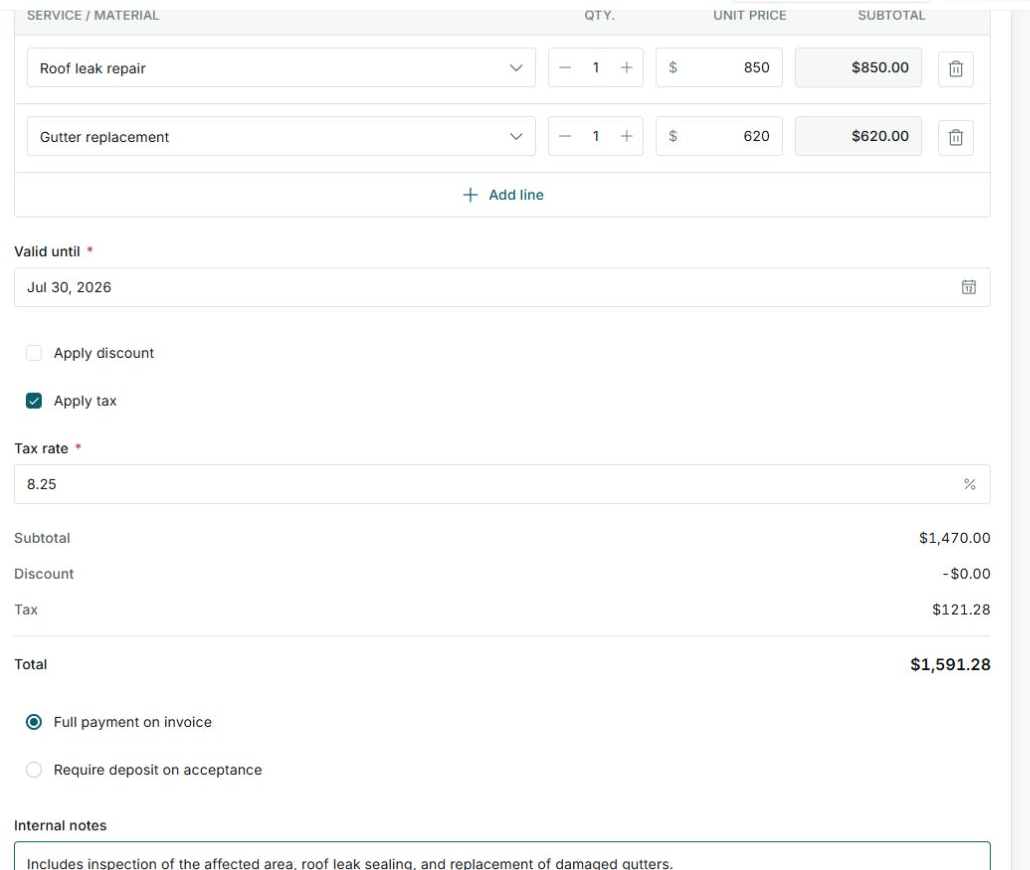
With an 8.25 rate, the $1,470.00 subtotal calculates $121.28 in tax and a $1,591.28 total.
4. Review payment and total
- Confirm Subtotal, Discount, Tax, and Total.
- Choose Full payment on invoice if the customer will pay the full amount when invoiced.
- Choose Require deposit on acceptance if you need to collect part of the amount when the quote is accepted.
- Use Internal notes for team context, not for wording the customer needs to approve.
5. States and controls you can see
Line and total controls help you review the quote before saving or sending it. If required information is missing, Impulso Pro will ask you to complete it before moving forward.