

Before You Start
- Confirm the base price before applying adjustments.
- Use the tax rate that matches your business and location.
- Internal notes are for your team, not a replacement for the customer message.
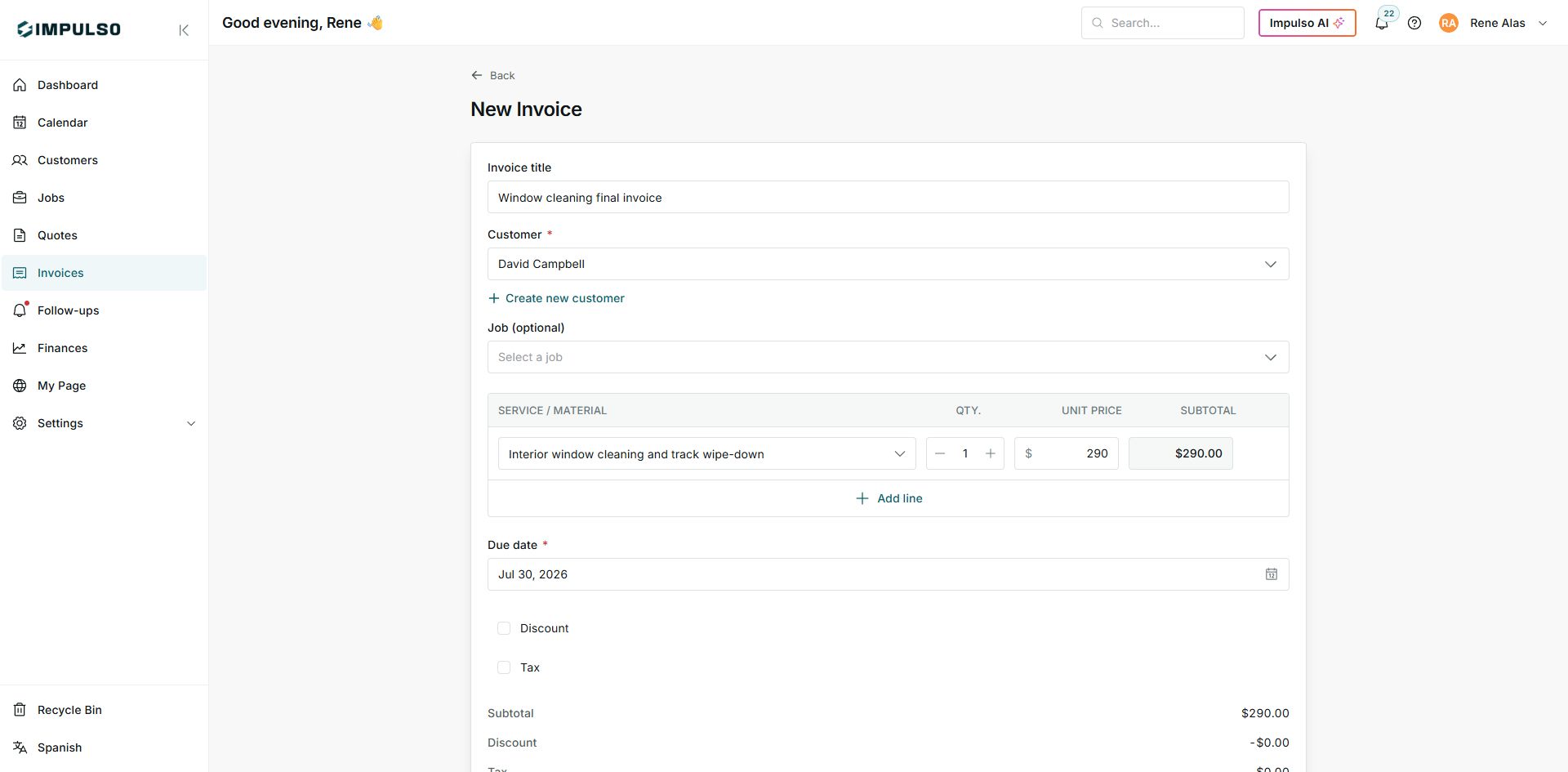
1. Review Lines
- Complete service, quantity, and unit price.
- Review the subtotal.
- Add more lines if the invoice includes several services.
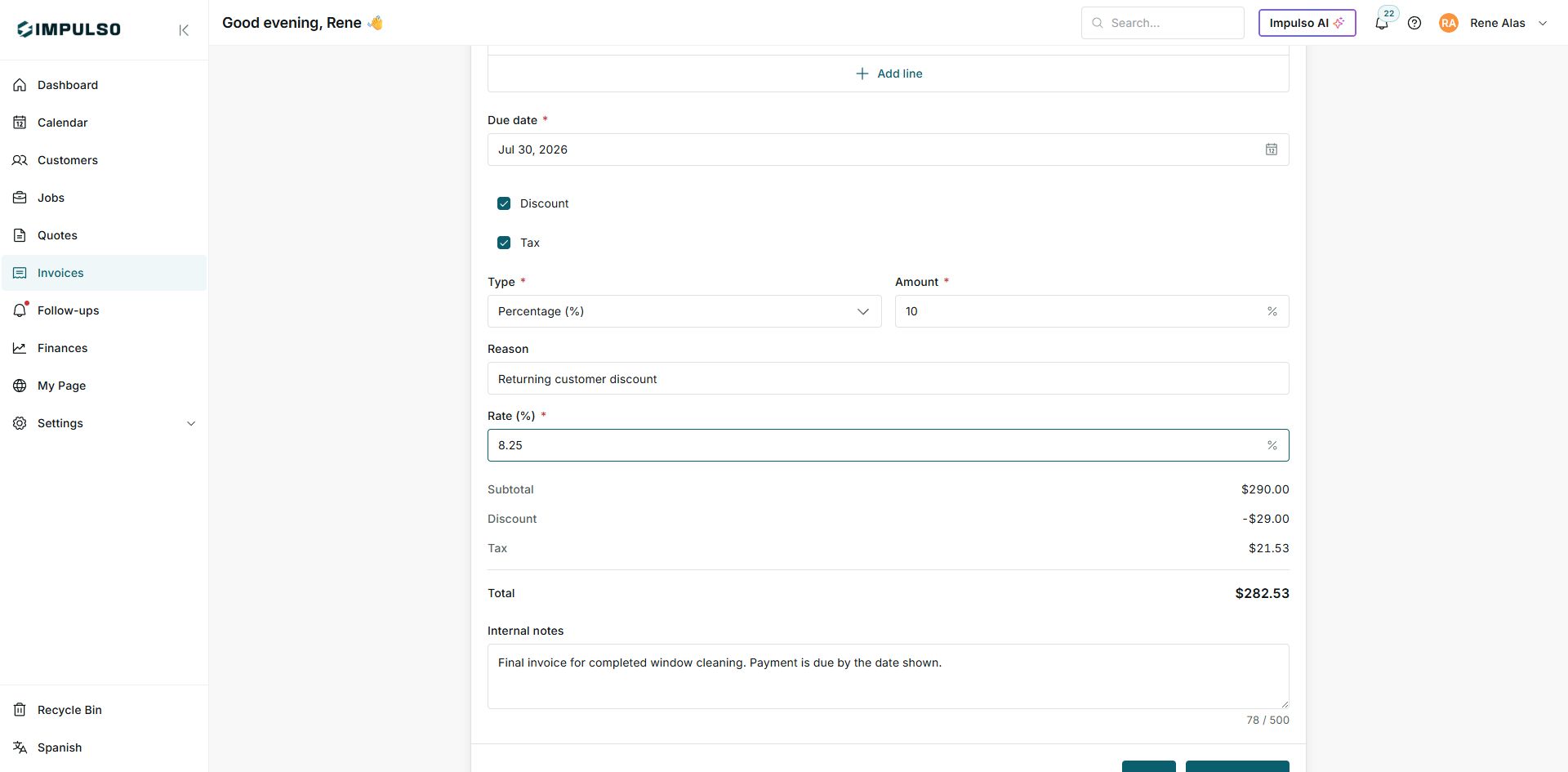
2. Turn On Discount and Tax
- Check Discount and enter amount and reason.
- Check Tax and enter the rate.
- Review subtotal, discount, tax, and total.
States You May See
- Discount
Meaning: Reduces the subtotal before the final total is calculated. Where it appears: Invoice form. Next step: Review type, amount, and reason. It does not mean: It does not mean the customer already approved the adjustment.
- Tax
Meaning: Adds tax to the total using the rate entered. Where it appears: Invoice form. Next step: Verify the rate and final total. It does not mean: It does not automatically configure tax reporting.
- Total
Meaning: The final amount calculated from services, discount, and tax. Where it appears: Bottom summary. Next step: Review it before saving or sending. It does not mean: It does not mean payment was collected.