

Before you start
- Open Impulso AI from the header and ask it to prepare an action for review.
- Read the recipient, subject, and message before using either decision button.
- If the card says Approve and send, approving sends the message to the customer.
1. Open the pending action
- Open Impulso AI and ask it to prepare the message, reminder, or change you need.
- Wait for the card to show Pending approval.
- Confirm the card belongs to the correct customer, document, or job.
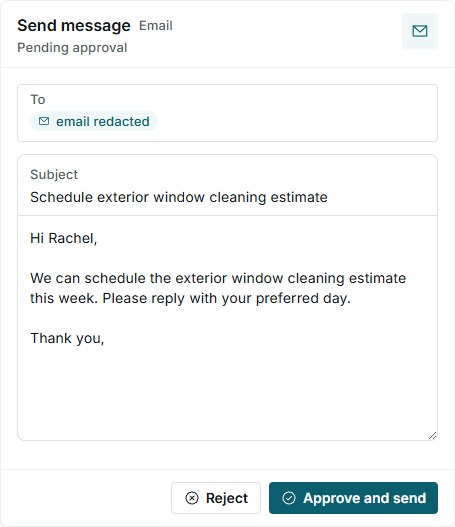
The card keeps the action on hold until an Owner or Admin decides what to do.
2. Review and adjust the content
- Review To to confirm who will receive the message.
- Read the Subject and the full message body.
- If the text needs changes, edit the subject or message directly inside the card before deciding.
3. Reject or approve
- Click Reject if the message should not be sent or the information is not right.
- Click Approve and send only when the recipient, subject, and message are ready.
- After approving, review the conversation to confirm the action was completed.
Statuses and options you may see
Meaning: Impulso AI prepared the action, but it has not been sent or applied yet.
Next step: Review the content and decide whether to approve or reject it.
Meaning: The prepared action is an email message.
Next step: Review the recipient, subject, and message.
Meaning: The prepared action should not continue.
Next step: Use this when the message is incomplete, goes to the wrong customer, or needs to be rewritten.
Meaning: The message is ready to send to the customer.
Next step: Use it only after reviewing all content.
Meaning: The approved action has finished.
Next step: Check the history if you need to confirm what happened.
Meaning: The action could not finish.
Next step: Review the error message and prepare the action again if needed.