

Before you start
- Have an existing job for the customer. A job visit is scheduled inside that job.
- Decide whether the visit needs an exact time or can be marked Any time.
- Choose the team member who should go onsite and add useful job instructions.
- Create visit creates a real calendar record; review everything before using it.
1. Open a new visit
- Go to Calendar.
- Click New.
- Choose Visit to schedule another site visit for an existing job.
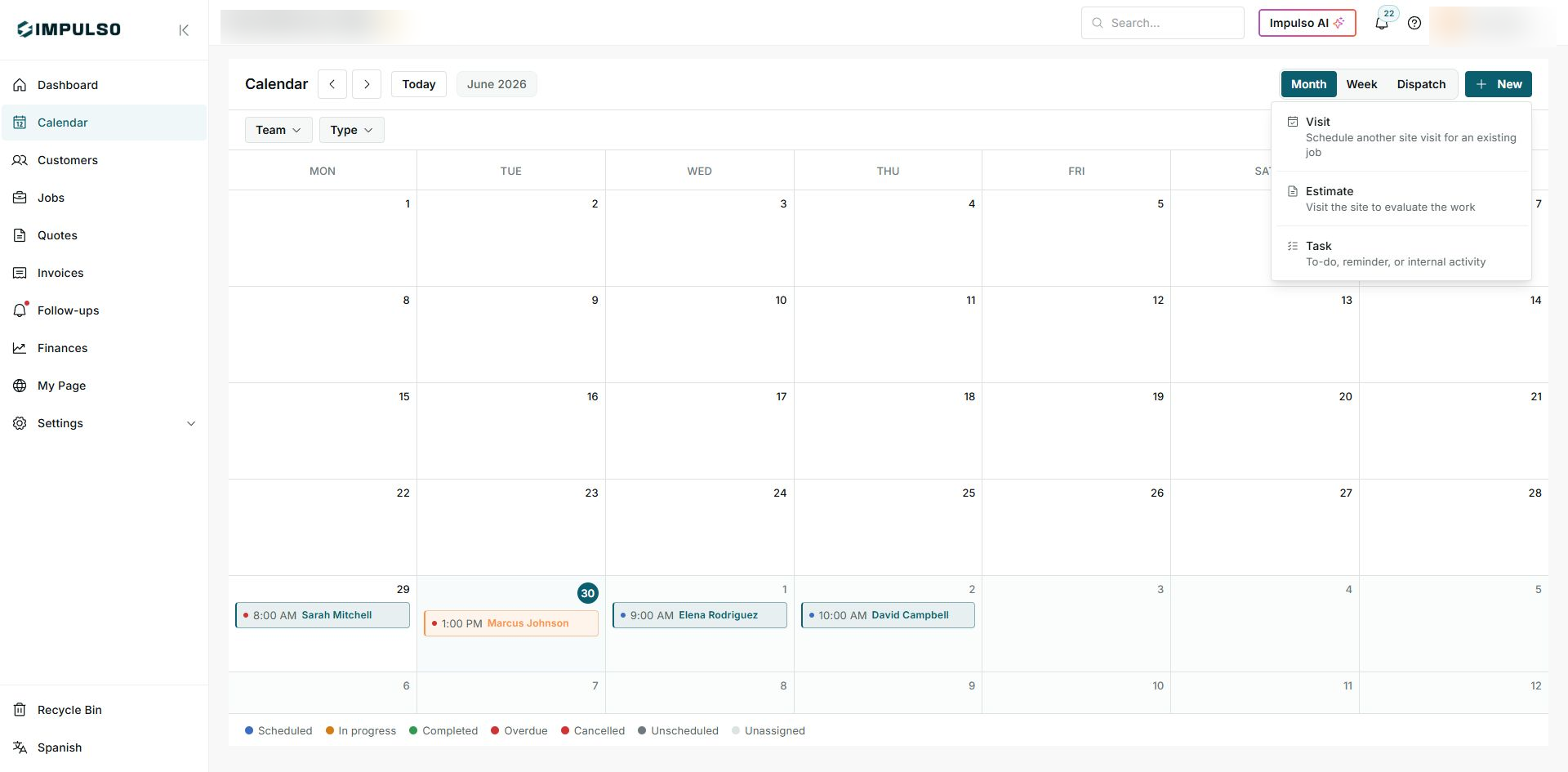
Use Visit when the job already exists and you only need to schedule or assign a field visit.
2. Complete job and schedule
- In Job, select the correct job.
- Confirm the date.
- Use start and end time if the team needs an exact window.
- Choose Any time if the team can complete the visit during the day without a fixed hour.
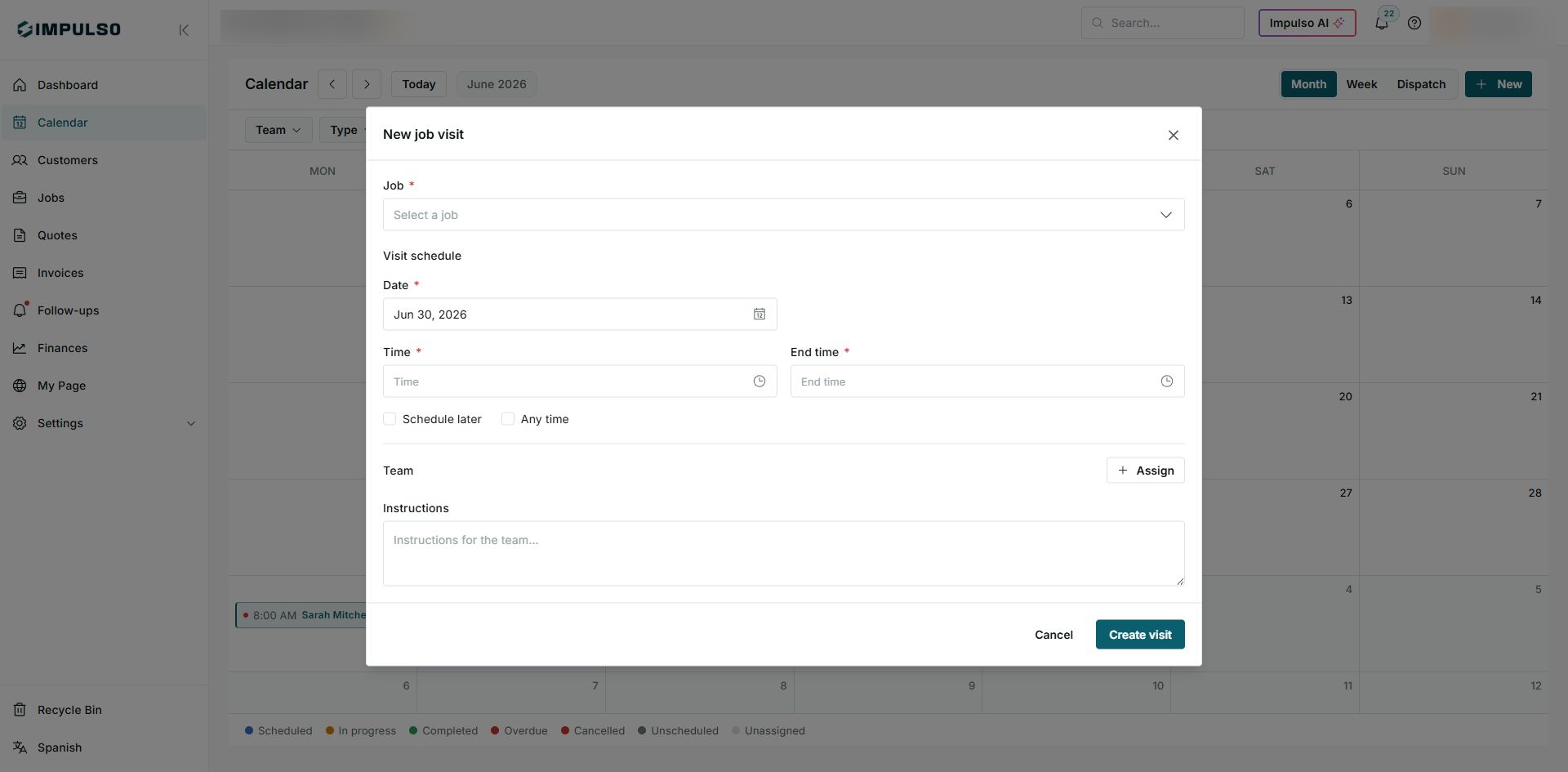
The form separates job, schedule, team, and instructions so the visit is not missing important context.
3. Assign the team
- Under Team, click Assign.
- Search for or select the team member who will go onsite.
- If you select the wrong person, use Remove and choose again.
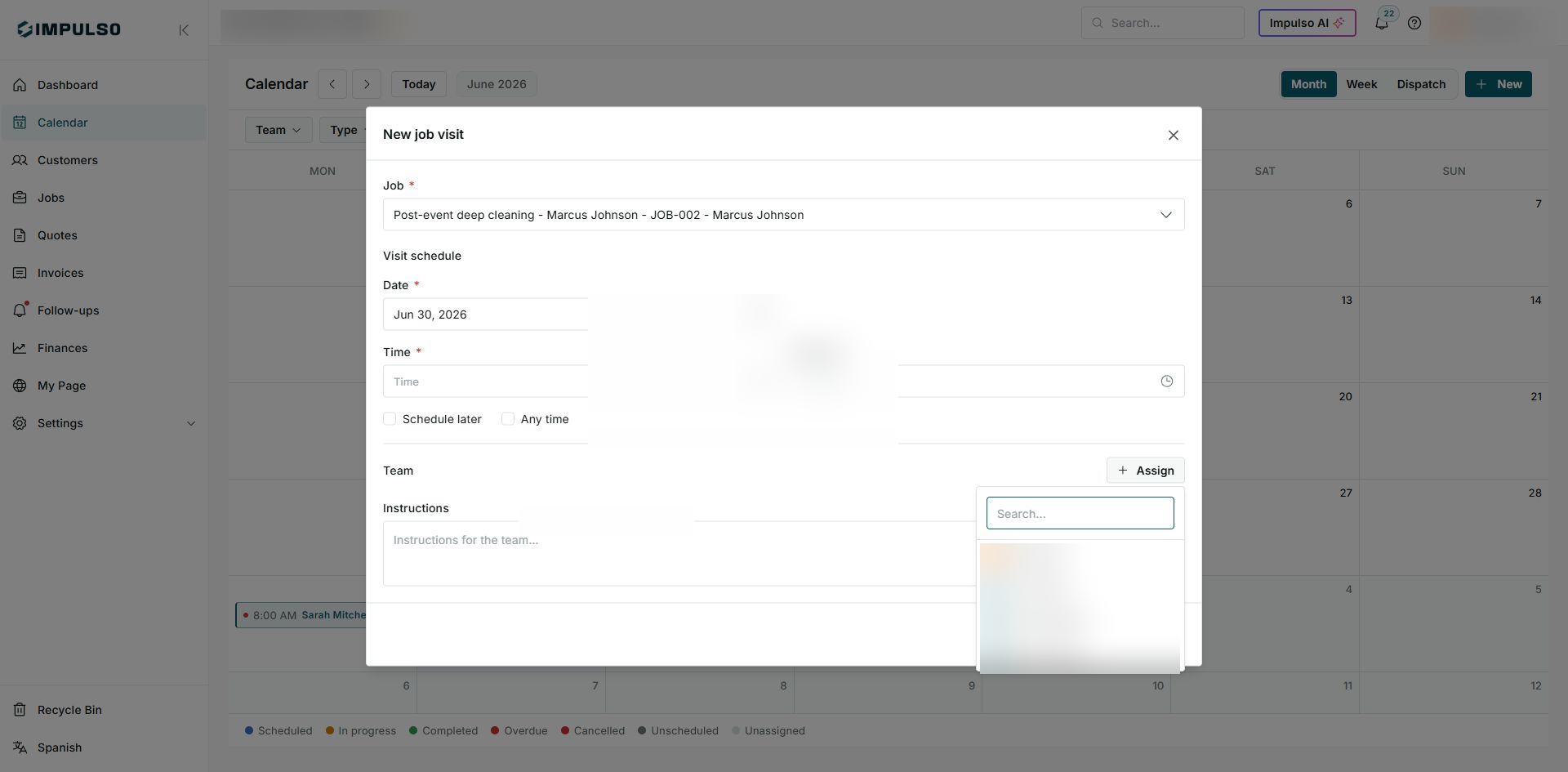
Assigning the team prepares the visit, but it is not created until you use Create visit.
4. Add instructions and review
- Add specific field instructions such as equipment, access, or job notes.
- Review job, date, schedule, team, and instructions.
- Use Create visit only when you are ready to put the visit on the calendar.
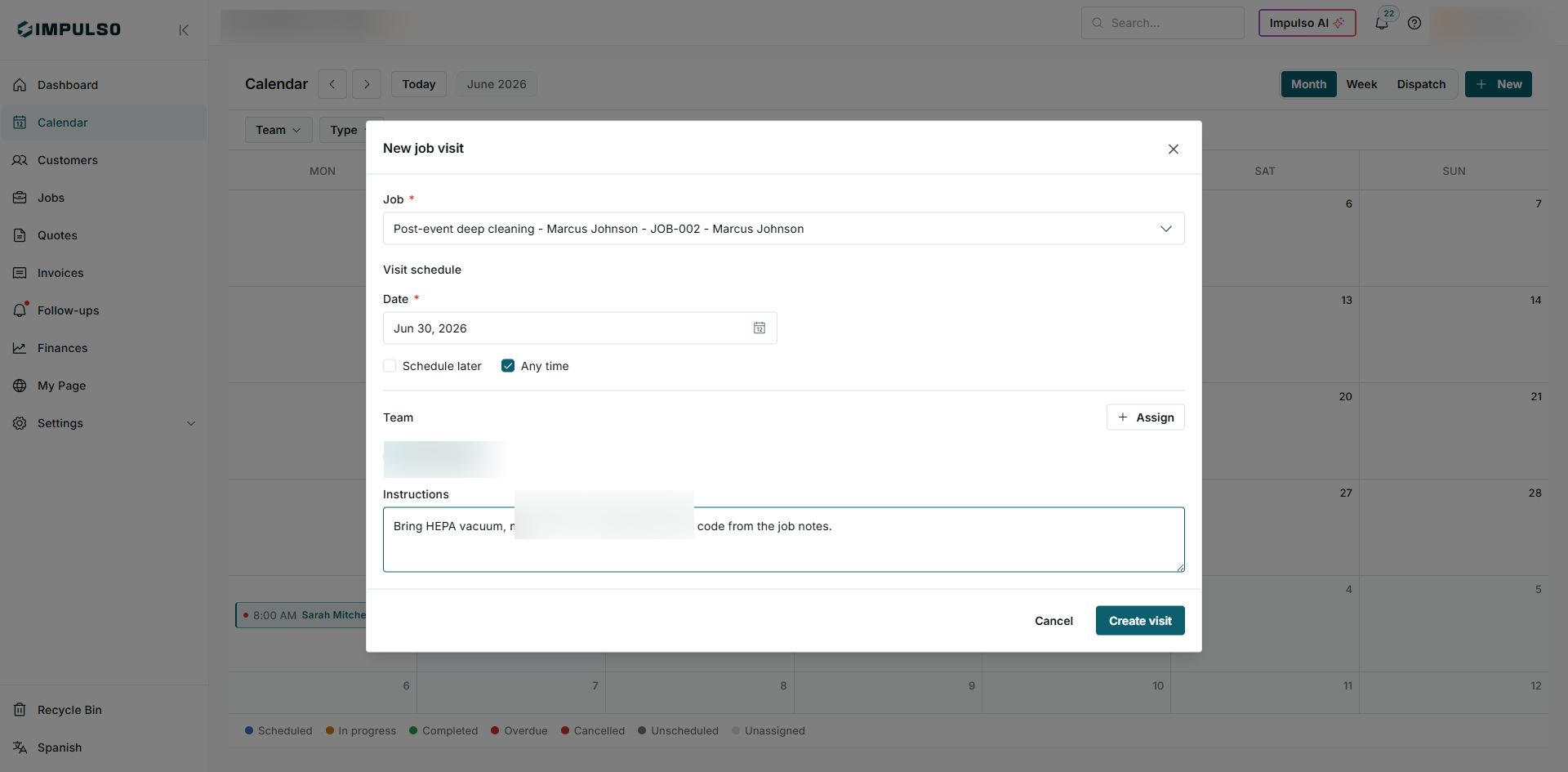
Instructions help the field team arrive prepared without reviewing the full job before heading out.
5. States and controls you may see
These controls show whether the visit is ready to create or still missing information.