

Before you start
- Have your business logo and colors ready.
- Do not save changes when you are only reviewing.
- Review invoice and quote views before applying the design.
1. Choose a template
- Go to Settings > Business profile > Documents.
- Select a visual template for invoices and quotes.
- Review the preview before saving.
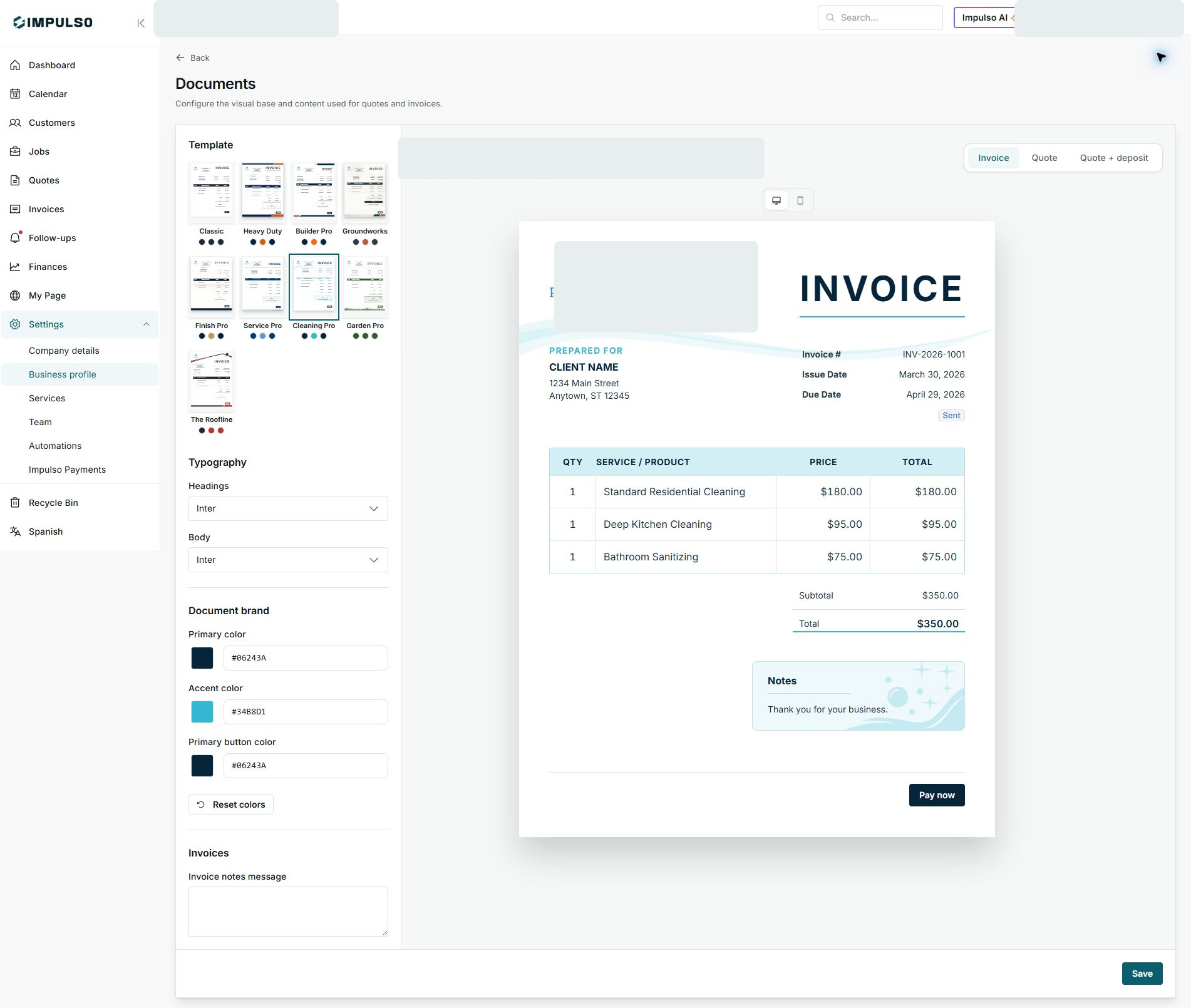
2. Change fonts
- Use Headings for important document headers.
- Use Body for regular document text.
- Keep fonts easy for customers to read.
3. Adjust colors
- Change primary color, accent color, and primary button color.
- Confirm the Pay now button is still clear.
- Save only when the preview looks right.
States and options you may see
- Save
Means: Applies visual changes.
Next step: Use it only when you are done reviewing.
- Reset colors
Means: Returns to base colors.
Next step: Use it if you want to start over.
- Invoice
Means: Shows the invoice preview.
Next step: Review how it will look to the customer.