

Before You Start
- Sign in to the Impulso Pro business you want to review.
- Find the bell in the upper-right area of the app.
- The number next to the bell shows updates waiting for your review.
1. Open the Notifications Panel
- From any main Impulso Pro screen, go to the upper-right area.
- Click the bell.
- Review the panel that opens under the bell.
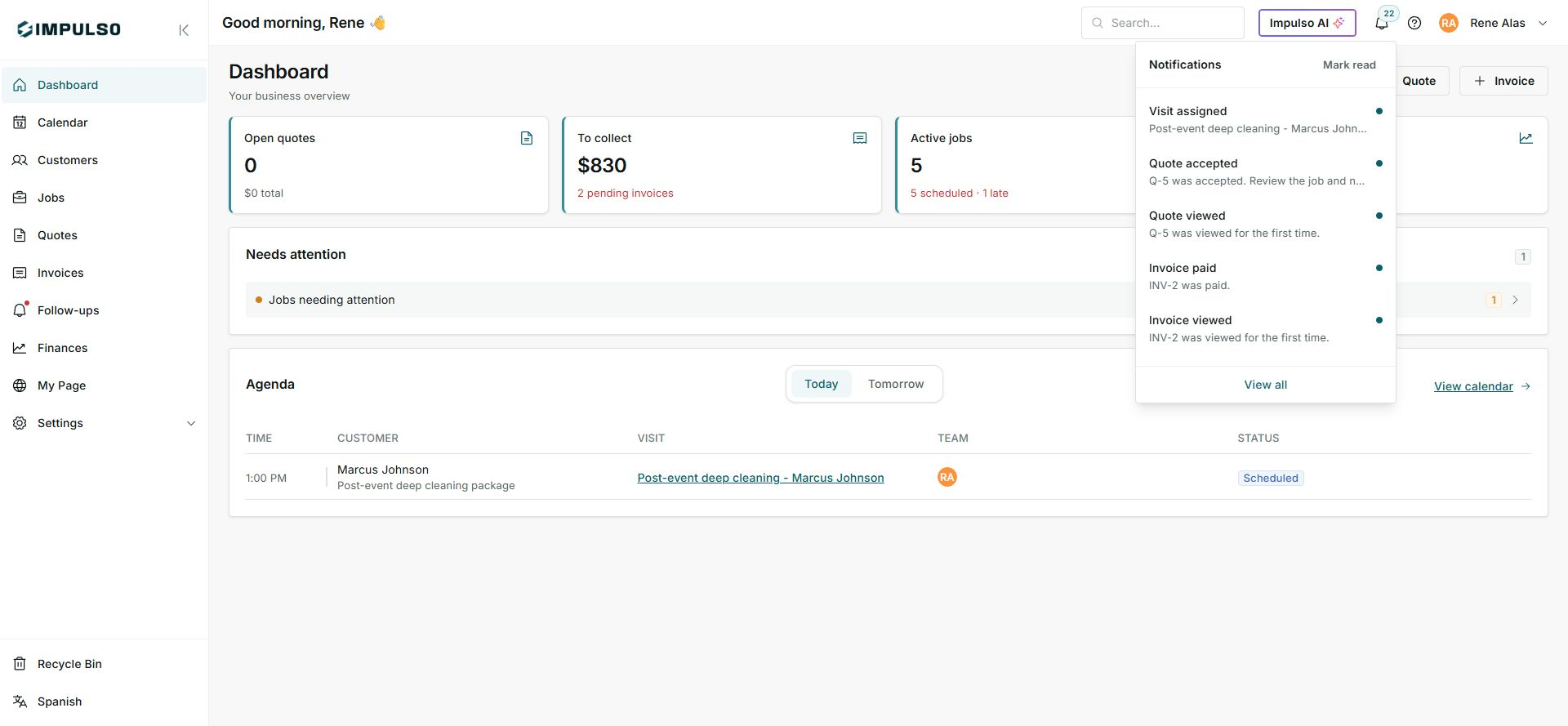
The panel shows the latest updates without moving you away from the current screen.
2. Read Each Update
Each update includes a type, a short detail, and, when relevant, the customer, visit, quote, or invoice it belongs to.
- Visit assigned: a team member received or has a related visit.
- Quote accepted: a customer accepted a quote, so the next step should be reviewed.
- Quote viewed: the customer opened the quote for the first time.
- Invoice paid: an invoice appears as paid.
- Invoice viewed: the customer opened the invoice for the first time.
3. Use Quick Actions
- Use Mark read when you have reviewed the updates in the panel.
- Use View all to open the full notifications center.
- If an update requires work, open the related item before marking everything as read.
Mark read only changes those updates to reviewed. It does not complete jobs, collect invoices, or reply to customers.
4. States You May See
Notifications change state depending on whether they have already been reviewed.
- Unread
Meaning: the update still needs review. Where it appears: as a dot next to the update and it may be included in the bell count. Next step: open or review the update. It does not mean: the job is late.
- New
Meaning: the update was created recently or has not been reviewed yet. Where it appears: as the bell count or a visual attention signal. Next step: read it and decide whether action is needed. It does not mean: there is an emergency.
- Read
Meaning: the update has already been reviewed. Where it appears: without the unread dot or outside the pending count. Next step: use the notifications center if you need the history. It does not mean: the related job, payment, or follow-up is complete.
5. If You Do Not See the Bell or Expected Update
- Confirm that you are in the correct business.
- Check whether the update was already marked as read.
- Open View all to look for older updates.
- If you expected a payment, quote, or visit update and it is missing, review the related item first.