

Before you start
- Use simple, concrete instructions so AI follows the same judgment as your business.
- Do not save changes if you are only reviewing how the screen works.
- Include real services from your market, such as roofing, gutters, HVAC, exterior painting, or house cleaning, when they are part of your operation.
1. Open Impulso AI settings
- Go to Settings > Impulso AI.
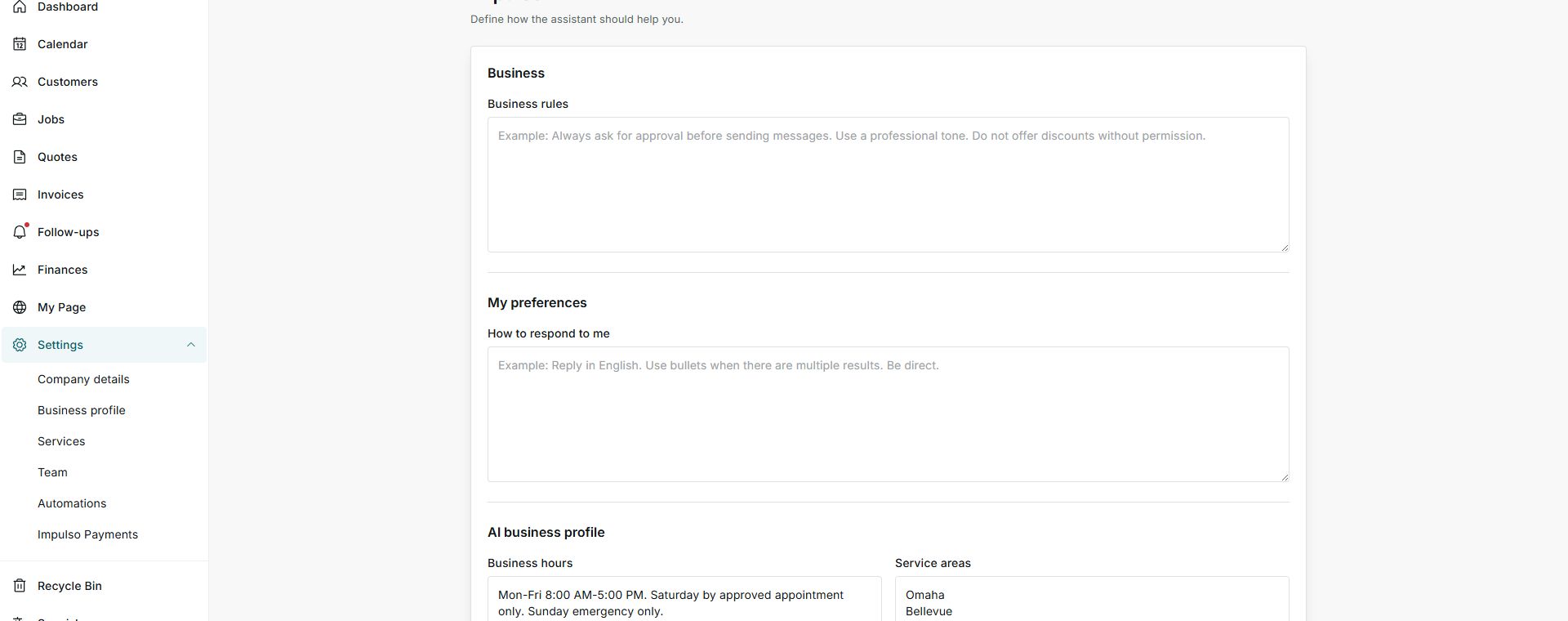
- Review Business, My preferences, and AI business profile.
- Read the examples inside each field before writing your own rules.
2. Write useful rules
- In Business rules, add limits such as asking for approval before sending messages or not offering discounts without permission.
- In How to respond to me, say whether you prefer English, bullet summaries, or a direct tone.
- In the profile, review business hours, service areas, and services offered so responses use the right context.
3. Save only when you are ready
- Read the instructions as if they were for a new employee.
- Confirm they do not include private details you do not want used in responses.
- Click Save instructions only when you want to apply the changes.
Statuses and options you may see
- Business rules
Meaning: General instructions for how AI should act.
Next step: Write rules that apply to quotes, invoices, visits, and messages.
- My preferences
Meaning: How you want AI to respond to you.
Next step: Define language, format, and working tone.
- AI business profile
Meaning: Business details that help prepare responses and drafts.
Next step: Keep hours, areas, and services current.
- Save instructions
Meaning: Applies the instructions you wrote.
Next step: Use it only after reviewing the content.