

Before you start
- Have the customer, job title, services, quantities, and prices ready.
- If the customer does not exist yet, you can create the customer from the quote form.
- Use service names the customer will recognize, such as roofing, gutter replacement, or roof leak repair.
- Saving creates a real draft; review the summary before using Save.
1. Open the form
- Go to Quotes.
- Click Create quote.
- Select the customer or use Create new customer.
- Enter a clear title, such as the main job or service.
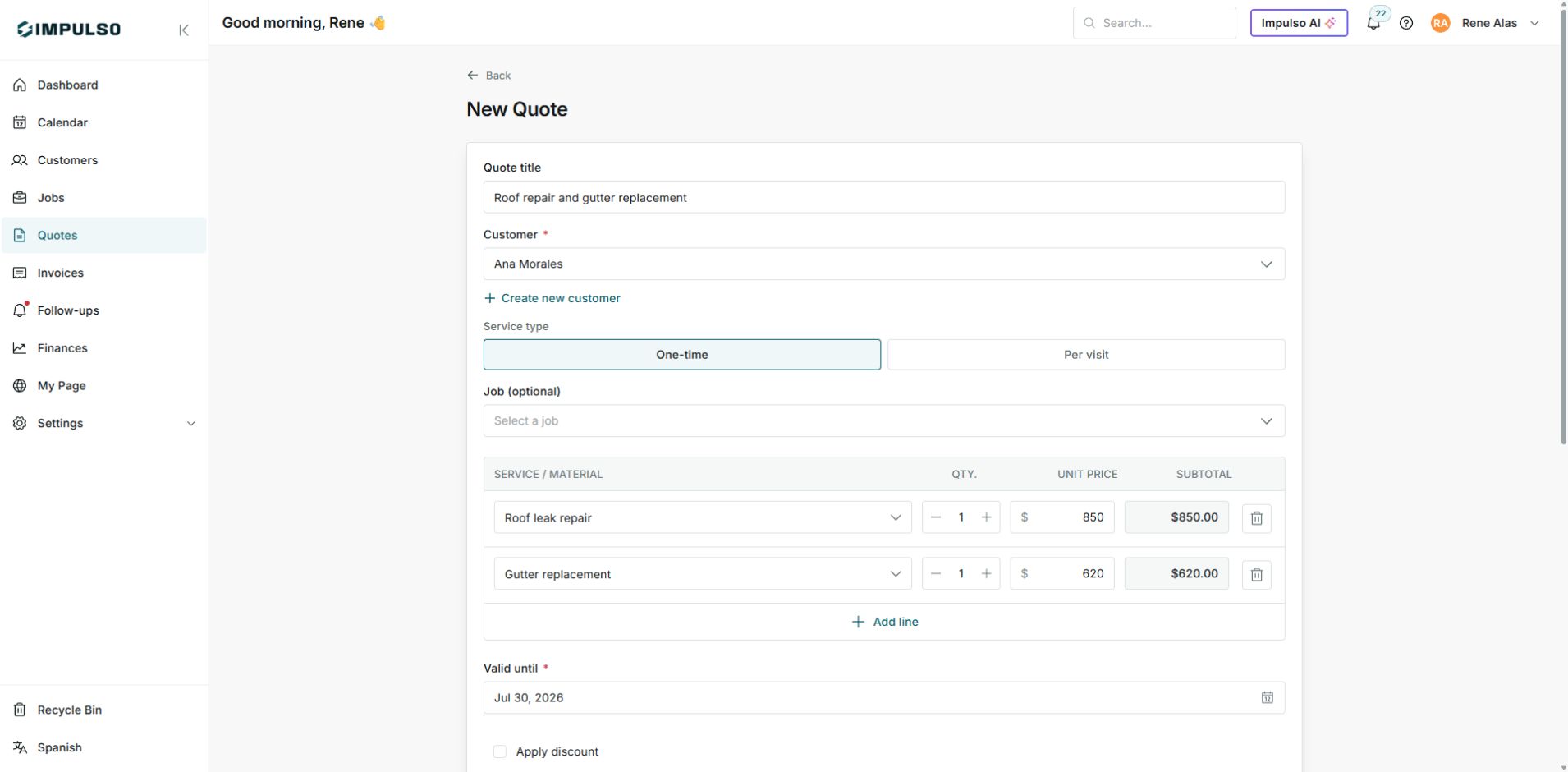
The quote header brings together customer, title, service type, and basic quote details before you add lines.
2. Add services and tax
- Add each service or material as a separate line.
- Confirm quantity and unit price for each line.
- Use Add line if you need another service.
- Turn on Apply tax and enter the rate if the job should charge tax.
- Review subtotal, discount, tax, and total.
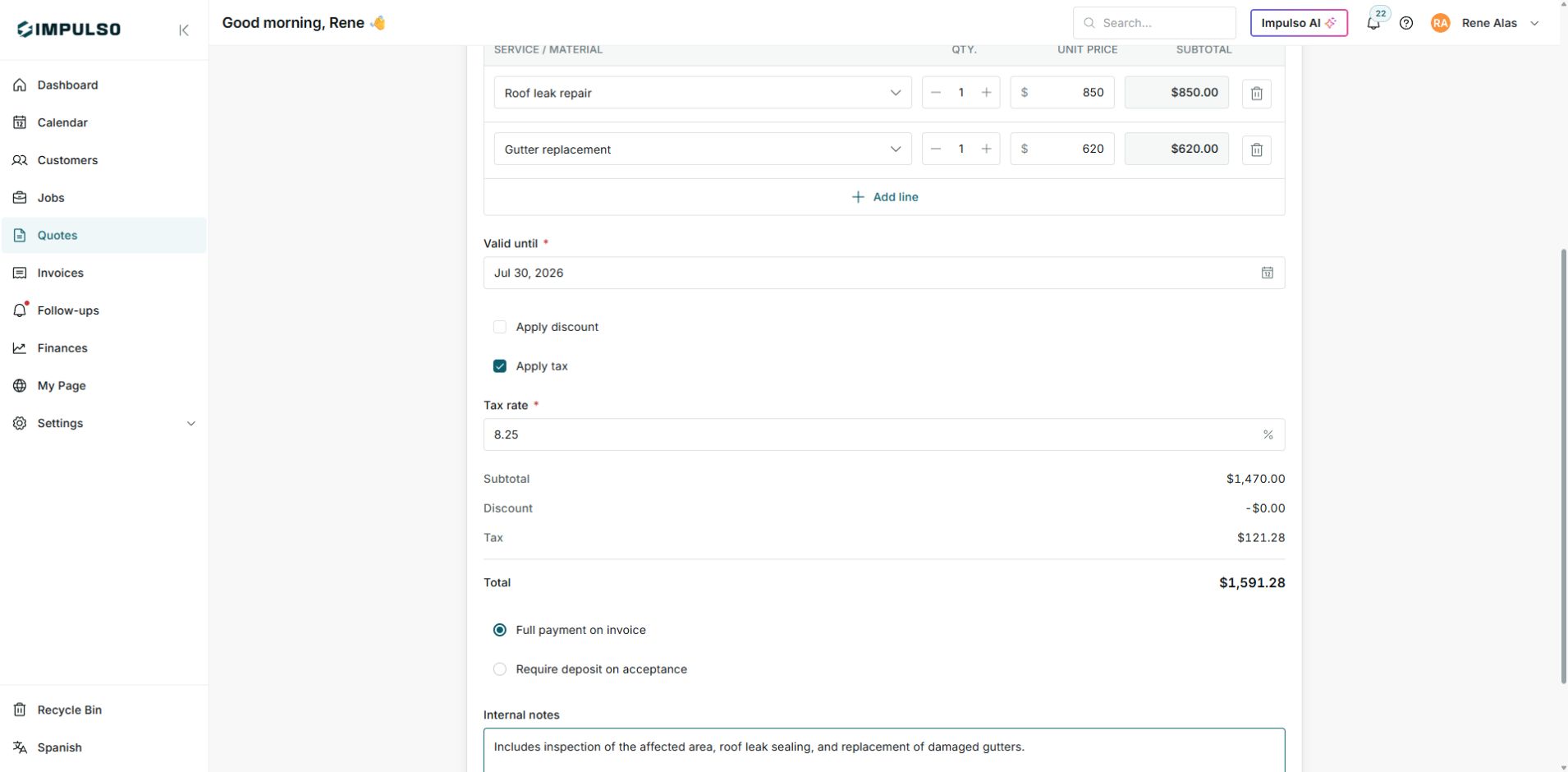
In this example, the summary calculates the total after services and tax are added.
3. Save as a draft
- Review customer, title, lines, tax, notes, and total.
- Click Save.
- Confirm that Impulso Pro opens the saved quote detail.
- Verify the quote number and the Draft status.
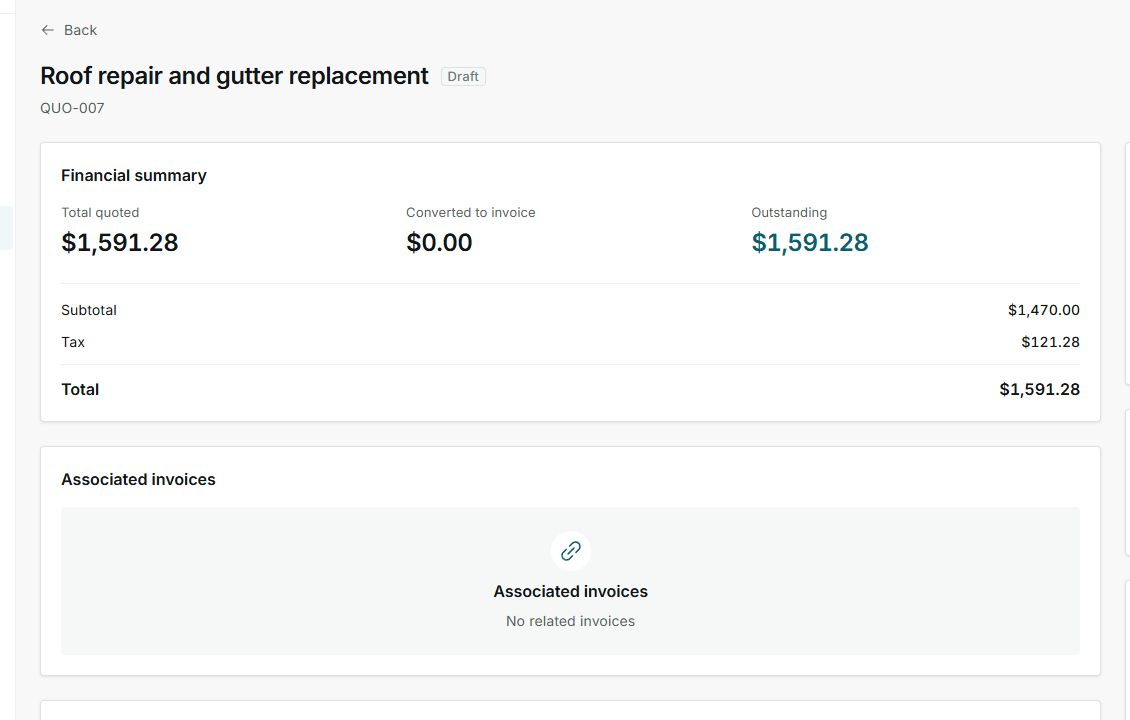
A saved quote stays in Draft until you send it to the customer.
4. What to review after saving
- Review the financial summary: total quoted, converted to invoice, and outstanding amount.
- Confirm there are no associated invoices if you only created the draft.
- Use Edit if you need to correct details before sending.
- When the draft is ready, follow the flow to send the quote to the customer.
5. States and controls you can see
The quote starts as a draft. Other states appear after sending, when the customer opens or responds to the quote, or when the work moves toward invoicing.