

Before you start
- Have the customer, optional job, services, and prices ready.
- If the customer does not exist yet, you can create the customer from the quote form.
- If you apply tax, confirm the tax rate before saving.
1. Create the quote
- Go to Quotes and click Create quote.
- Enter a clear title for the work.
- Select the customer or use Create new customer.
- Choose whether the service is One-time or Per visit.
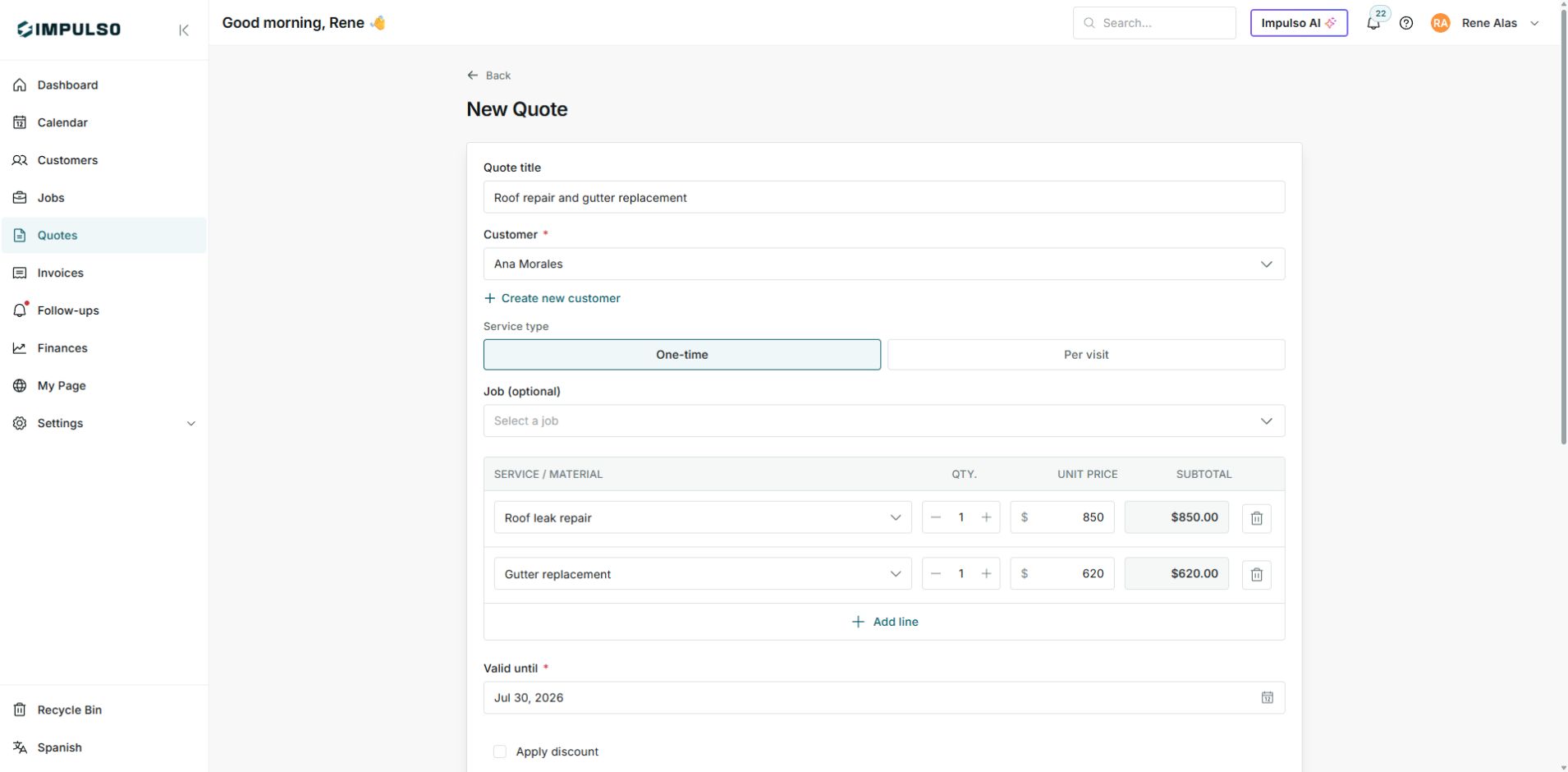
New quote form with customer, service type, and service lines.
2. Add services, tax, and total
- Add each service or material on its own line.
- Adjust quantity and unit price.
- Click Add line if you need more services.
- Turn on Apply tax and enter the rate when needed.
- Review subtotal, tax, and total before saving.
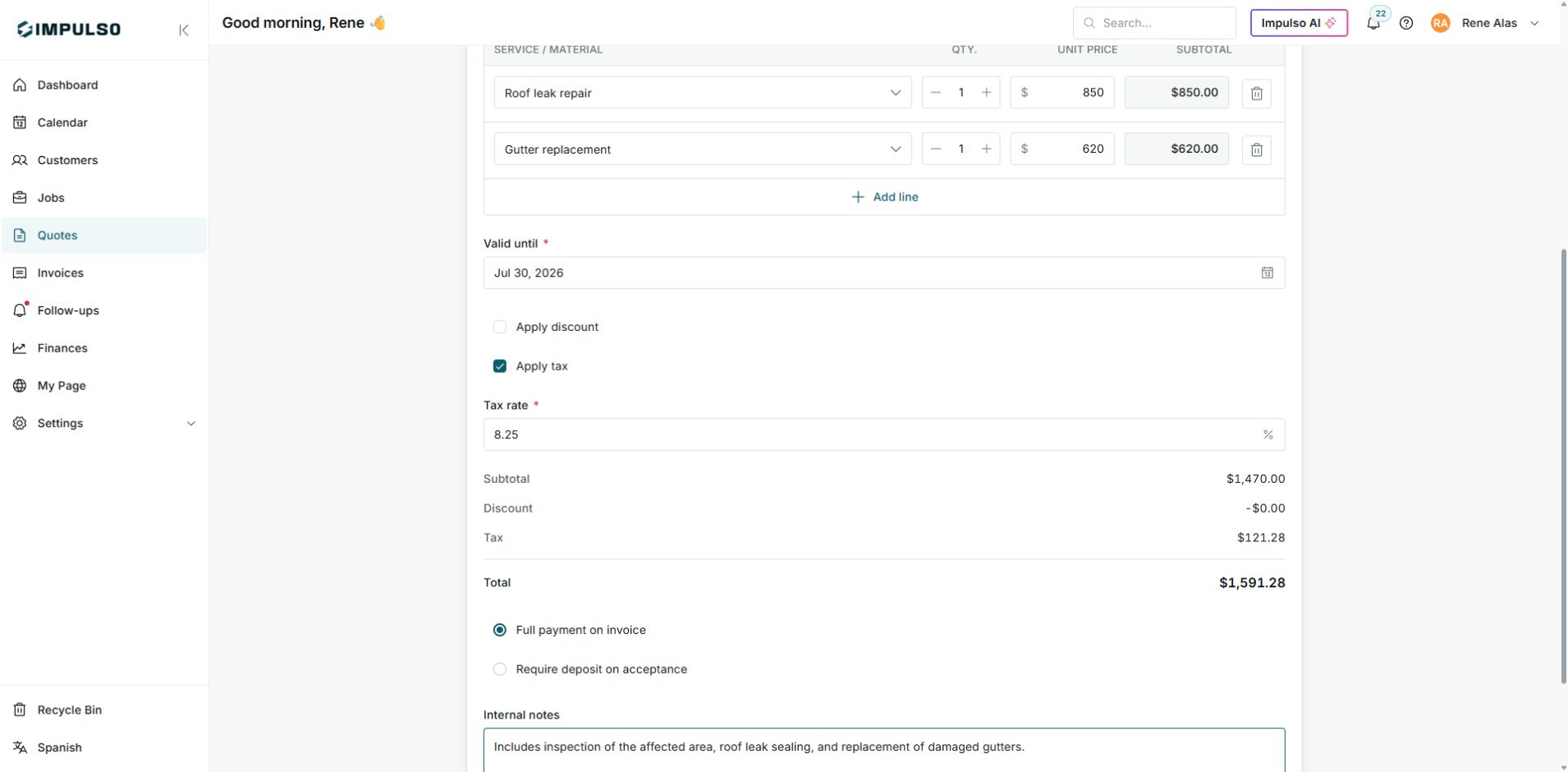
Impulso Pro calculates the total as you add services and a tax rate.
3. Save and review
- Click Save.
- Review the quote number, status, and financial summary.
- If you need to correct something before sending, click Edit.
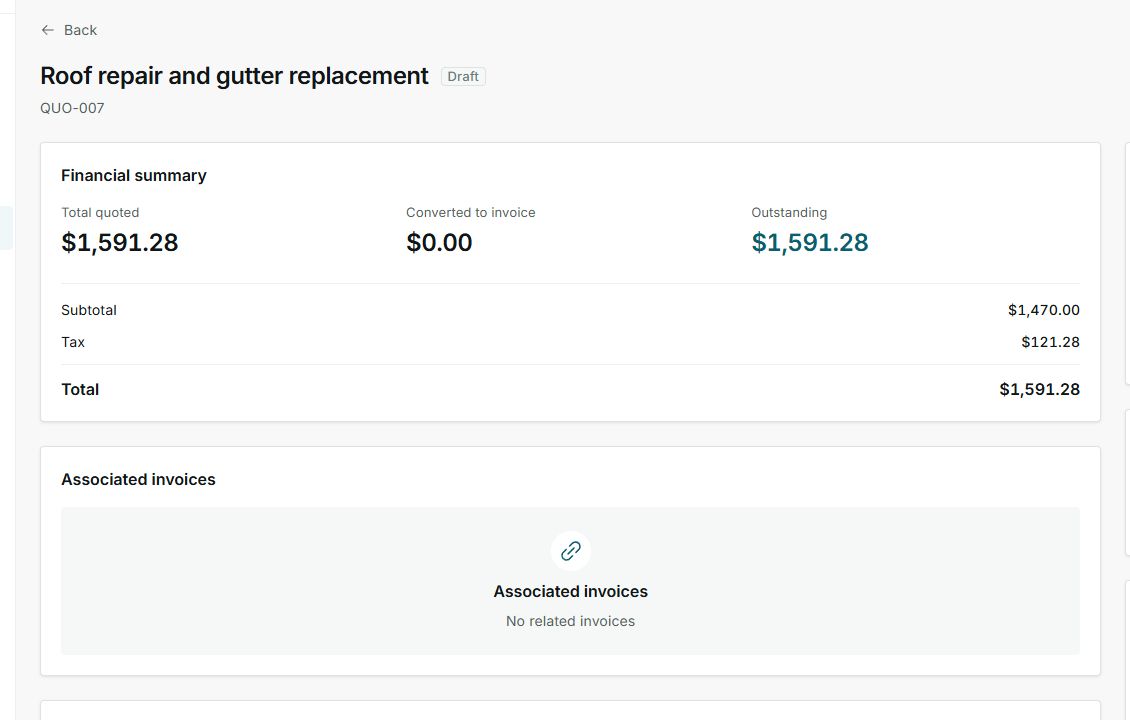
A newly saved quote stays in Draft until you send it.
4. Send to the customer
- From the quote detail page, click Send.
- Select Email.
- Review the recipient, subject, and message.
- When everything is correct, click Send email.
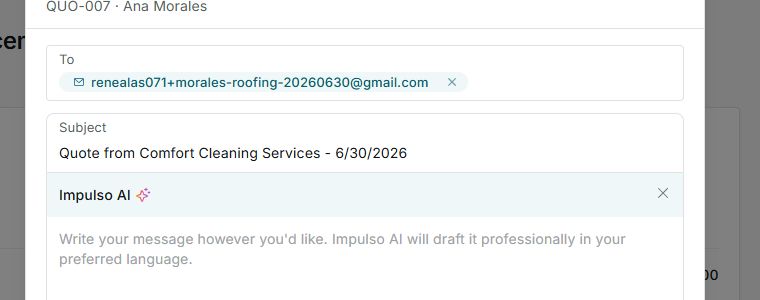
Before sending, confirm that the recipient and subject are correct.
5. States you may see
Quote states show where the quote is in the customer workflow and what should happen next.
- Draft
Means: the quote has not been sent yet. Next: review and send. Does not mean: the customer can already view it.
- Sent
Means: the quote was sent. Next: wait or follow up. Does not mean: the quote was accepted.
- Viewed
Means: the customer opened the quote. Next: follow up. Does not mean: approval.
- Changes requested
Means: the customer asked for edits. Next: review and resend. Does not mean: a final rejection.
- Accepted
Means: the customer approved the quote. Next: convert or manage the job. Does not mean: it has already been invoiced.
- Rejected
Means: the customer rejected the quote. Next: decide whether to create a new version. Does not mean: the customer was deleted.
- Expired
Means: the valid-until date passed. Next: renew or create a new quote. Does not mean: the customer rejected it.
- Converted
Means: the quote has been converted to a job. Next: manage the job. Does not mean: everything has been paid.