

Before You Start
- Confirm that you are editing the correct customer.
- Have the main phone, email, and address ready before you make changes.
- Remember that updates may be used later on jobs, quotes, and invoices connected to that customer.
1. Open the Edit Screen
- Go to Customers.
- Open the customer you need to update.
- Click Edit from the profile, or open the edit screen from the available action.
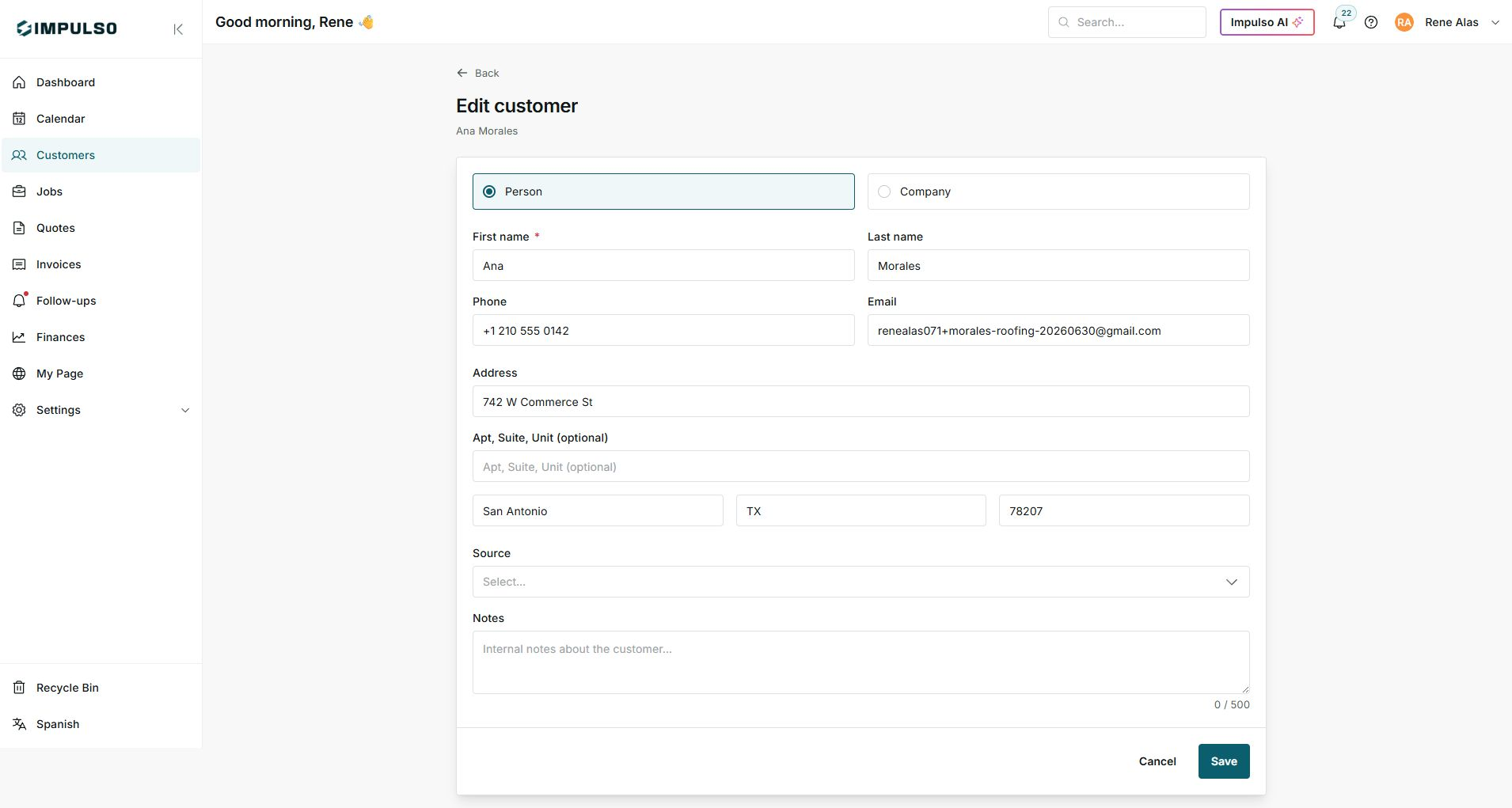
The screen includes customer type, contact details, address, source, and internal notes.
2. Update the Main Details
- Choose whether the record is a Person or a Company.
- Edit First name and Last name if the contact changed.
- Update Phone and Email so your team uses the right contact information.
- Review Address, city, state, and ZIP code before saving.
3. Review Source and Notes
- Source helps you track where the customer came from: referral, Google, website, social media, or another channel.
- Notes are internal. Use them for details your team needs to remember, not for messages the customer will see.
- Avoid saving sensitive information that is not needed to run the job.
4. Save or Cancel
- Review the main fields one more time.
- Click Save to apply the changes.
- Click Cancel if you do not want to keep the edits.
After saving, return to the profile or customer list to confirm the information looks right.
5. States You May See
These states help you understand whether the edit was completed or whether important information is missing.
- Saved
Meaning: Impulso Pro accepted the customer changes. Where it appears: as confirmation after saving. Next step: review the profile or list. It does not mean: older documents were resent to the customer.
- Error
Meaning: the edit could not be completed. Where it appears: near the form or as an on-screen notice. Next step: review required fields, email format, or connection. It does not mean: the customer was deleted.
- No address
Meaning: the customer does not have a main address saved. Where it appears: in customer lists or profiles that summarize the customer. Next step: add an address if you need visits or complete documents. It does not mean: the customer is inactive.
6. If Something Does Not Update
- Confirm that the required First name field is not blank.
- Check that the email uses a valid format.
- If you changed the address, verify city, state, and ZIP code.
- If the customer appears duplicated, first check which record has related jobs or documents.