

Before you start
- Confirm you are in the correct account before saving changes.
- Do not save, send, collect, or archive when you are only reviewing.
- Use real United States service names such as roofing, gutters, HVAC, window cleaning, or exterior painting.
1. Open editing
- Go to Jobs and open the job.
- Click Edit.
- Check whether the job came from a quote before changing services or price.
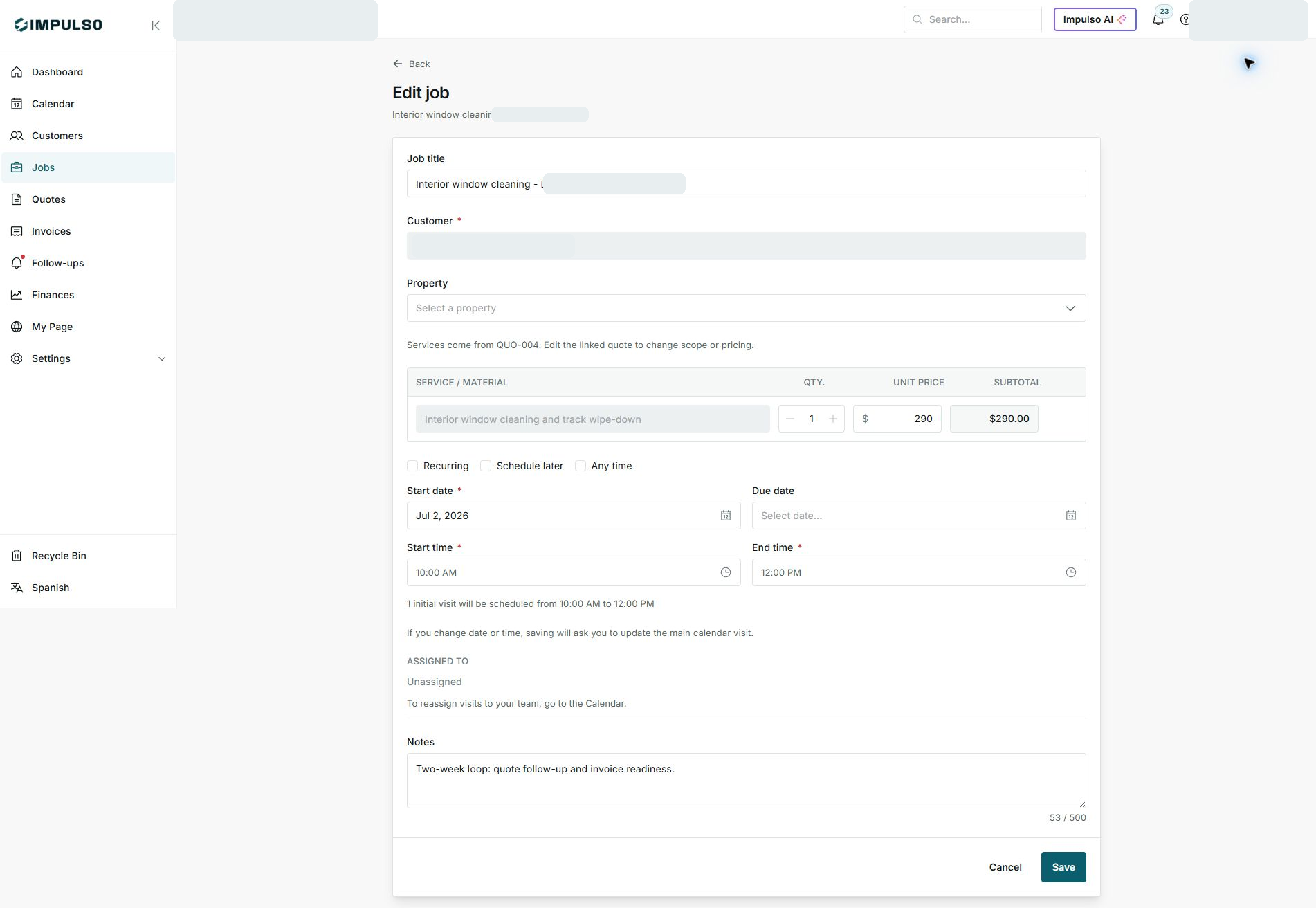
2. Change allowed details
- Update start date, due date, time, or notes as needed.
- If you change date or time, review the message about the main calendar visit.
- To reassign visits to the team, use Calendar.
3. Save or cancel
- Use Save only when you are done reviewing.
- Use Cancel if you were only checking the job.
- Return to the detail page to confirm status, visits, and related documents.
States and options you may see
- Save
Means: Applies the form changes.
Next step: Use it only after reviewing the details.
- Cancel
Means: Leaves without applying changes.
Next step: Use it when you are only reviewing.
- Unassigned
Means: The visit or job has no team member assigned.
Next step: Assign from Calendar if needed.
- Services come from QUO-004
Means: The scope comes from a quote.
Next step: Edit the quote if services or pricing need to change.