

Before you start
- Open the right quote and confirm you are in the right account.
- Be more careful if the quote was already sent or accepted.
- Do not use Update or Save and... until services, tax, total, and notes are reviewed.
1. Open the edit screen
- Go to Quotes and open the quote.
- Click Edit.
- Confirm the title, customer, and service type before changing line items.
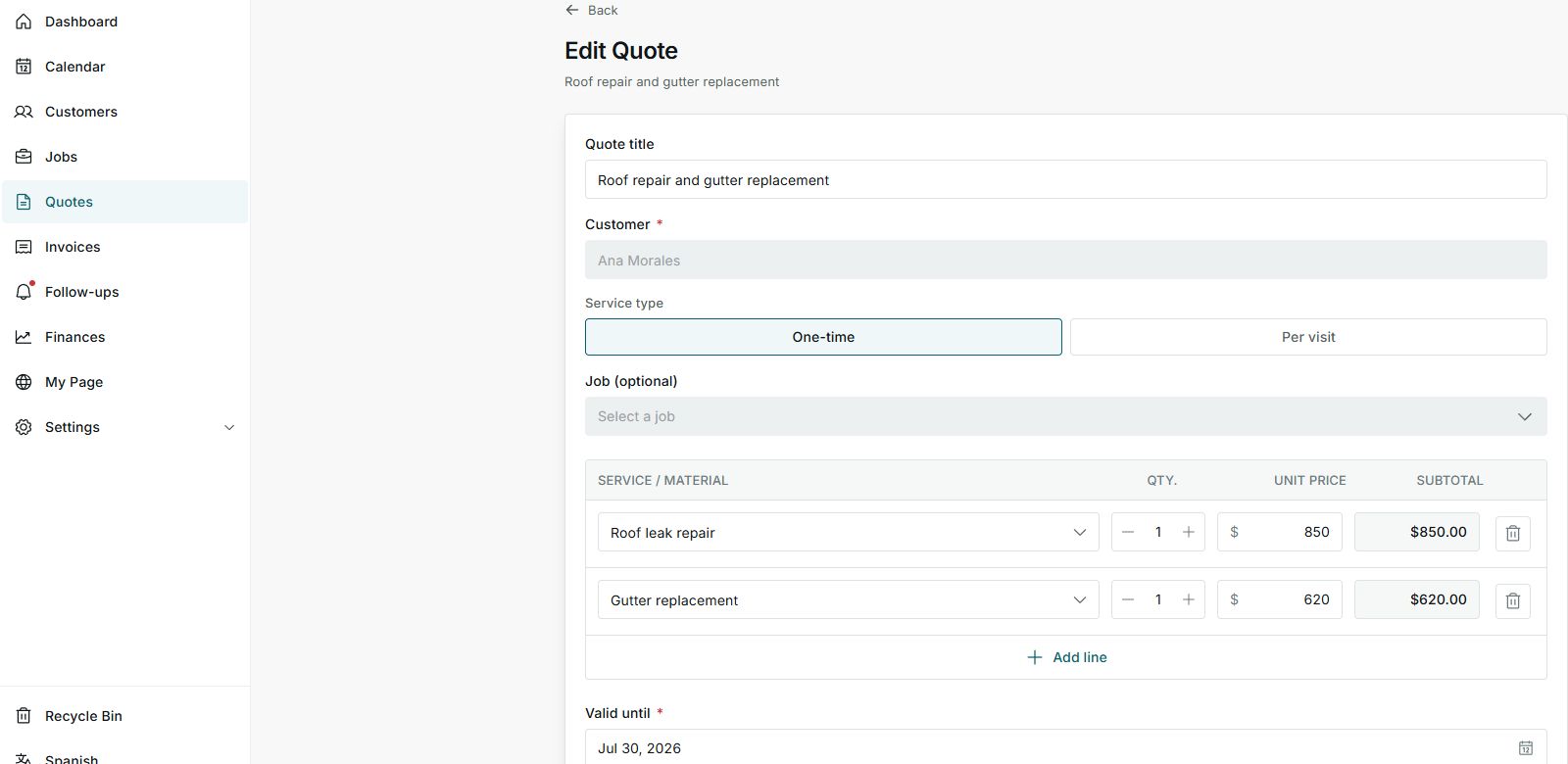
The edit screen keeps the customer and lets you adjust services, quantities, and prices.
2. Review tax, deposit, and notes
- Turn tax on or off only when it applies to the job.
- Review the tax rate and confirm subtotal, discount, tax, and total.
- Choose whether the invoice should be paid in full or require a deposit on acceptance.
- Update internal notes only with information that helps operate the job.
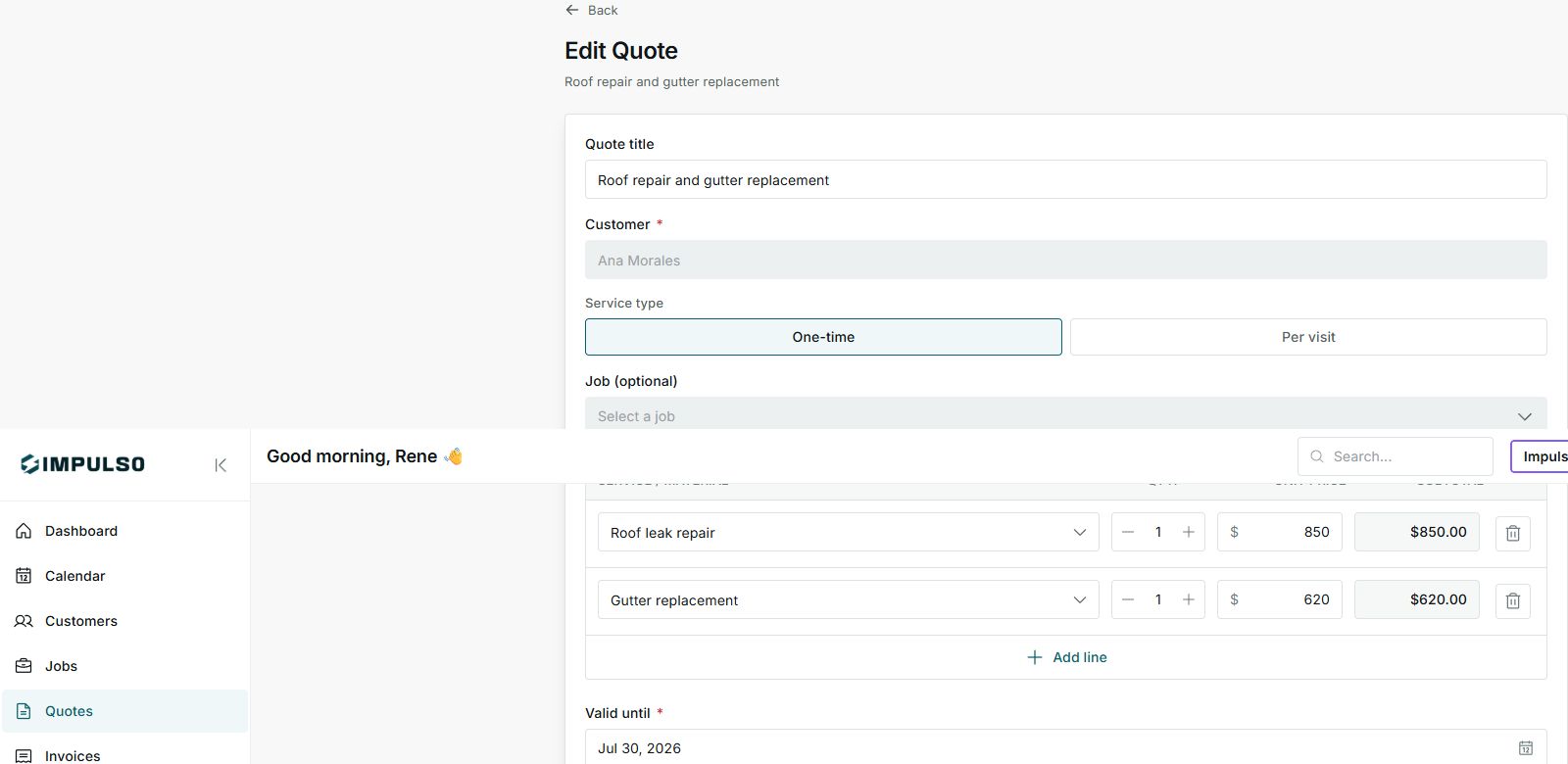
Before saving, compare subtotal, tax, and total with the real work scope.
3. Save or cancel
- Update saves the quote changes.
- Save and... saves and continues to another available action.
- Cancel exits the edit screen without applying new changes.
4. Statuses and options you may see
Statuses tell you how sensitive the edit is. Options tell you what will happen if you continue.
Statuses and options
Meaning: The quote has not been sent to the customer yet.
Next step: You can adjust services, prices, tax, and notes before sending.
Meaning: The customer already received the quote.
Next step: Edit only when you need to correct something, then review the customer message.
Meaning: The customer approved the quote.
Next step: Avoid changing scope or price without agreeing with the customer.
Meaning: The quote already moved toward a job.
Next step: Manage changes from the job or review the linked flow.
Meaning: Includes tax in the total.
Next step: Use the correct rate for the service and location.
Meaning: Requests an upfront payment on acceptance.
Next step: Confirm amount and payment process before sending.
Meaning: Saves the changes.
Next step: Click only when everything has been reviewed.
Meaning: Leaves without saving new changes.
Next step: Use this option when you were only reviewing.