

Before you start
- Have your business logo and colors ready.
- Do not save changes when you are only reviewing.
- Review invoice and quote views before applying the design.
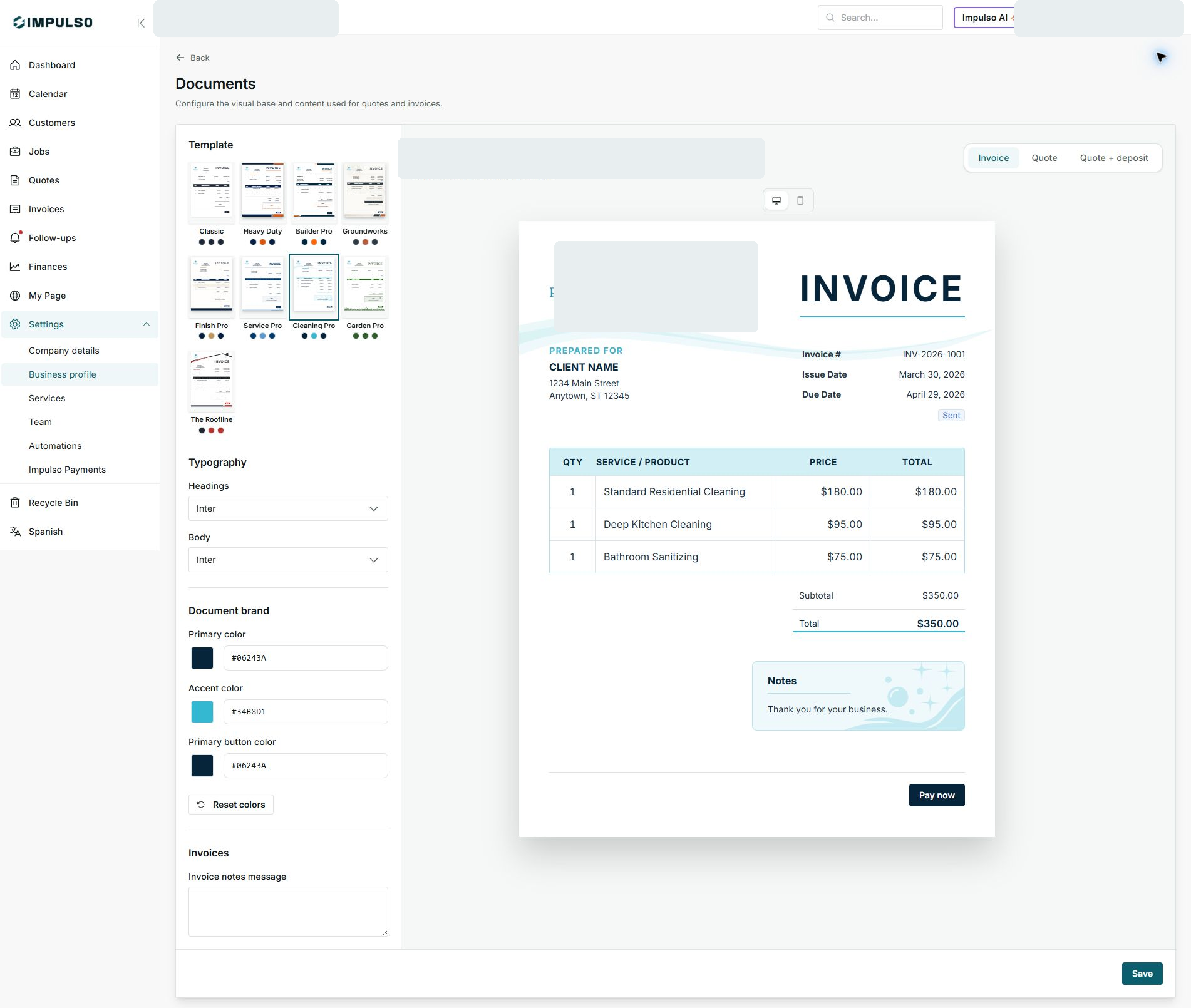
1. Open Documents
- Go to Settings > Business profile > Documents.
- Move to the invoice and quote message sections.
- Review the current message before changing it.
2. Edit messages
- Use the notes field for text you want to reuse on documents.
- Keep the text clear and customer-facing.
- Include payment terms, warranties, or instructions when they apply.
3. Save changes
- Review the document preview.
- Confirm the text is not too long.
- Click Save when it is ready.
States and options you may see
- Invoice notes message
Means: Default text that can appear on invoices.
Next step: Write clear instructions for the customer.
- Save
Means: Applies the new message.
Next step: Use it when you are done reviewing.
- Quote
Means: Lets you review how a quote will look.
Next step: Switch tabs to review that document.