

Before you start
- Open an existing visit from Calendar.
- Use Edit to change team or notes for the visit.
- Date and time are changed from Reschedule, not from the edit form.
- Save, Cancel visit, Delete, and Start visit change real calendar information.
1. Open the visit detail
- Go to Calendar.
- Click the visit you need to review.
- Confirm the customer, job, time, status, and team before changing anything.
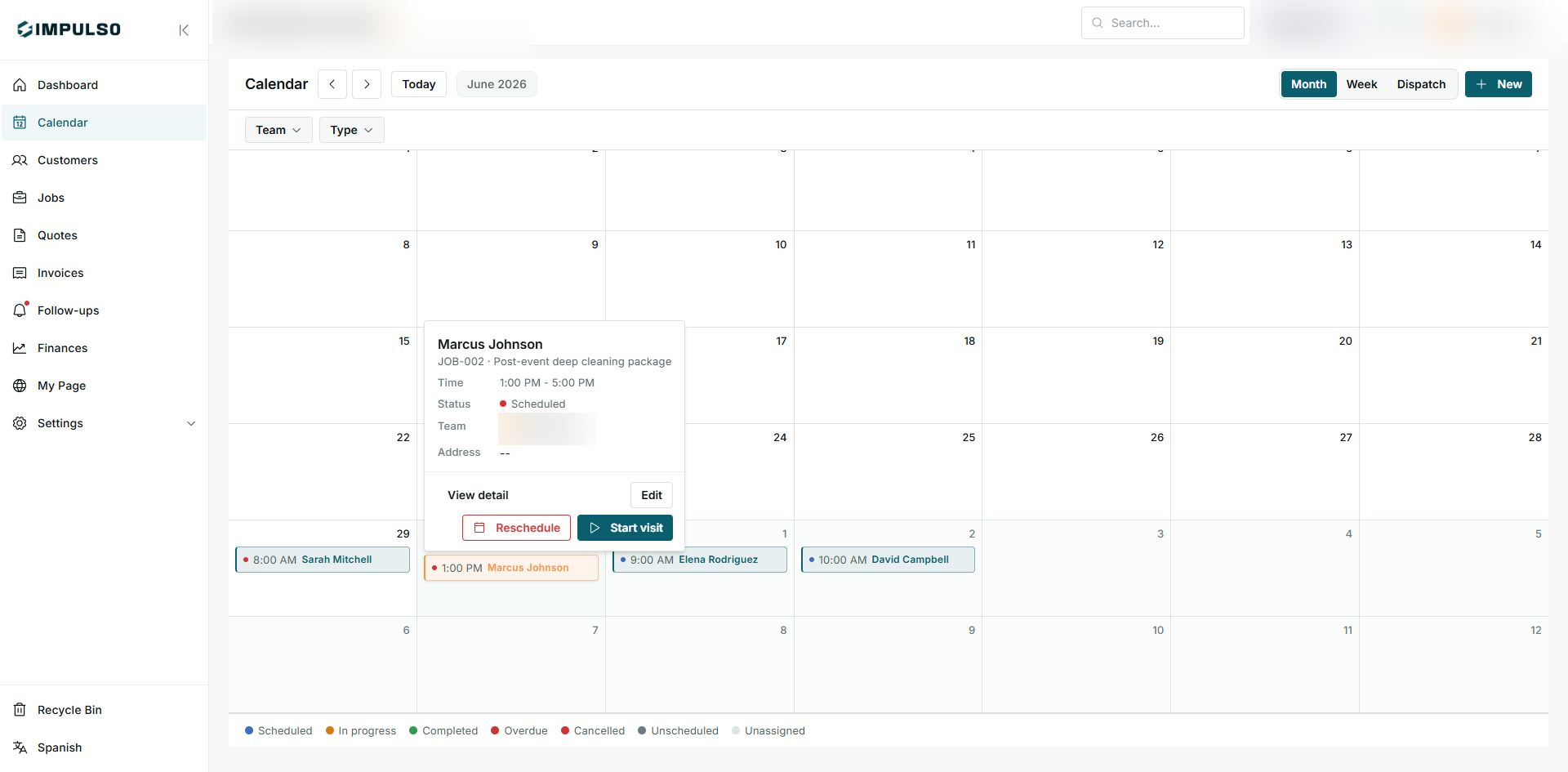
The detail panel lets you review the visit before opening an action that changes the calendar.
2. Edit team or notes
- From the detail panel, click Edit.
- Update the team if the visit should move to another person.
- Add clear notes for this visit, such as site access, call-before-arrival, or customer instructions.
- Use Save only when you are ready to apply the change.
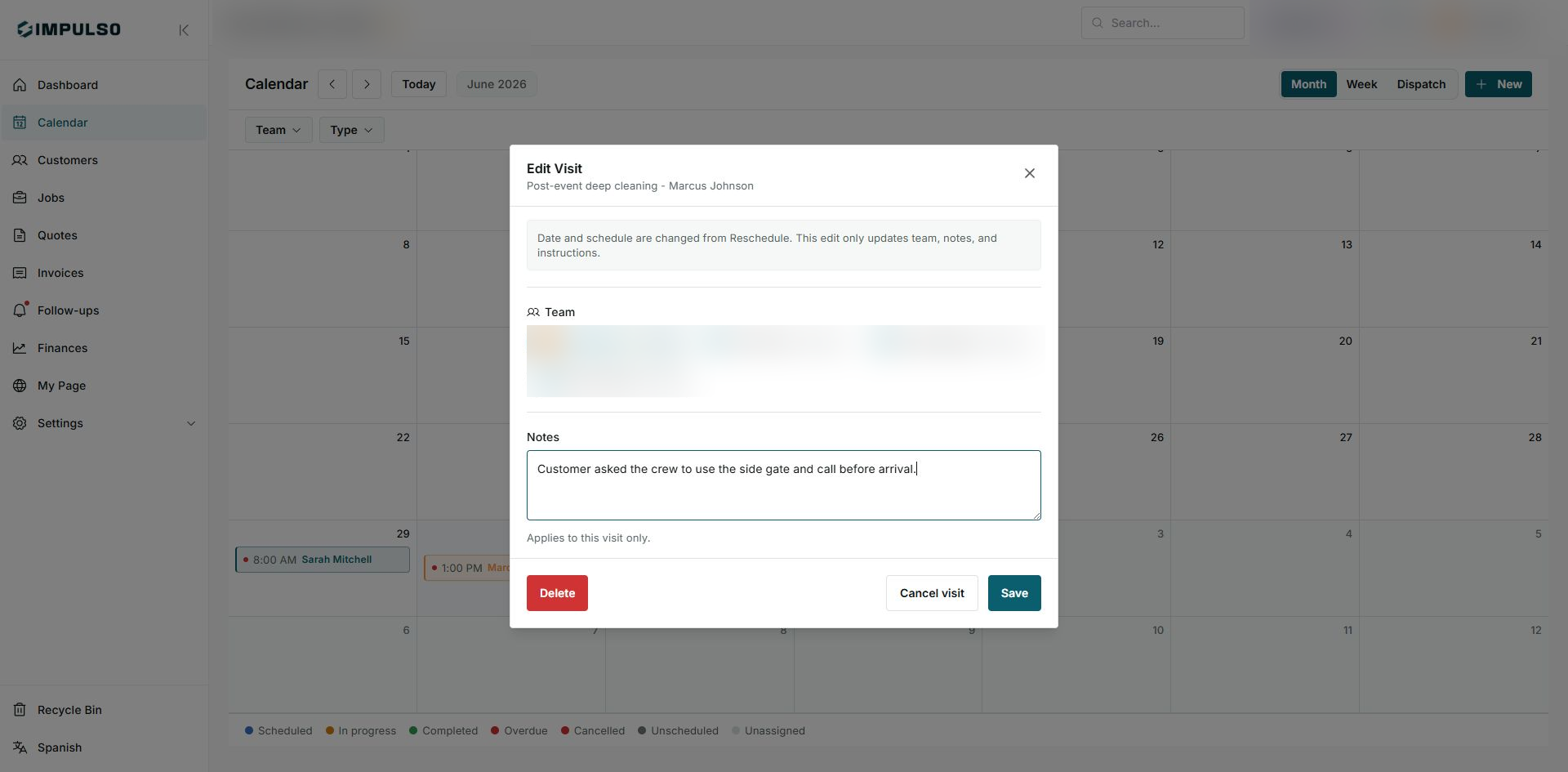
Notes apply only to this visit; they do not replace the general job information.
3. Cancel or delete a visit
- Use Cancel visit when the site visit should no longer happen but you want to keep the work history.
- Use Delete only when the visit should not remain as an operational record.
- Do not use Close to cancel a visit. Close only exits the form.
- Before confirming a final action, make sure you are on the correct customer and job.
4. Change date or time
- If you need to move the visit to another date or time, return to the detail panel and use Reschedule.
- Review the start and end time before confirming any change.
- If you only meant to change notes or team, stay in Edit.
5. States and controls you may see
These states help you understand whether a visit is still pending, already started, finished, or cancelled.