

Before you start
- Open the follow-up from Follow-ups or from the related customer, invoice, job, or visit.
- Compare the Notes with the linked invoice or job before contacting the customer.
- Complete, Postpone, Update, and Delete change the real follow-up.
- Use Cancel if you were only reviewing and do not want to save changes.
1. Review the detail
- Open the follow-up you want to review.
- Confirm the customer, status, and scheduled date.
- Read the notes and check whether a quote, job, invoice, or visit is linked.
- If the linked document already has a status such as Paid, confirm the balance before calling or emailing the customer.
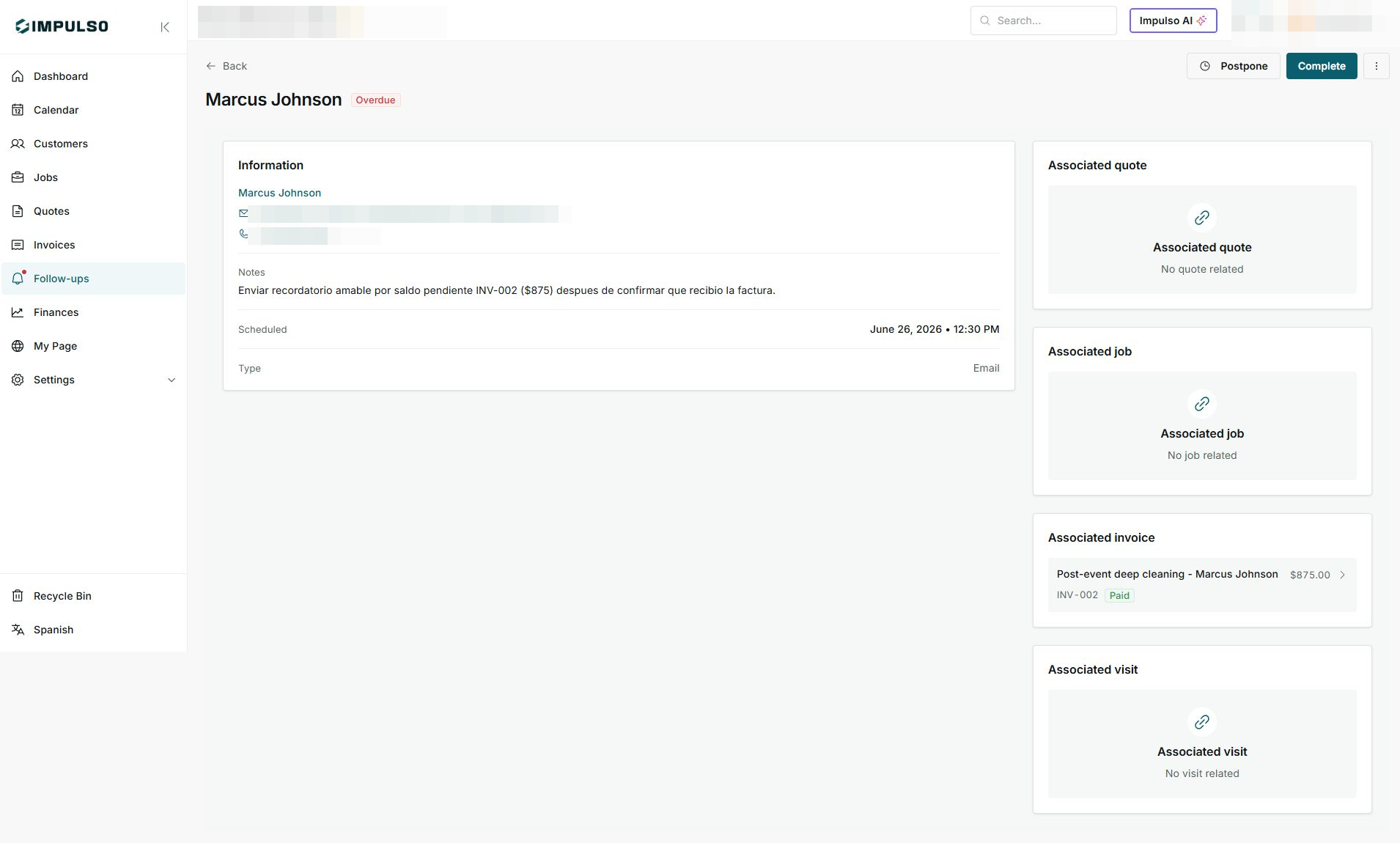
The detail shows the next step, the date, the contact type, and related records.
2. Edit the date, type, or notes
- Open the follow-up actions menu and select Edit.
- Change the customer only if the follow-up belongs to someone else.
- Adjust Action, Link to, Date, Time, or Notes.
- Click Update only when the information is ready for the team.
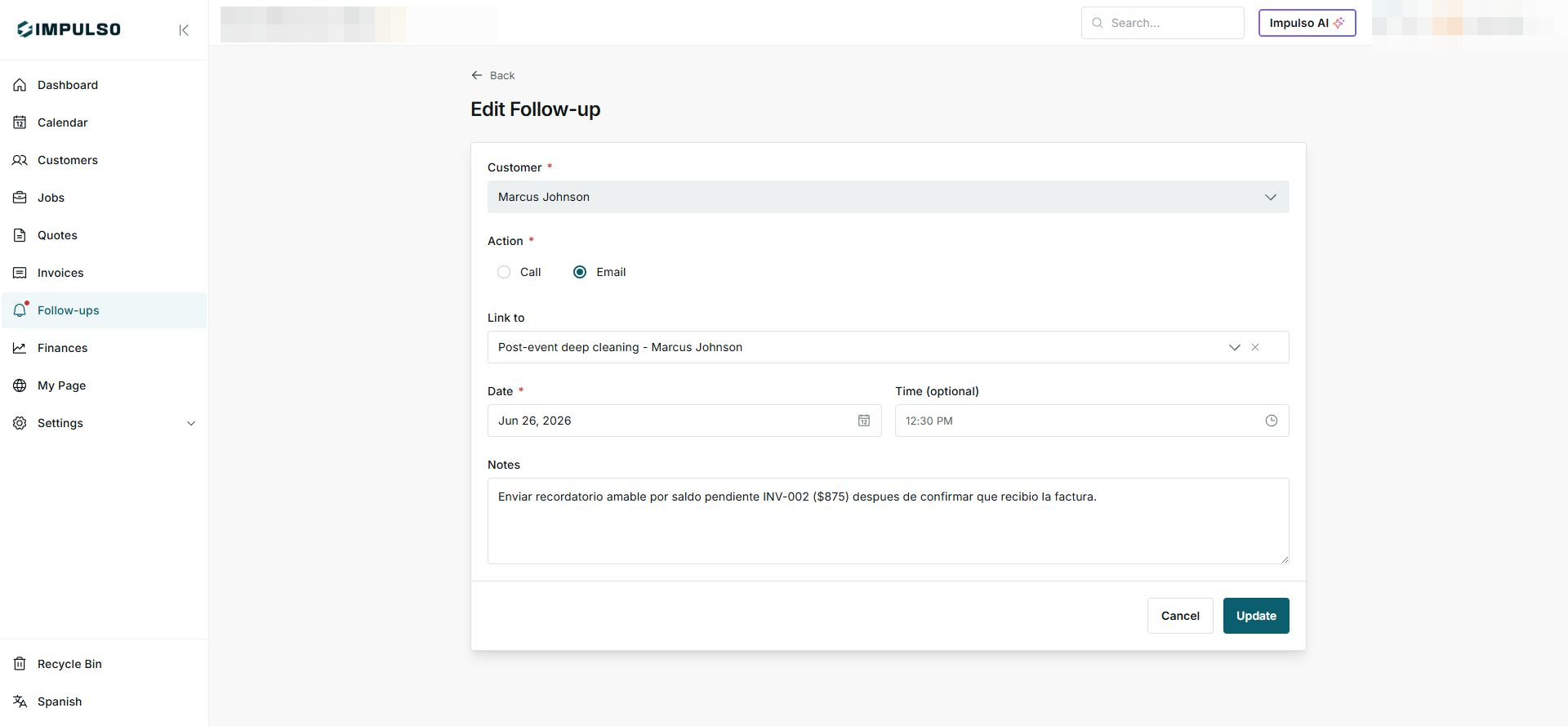
The edit screen keeps the current follow-up unchanged until you press Update.
3. Complete or postpone
- Use Complete after you have called, emailed, or resolved the follow-up.
- Use Postpone when you need to move it to another day without editing the full form.
- If a follow-up was completed by mistake, use Reopen to move it back to pending.
- Use Delete only when you want to remove it from the active list and send it to the Recycle Bin.
Review before you click
Complete, Postpone, Reopen, Update, and Delete apply real changes to the follow-up.
4. States and controls you may see
These states tell you how urgent the follow-up is and what action the team can take.