

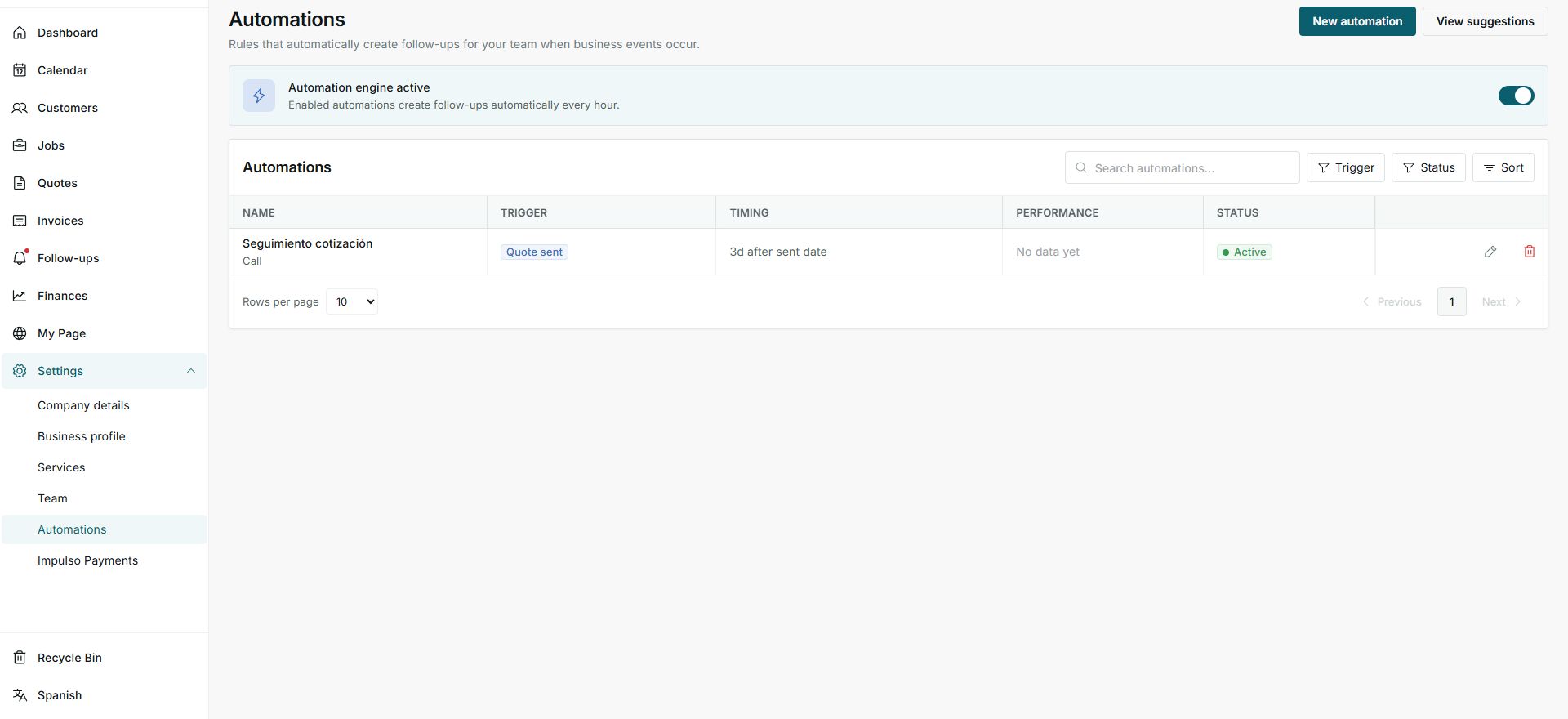
1. Open the automation
- Go to Settings > Automations.
- Open the rule you want to review.
- The editor shows condition, steps, instructions, and variables.
2. Edit instructions and timing
- Review the name and trigger.
- Adjust days, time, and follow-up type if your team process changed.
- Edit Instructions for the team with clear text for the call, email, or task.
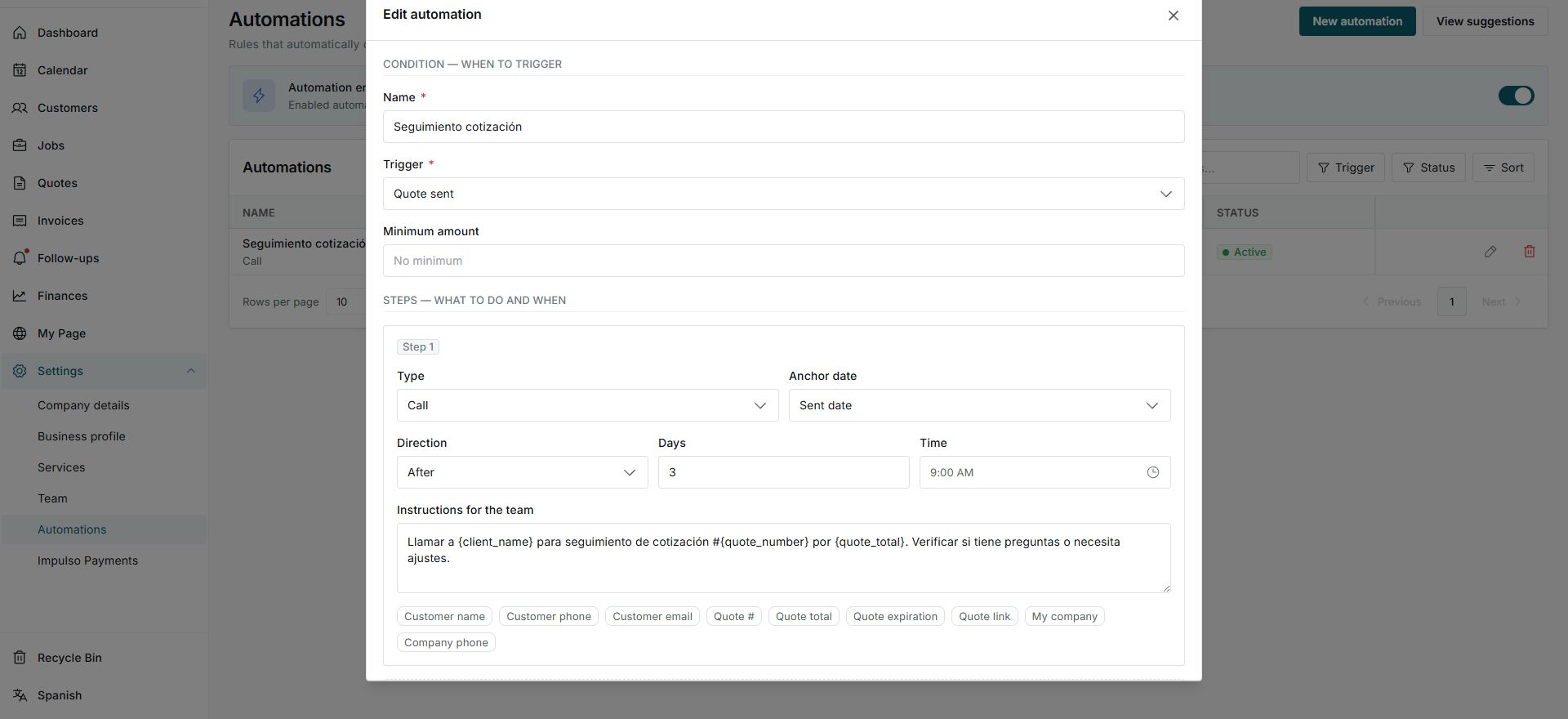
3. Use visible variables
- Use buttons such as Customer name, Quote #, Quote total, or Quote link to insert document details.
- Keep the message understandable even if a variable is empty.
- Save only when you are sure the team should use the new template.
States you may see
- Active
The automation can create follow-ups.
Next step: Review instructions before saving changes.
- Call
The step creates a call follow-up.
Next step: Make sure instructions help the team.
- Auto-complete
Impulso Pro can close pending follow-ups when the event resolves.
Next step: Keep it on when you want to avoid old pending items.