

Before you start
- Check the exact screen where you expected to see the option.
- Do not click Open Stripe or Save if you are only reviewing.
- If the screen says a feature is unavailable, note the visible message before contacting support.
1. Identify whether the option is unavailable
- Go to the related settings section.
- Read the main message on the screen.
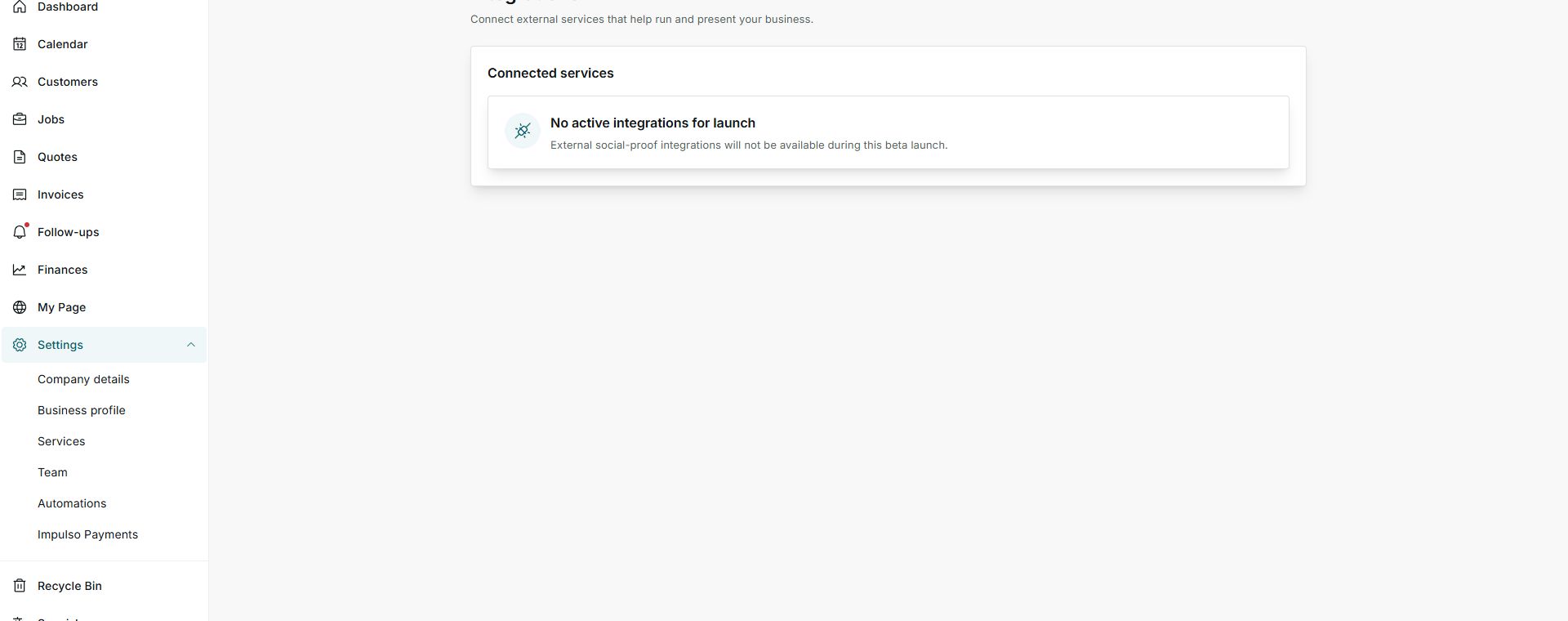
- If Impulso Pro says there are no active services, use the built-in tools and check back when the option becomes available.
2. Confirm whether the setup is ready
- Open the screen that controls the feature.
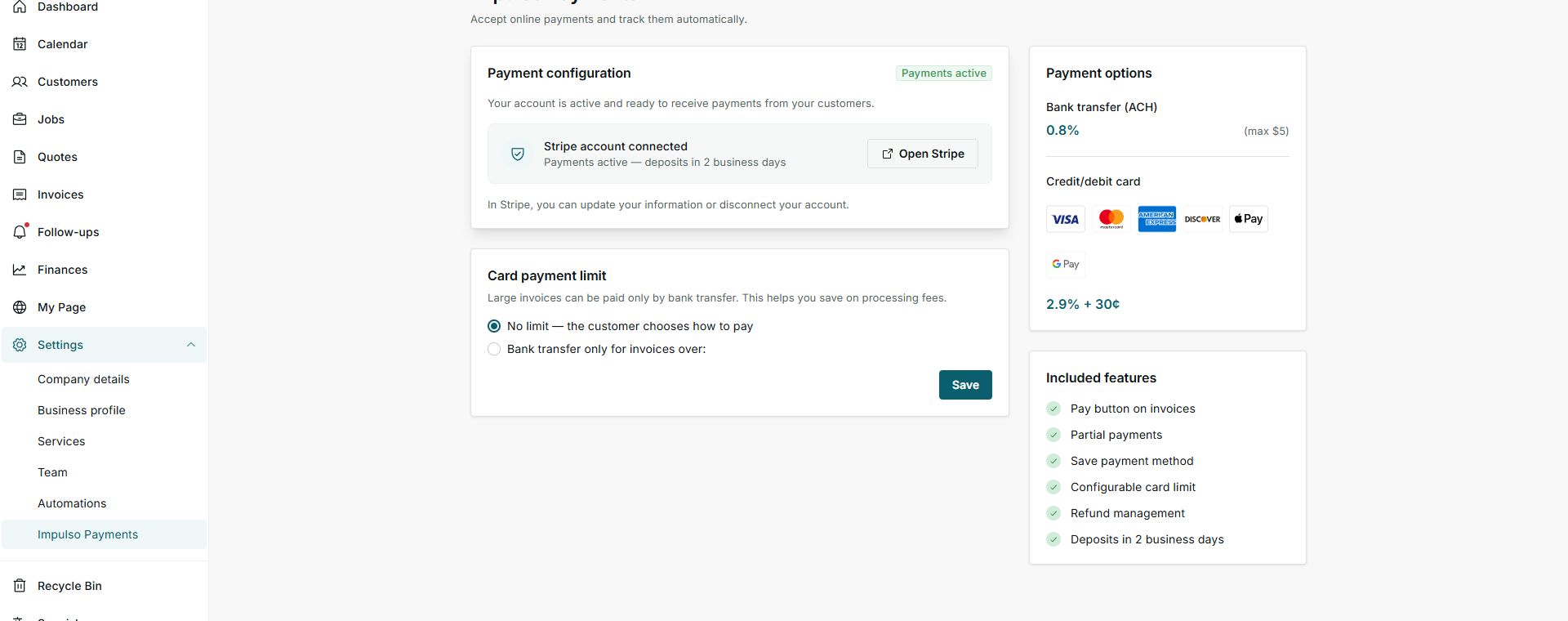
- Look for badges like Payments active or Stripe account connected.
- If the setting is active, return to the workflow where the option was missing and check whether that record is eligible.
3. Choose the next step
- If the option is unavailable, do not look for shortcuts on another screen.
- If the setting is active, review the document, job, or invoice you are trying to use.
- If you are not sure, contact support with the screen name and the visible message.
Statuses and options you may see
- No active integrations
Meaning: No external services are available from that screen.
Next step: Use built-in tools and check again later.
- Payments active
Meaning: The account can receive online payments.
Next step: Review the invoice if you expected to see a pay button.
- Stripe account connected
Meaning: The payment account is linked.
Next step: Open Stripe only when you need to update payment details.
- Open Stripe
Meaning: Takes you to manage payment account details.
Next step: Use it only when you plan to change payment information.
- Save
Meaning: Applies changes on that settings screen.
Next step: Do not use it when you are only reviewing.