

Before you start
- Confirm you are on the right job before editing or creating documents.
- Do not save, edit, invoice, or add visits when you are only reviewing.
- Use real US-market service names such as roofing, gutters, HVAC, or exterior painting.
1. Open Jobs
- Go to Jobs.
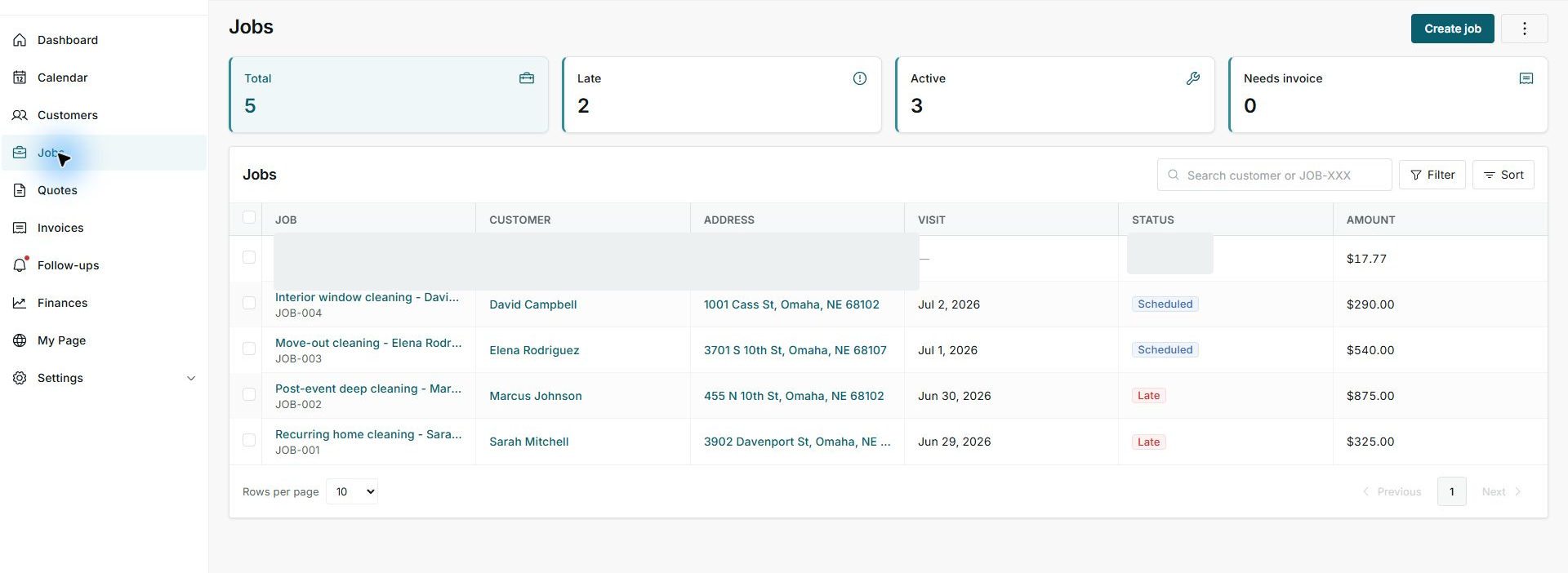
- Review the summary cards at the top.
- Use search when you need a customer or a specific JOB number.
2. Read the list
- Review job, customer, address, visit, status, and amount.
- Use Filter or Sort to narrow the list.
- Open a job only when you need the detail.
3. Decide the next step
- If the job is scheduled, review visit and assignment.
- If it is late, prioritize operational follow-up.
- If it needs an invoice, prepare the invoice when the job is ready to bill.
Statuses and options you may see
- Total
Meaning: Total visible jobs.
Next step: Use it as the overview.
- Late
Meaning: Jobs with a past or pending date.
Next step: Prioritize them before new work.
- Active
Meaning: Open jobs still in operation.
Next step: Review visits, assignment, and billing.
- Needs invoice
Meaning: Jobs that need an invoice.
Next step: Create the invoice when appropriate.
- Scheduled
Meaning: Job with a defined date or visit.
Next step: Confirm team and time.