

Before You Start
- Open Calendar and find the visit date.
- The visit must have an assigned team member before Start visit appears.
- Use Complete only when the visit is actually finished.
- If the date or time changed, use Reschedule before starting the visit.
1. Open the Scheduled Visit
- Go to Calendar.
- Click the visit on the correct day.
- Review the customer, job, time, status, and assigned team before changing the status.
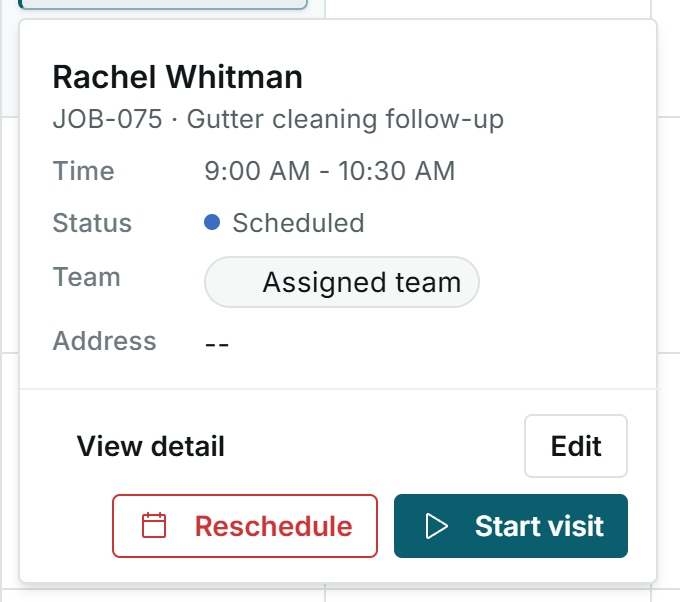
When a visit is scheduled and assigned, the next available step is to start the visit.
2. Start the Visit
- Click Start visit.
- Wait for the status to change to In progress.
- Confirm that the main button now says Complete.
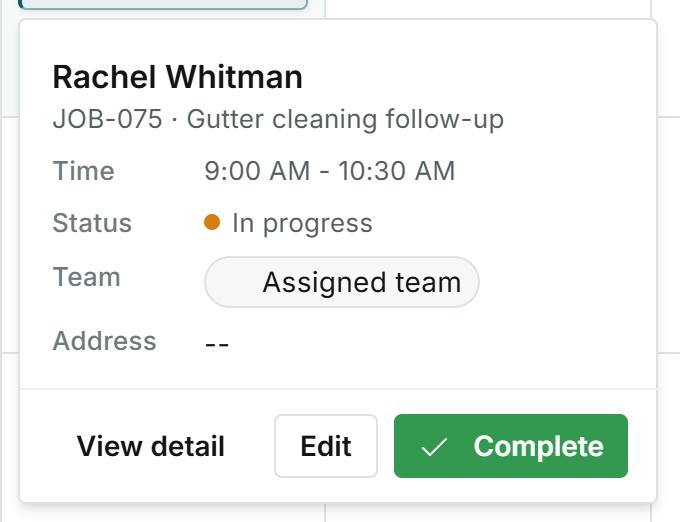
In progress means the visit has started but has not been finished yet.
3. Mark the Visit Completed
- When the crew finishes the work, reopen the visit if the quick detail card closed.
- Click Complete.
- Verify that the status changes to Completed.
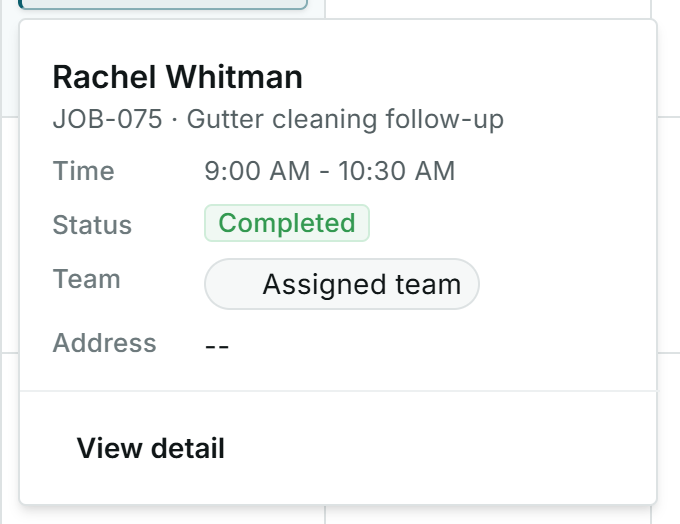
A completed visit stays in the job history and no longer shows the start or complete actions.
4. Statuses and Buttons You May See
Means: the visit has a date and time on the calendar.
Next step: confirm the assigned team and start the visit when work begins.
Means: the visit has been started.
Next step: complete it when the crew finishes.
Means: the visit is finished.
Next step: review the job, create an invoice, or continue with the next job step if needed.
Means: the expected time has passed and the visit needs attention.
Next step: decide whether to start, reschedule, or cancel it.
Means: the visit will not happen.
Next step: review the job if you need to schedule another visit.
Means: no team member is selected.
Next step: edit the visit and assign a team before starting.
Means: changes the visit from Scheduled to In progress.
Next step: use it when the crew starts the work.
Means: finishes the visit in Impulso Pro.
Next step: use it only when that visit's work is done.
Means: opens more information about the visit or job.
Next step: use it to review services, notes, photos, or related documents.
Means: lets you adjust team, notes, or instructions.
Next step: review carefully before saving changes.
Means: changes the date or time.
Next step: use it before starting the visit if the schedule no longer applies.