

1. Open an invoice with payments
- Go to Invoices.
- Open an invoice that already has a recorded payment.
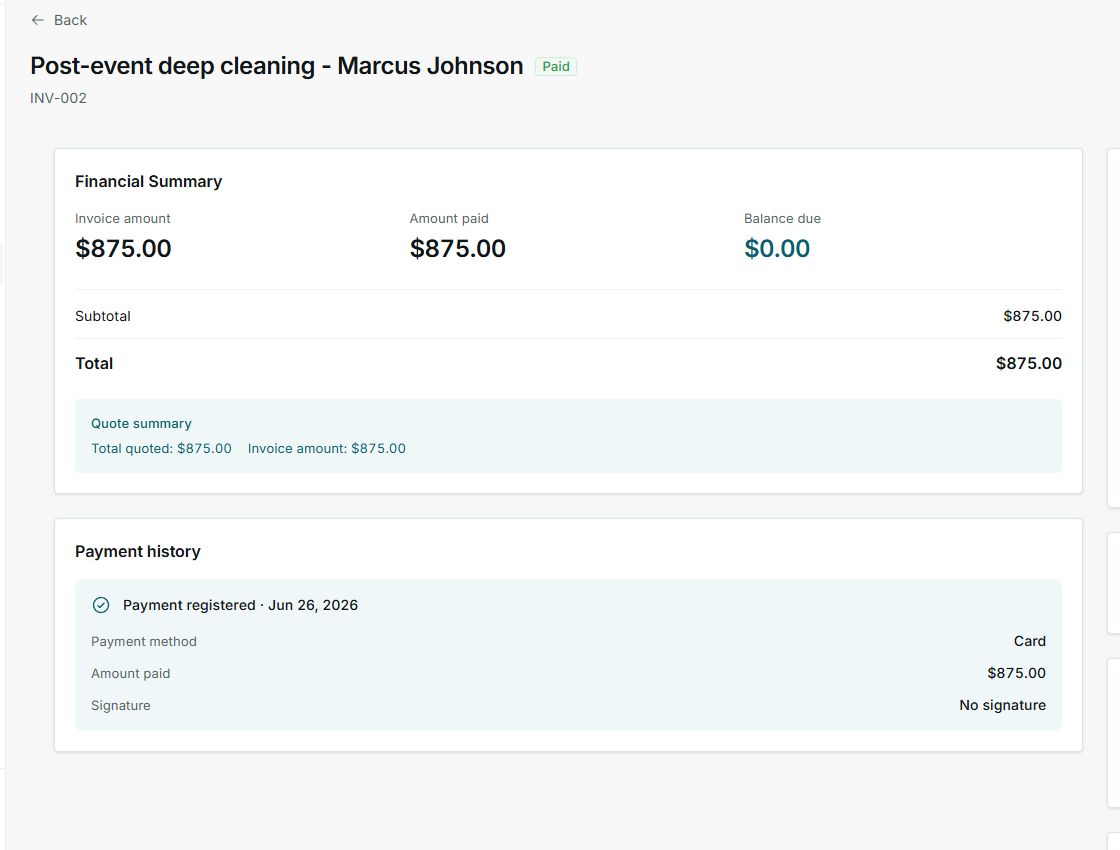
- Check the status next to the invoice title.
- Use the financial summary to review invoice amount, amount paid, and balance due.
2. Read the payment history
- Find the Payment history section.
- Review the date of the registered payment.
- Confirm the payment method, amount paid, and whether a signature was saved.
- If the balance due is $0.00, the invoice is paid.
States you may see
- Paid
Means: The invoice no longer has a balance due. Next step: Review the history if you need to confirm how the payment was recorded.
- Payment registered
Means: Impulso Pro saved a payment on the invoice. Next step: Confirm the date, method, and amount.
- Card
Means: The payment appears with card as the method. Next step: Compare it with the receipt if the customer asks.
- No signature
Means: No signature was saved with the payment. Next step: Collect a signature outside this invoice if your business requires one.