

Before you start
- Open Recycle Bin from the side menu.
- Confirm the item type and days left.
- Do not use Restore until you are sure the item should come back.
1. Open the Recycle Bin
- Go to Recycle Bin.
- Review the total count and available item types.
- Open the tab for the item type you need to restore.
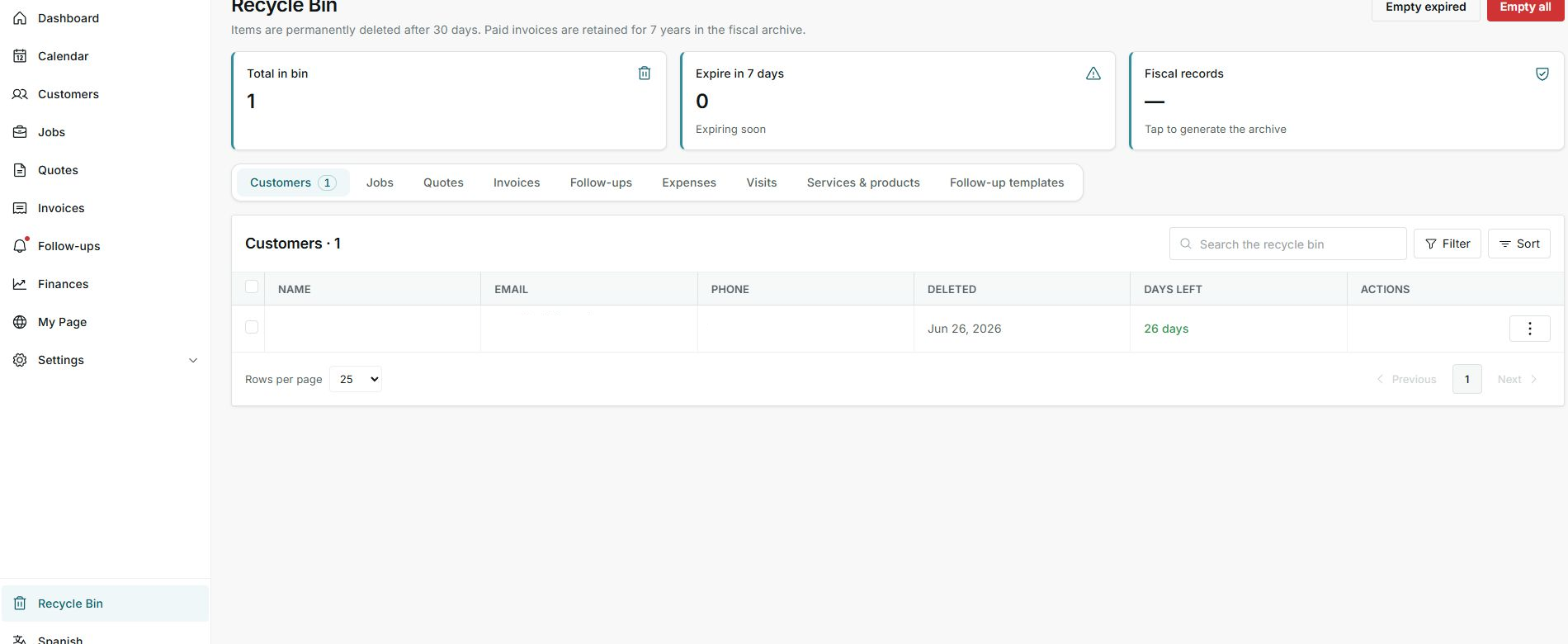
The Recycle Bin groups items by type so customers, jobs, invoices, or expenses do not get mixed.
2. Open the actions menu
- Find the item row.
- Open the three-dot button in the Actions column.
- Choose Restore only when you are ready to bring the item back.
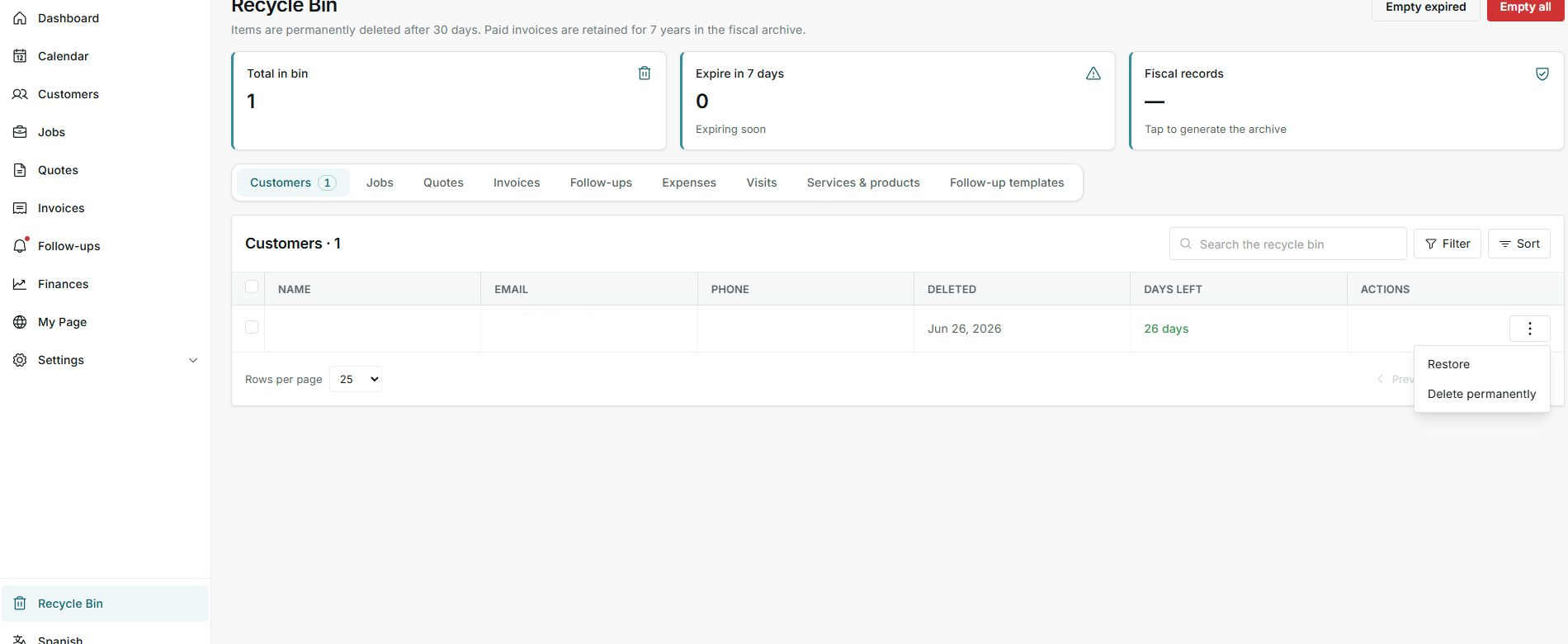
The menu shows Restore and Delete permanently. In this screenshot, only the menu was opened.
3. After restoring
- Go back to the original module, such as Customers or Jobs.
- Confirm the item appears where expected.
- Review important relationships before continuing work.
Statuses and options
Meaning: Number of deleted items still shown in the Recycle Bin.
Next step: Review it before emptying or restoring.
Meaning: Items close to permanent deletion.
Next step: Prioritize them if you still need them.
Meaning: Information retained for fiscal reasons, such as paid invoices.
Next step: Do not treat it like a normal bin item.
Meaning: Approximate time before permanent deletion.
Next step: Restore before it reaches zero.
Meaning: Returns the item to its original module.
Next step: Use it only when you confirm the item should come back.
Meaning: Deletes the item permanently.
Next step: Do not use it if you need to keep evidence.
Meaning: Deletes items that already reached the retention limit.
Next step: Review before using it.
Meaning: Attempts to delete everything that can be removed from the Recycle Bin.
Next step: Avoid it if you have not reviewed each type.