

Before You Start
- You need a published page before requests can arrive.
- Review leads from an Owner/Admin account.
- Confirm the name, phone, email, and message before changing a lead status.
1. Open The Inbox
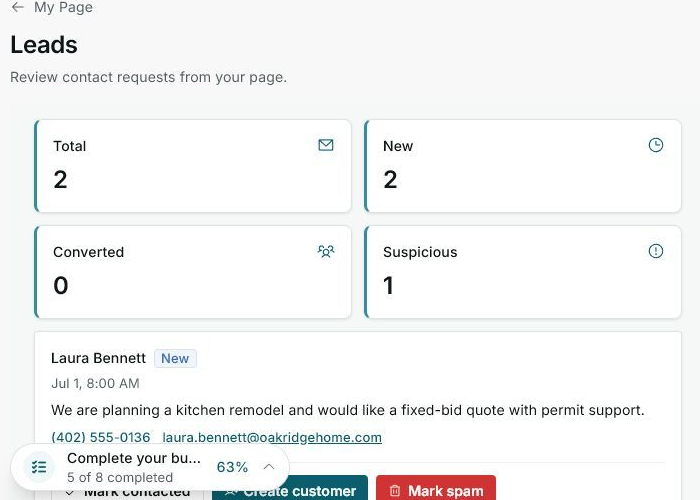
- Go to My Page > Leads.
- Review the summary cards: total, new, converted, and suspicious.
- Start with new leads because they have not been handled yet.
2. Read Each Lead
- Read the message to understand what the customer needs.
- Use the phone or email on the lead to reply.
- If a lead looks uncertain, review it before marking it contacted or converting it.
3. Choose The Next Action
- Click Mark contacted after you have followed up with the customer.
- Use Create customer when the lead is real and you want to save it as a customer.
- Use Mark spam if the request is not legitimate.
Statuses And Options You May See
- New
Means: the lead has not been handled yet.
Next step: contact the customer or convert the lead after qualifying it.
- Contacted
Means: someone has already followed up.
Next step: create the customer, quote, or job as needed.
- Converted
Means: the lead has been saved as a customer.
Next step: open the customer profile to continue the work.
- Suspicious
Means: Impulso Pro found a signal that deserves review.
Next step: verify the message before replying or converting.
- Mark spam
Means: moves the lead out of normal follow-up.
Next step: use it only when the request is not valid.