

Before you start
- Confirm the quote has the right customer, services, tax, and total.
- Review the customer's email before sending.
- If the quote was already sent, review changes and message wording before resending.
- The final send button sends a real email to the customer.
1. Review the quote
- Open the quote from Quotes.
- Review the quote number, status, total, and financial summary.
- If you see Draft, the quote has not been sent to the customer yet.
- If you need to correct details, edit the quote before sending.
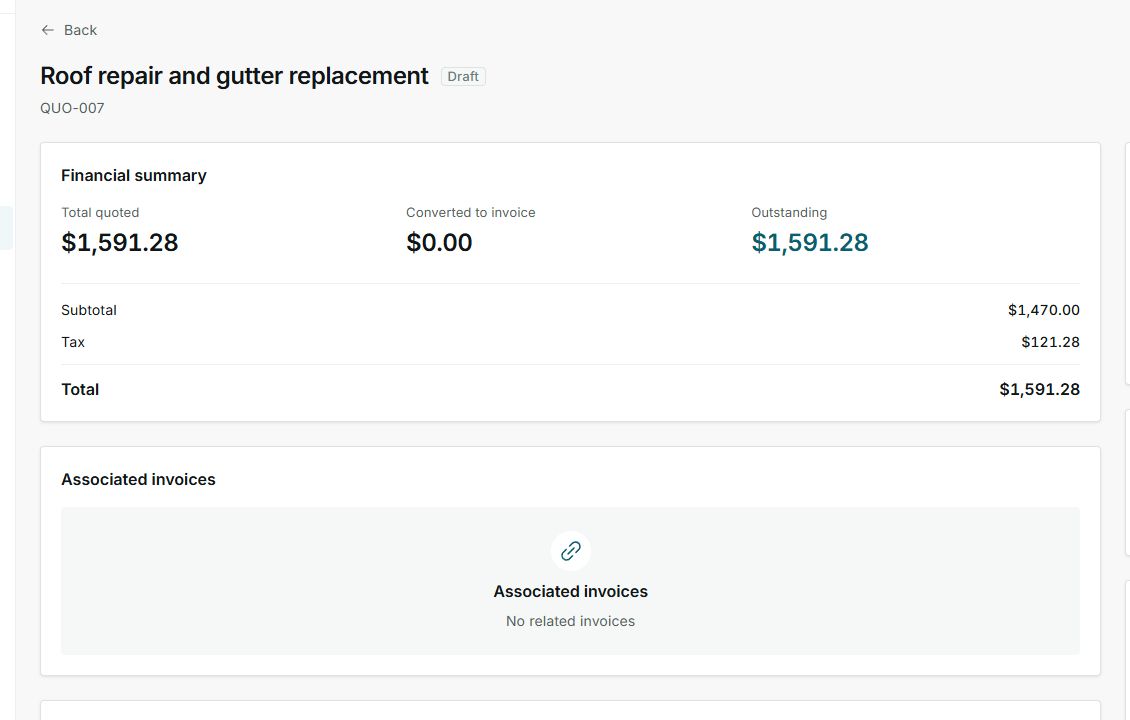
From the detail page, confirm the draft is ready before opening the send flow.
2. Open email send
- Click Send.
- Choose Email if a method selector appears.
- Review recipient, subject, and message.
- If you are resending, adjust the message to explain why the customer is receiving a new version.
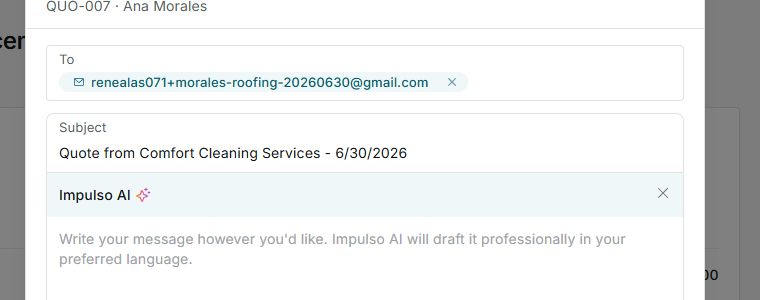
The email screen lets you review the message before sending it.
3. Send or resend
- Read the full message and confirm the right customer is selected.
- When everything is ready, use Send email.
- After sending, review the quote status and follow up based on the customer's response.
Important
Use Send email only when the message is ready; that action sends the email to the customer.
4. States you can see
Statuses help you decide whether to send, wait for a response, follow up, or convert the quote into a job when the customer accepts it.