

Before you start
- Use My Page from an Owner/Admin account.
- Do not press Save, Delete, Publish, Copy link, Download, or Send when you are only reviewing.
- Public-facing data may be in English when the business serves customers in the United States.
1. Open My Page
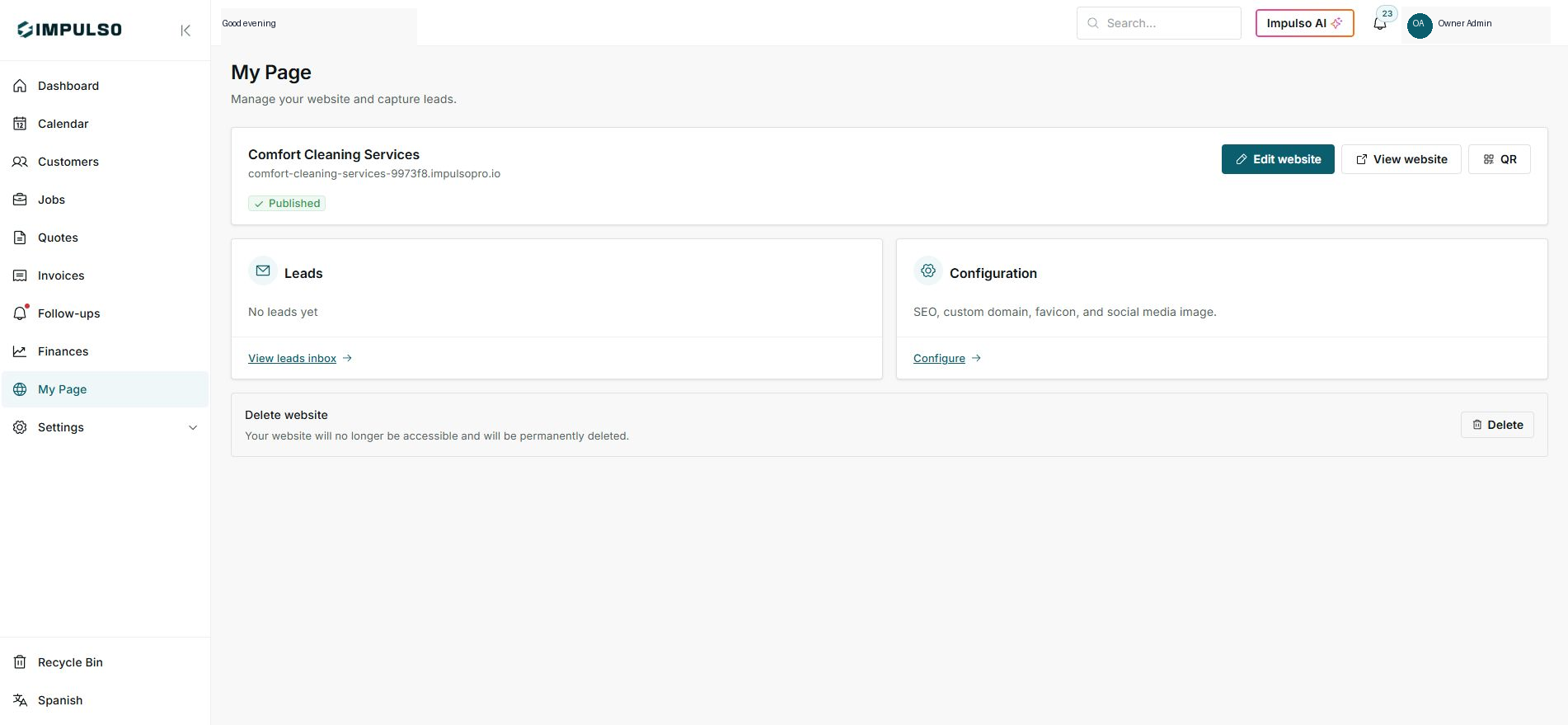
- Go to My Page from the sidebar.
- Confirm the site appears as Published.
- Review the visible domain before sharing it.
2. Open the QR code
- Click QR.
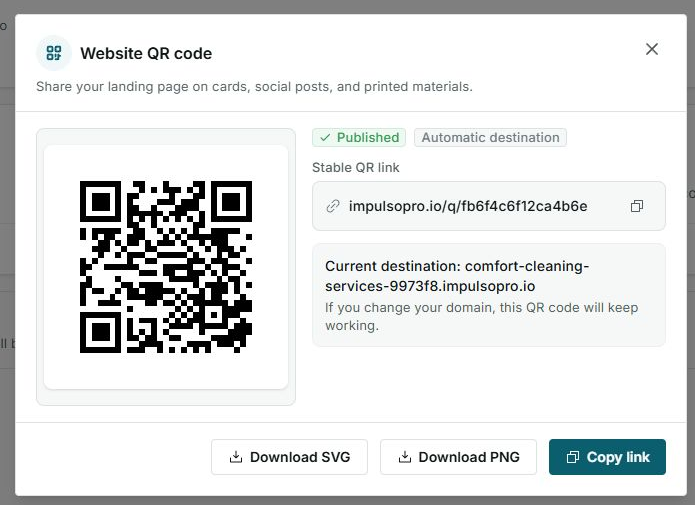
- Review the stable QR link and current destination.
- Use the QR code for cards, flyers, or printed materials.
Statuses and options you may see
- Published
Means: The site is active and can receive visitors.
Next step: Share the link only when content is ready.
- QR
Means: Opens a code for printed materials.
Next step: Use it when customers should not type the link.
- Copy link
Means: Copies the stable QR link.
Next step: Use it only when you will paste it somewhere safe.
- Download PNG/SVG
Means: Downloads the QR as a file.
Next step: Use it for marketing materials.