

Before you start
- Confirm you are in Finances before comparing amounts.
- Use period filters only when you need to review another month.
- Do not press Save, Export CSV, or Send when you are only reviewing information.
1. Open Profitability
- Go to Finances.
- Click the Profitability card.
- Confirm the visible period before comparing jobs.
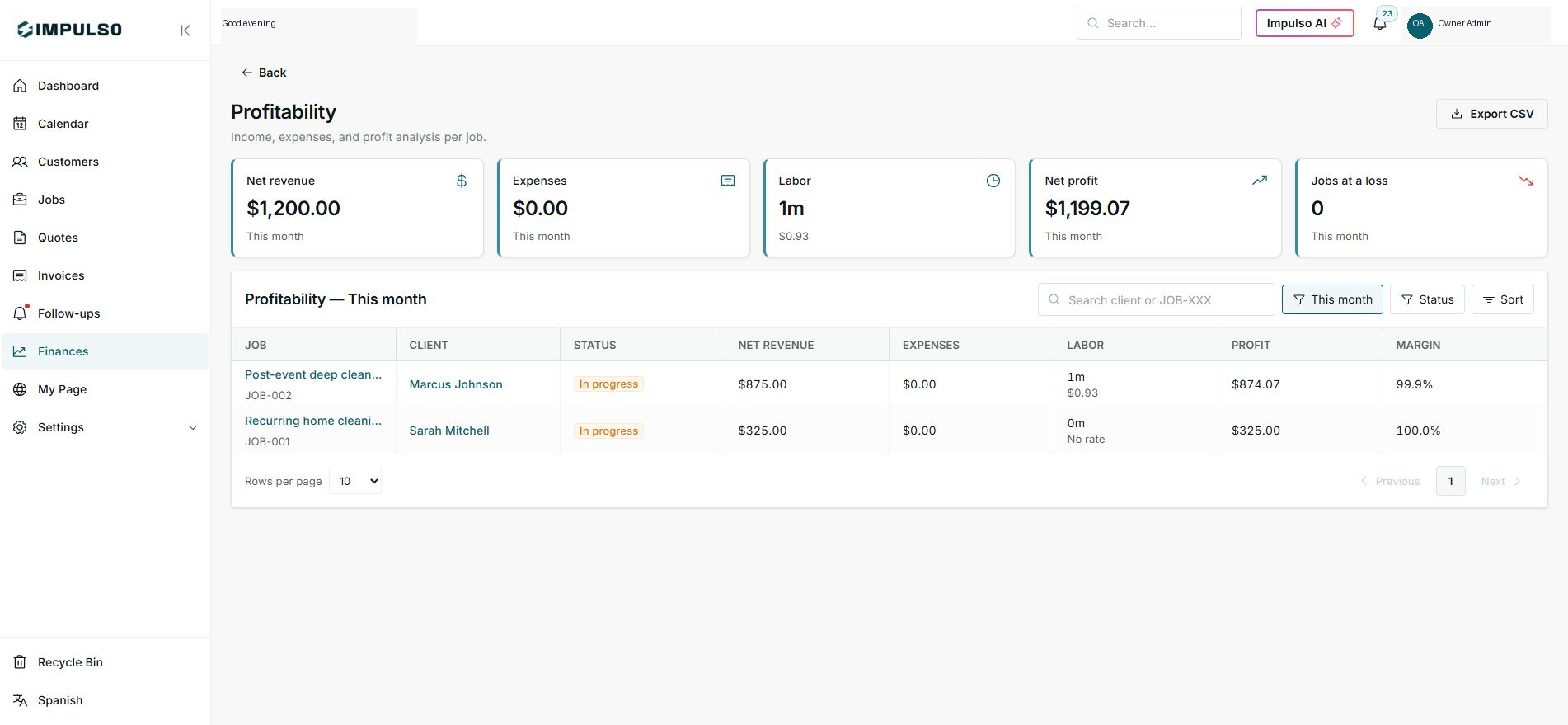
2. Read the top cards
- Net revenue shows money recognized in the period.
- Expenses and Labor reduce profit.
- Net profit summarizes what remains after those costs.
3. Review each job
- The table shows job, customer, status, revenue, expenses, labor, profit, and margin.
- A high margin means recorded costs are low compared with revenue.
- Use search, period, status, and sort to review specific jobs.
Statuses and options you may see
- In progress
Means: The job is still open and can still change.
Next step: Do not treat it as final until the job is complete.
- Net revenue
Means: Revenue for the visible period after visible adjustments.
Next step: Compare it with expenses and labor.
- Labor
Means: Cost calculated from team hours.
Next step: Review hours if the cost looks unexpected.
- Jobs at loss
Means: Jobs where cost is greater than revenue.
Next step: Review price, expenses, and time recorded.
- Export CSV
Means: Downloads the visible information for review outside Impulso Pro.
Next step: Use it only when you need to send data to your accountant or analyze it separately.