

Before you start
- Use this guide when you already have an assigned visit in Field > Today or Field > Jobs.
- Confirm that the customer, time, and notes match the work you are about to do.
- Press Finish job only when the assigned visit is actually complete.
- Service names should match the business and customer language, such as Driveway pressure washing.
1. Open the assigned visit
- Go to Field > Today.
- Open the assigned job or visit card.
- If your shift is not open yet, use Clock in when you are actually starting your field day.
- When you are ready to work on that visit, use Start.
2. Review progress and time
- Confirm that the status changes to In progress.
- Review Technician time to see clock-in, clock-out, logged time, and estimate.
- Use Travel, Work, or Stop based on what you are doing at that moment.
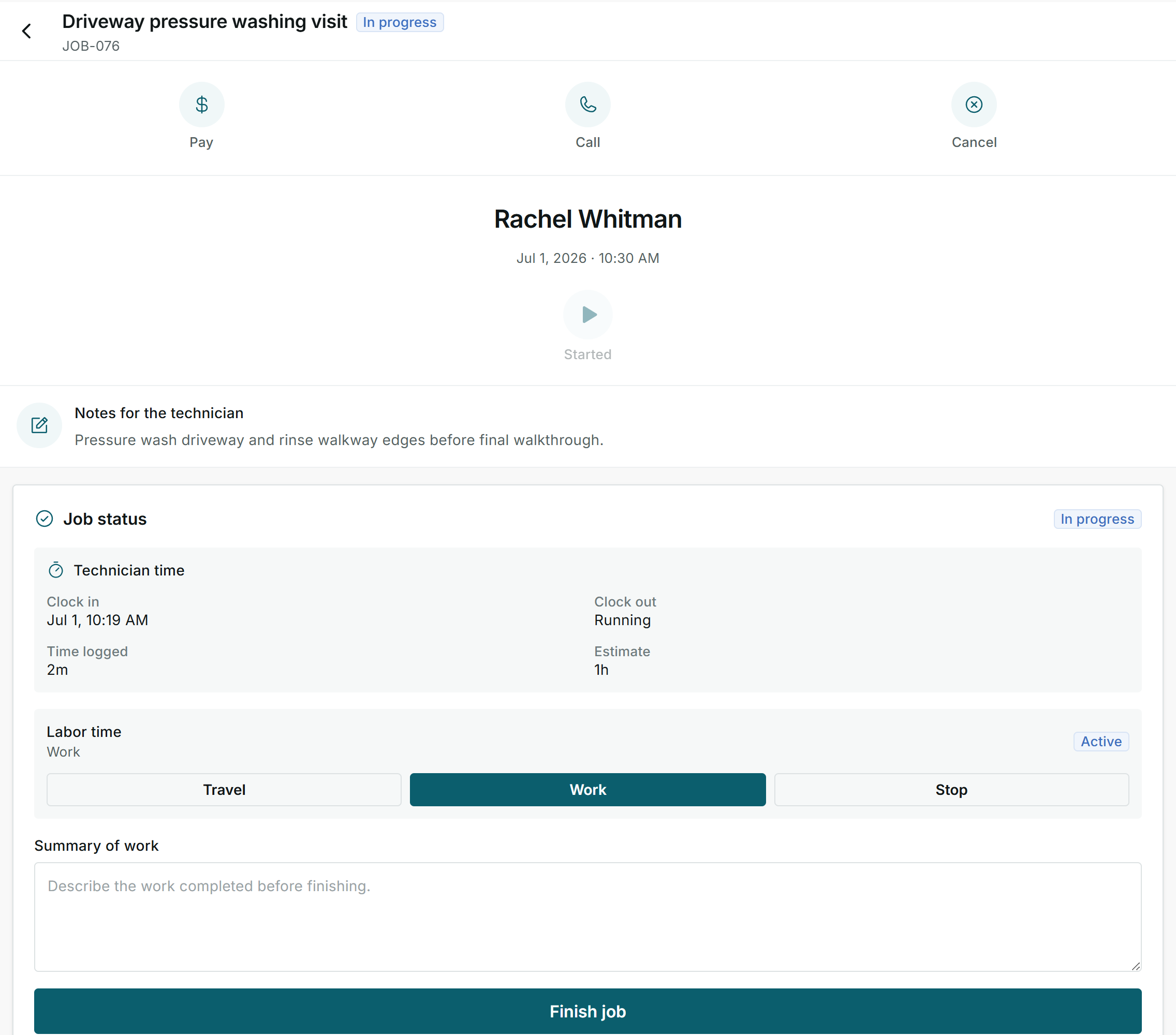
The visit is in progress and Labor time shows Work as the active activity.
3. Add the work summary
- In Summary of work, write what was completed during the visit.
- Include details useful for the office or customer, such as cleaned areas, repairs completed, or remaining work.
- Review the summary before finishing because it stays connected to the visit.
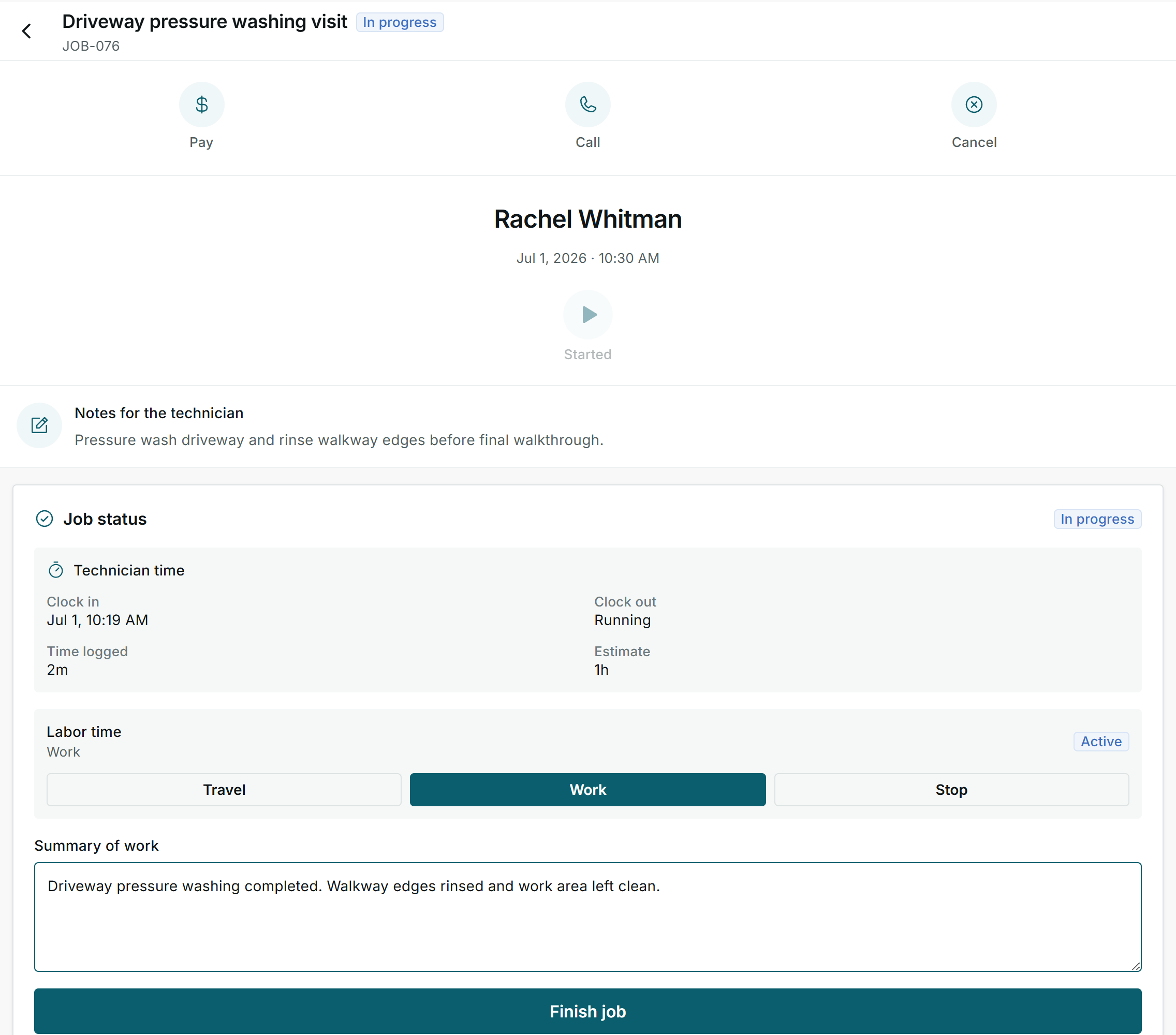
Use the same service language your business and customer use.
4. Finish the visit
- When the work for that visit is done, click Finish job.
- Impulso Pro closes the assigned field visit for the field team.
- If the job still has more steps, another visit, an invoice, or a follow-up, the office team can continue from the main job screens.
5. Statuses and buttons you may see
Meaning: the visit is assigned to you or your team.
Next step: open it, review the notes, and start when you are ready to work.
Meaning: the visit has been started from Field.
Next step: track the work and finish when the visit is complete.
Meaning: a time activity is running.
Next step: switch between Travel, Work, or Stop as needed.
Meaning: the current time counts as on-site work.
Next step: keep it active while performing the service.
Meaning: the current time counts as travel.
Next step: use it when driving to the customer or leaving for another visit.
Meaning: pauses the current labor activity.
Next step: use it when you no longer want to keep active time running.
Meaning: finishes the assigned visit from Field.
Next step: press it only after writing the summary and completing the service.
Meaning: opens the payment action if it applies to that job.
Next step: use it only when your business expects field payment collection.
Meaning: helps contact the customer.
Next step: use it if you need to confirm access, arrival, or service details.
Meaning: cancels or stops an action related to the visit.
Next step: confirm with the office before canceling real work.