

Before you start
- Open a new conversation if you do not want to use previous history.
- Do not type sensitive details that are not needed for the question.
- Review every answer before making a business decision.
1. Open Impulso AI
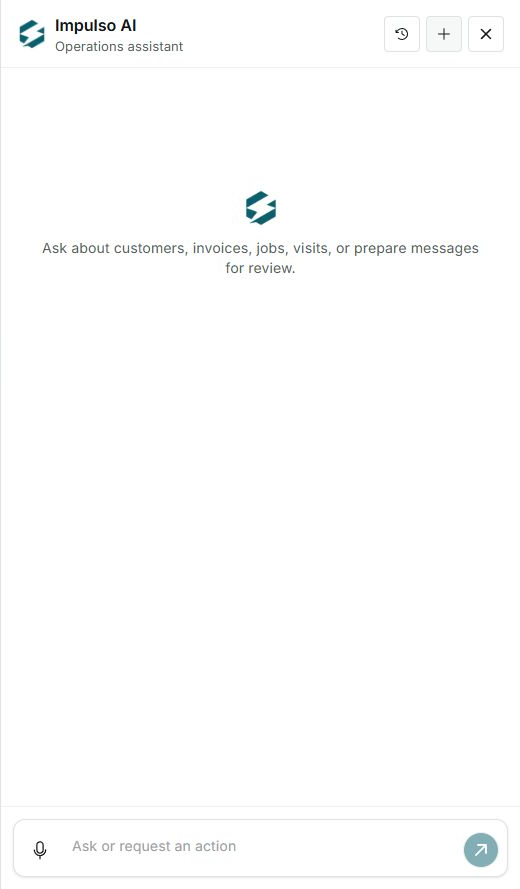
- Click Impulso AI from the top bar.
- If you want a clean start, use the New conversation button.
- Read the panel text: you can ask about customers, invoices, jobs, visits, or prepare messages for review.
2. Write a clear request
- Use names, invoice numbers, or job type when they help find the right record.
- Ask for a specific task: review collections, check the agenda, prepare a message, or find a customer.
- Before sending, confirm the request does not include unnecessary information.
3. Review before acting
- If AI prepares a message, review recipient, subject, and body before approving it.
- If the answer points to a record, open the related area to confirm the details.
- Do not assume something changed just because AI suggested or prepared it.
Statuses and options you may see
- New conversation
Meaning: Starts a clean thread without showing previous messages.
Next step: Use it before preparing a new task.
- History
Meaning: Returns to previous conversations.
Next step: Open it only when you need to review a past question.
- Ask or request an action
Meaning: Field where you write the request.
Next step: Be clear and review before sending.
- Send
Meaning: Sends the question to the assistant.
Next step: Do not press it if you are still editing.