

Before you start
- This screen can show personal information; update it only when you are ready to save.
- Reviewing the profile does not change jobs, visits, or shifts.
- If you are only checking information, do not use Save changes.
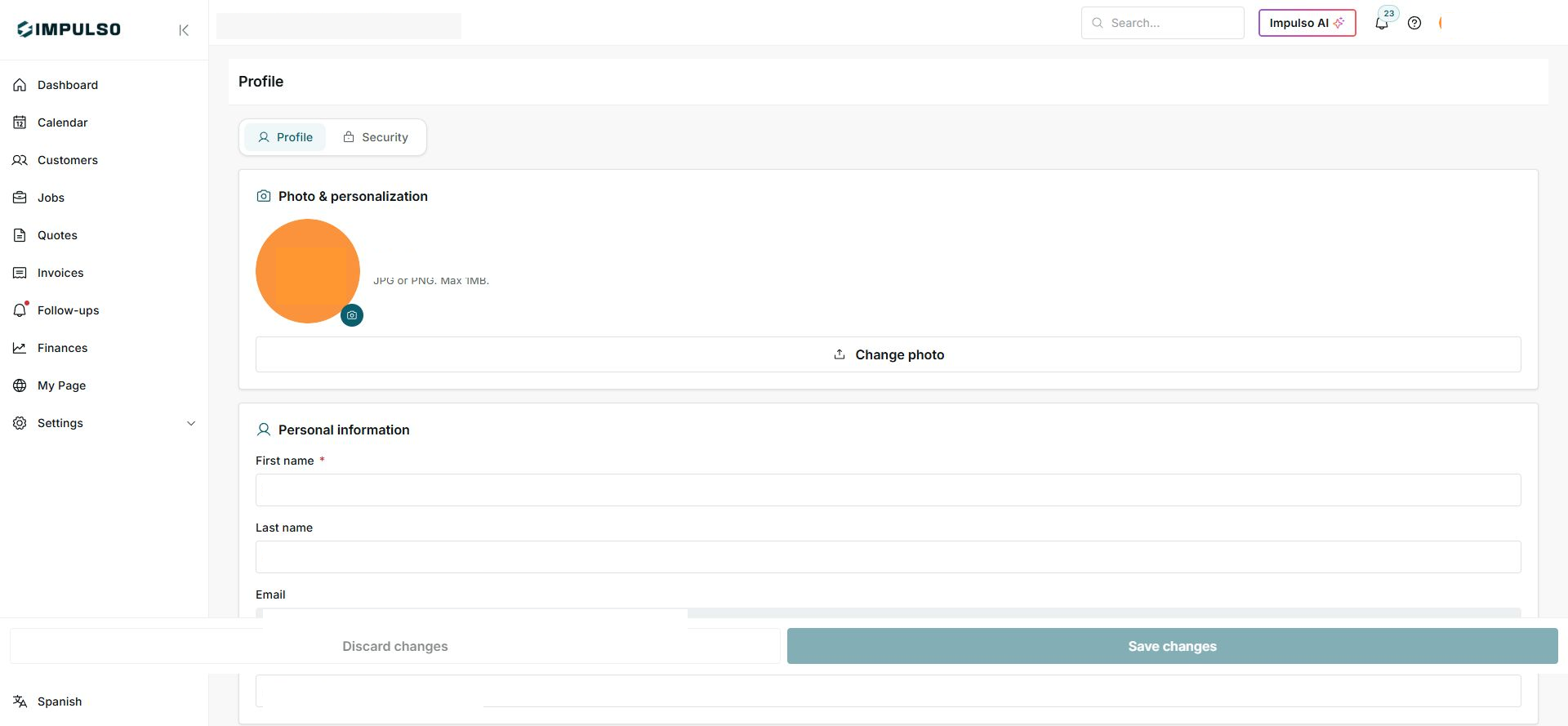
1. Open Profile
- Go to Field > Profile.
- Confirm you are on the Profile tab.
- Review photo, personal information, and the language option in the side menu.
2. Review before saving
- Change photo updates the user image.
- Personal information contains first name, last name, email, and phone.
- Security is for reviewing account options.
- Discard changes cancels unsaved edits.
- Save changes applies what you edited.
Options you may see
- Profile
Meaning: Main tab with photo and personal information.
Next step: Review information before editing.
- Security
Meaning: Account-related options.
Next step: Open it only when reviewing account security.
- Discard changes
Meaning: Cancels pending edits.
Next step: Use it if you edited something by mistake.
- Save changes
Meaning: Saves profile edits.
Next step: Use it only when the information is correct.