

Before you start
- You need Owner/Admin access to manage Team.
- Do not send invitations, approve weeks, or change statuses when you are only reviewing.
- Use realistic US-market data when you need to add services or notes.
1. Read roles in Team
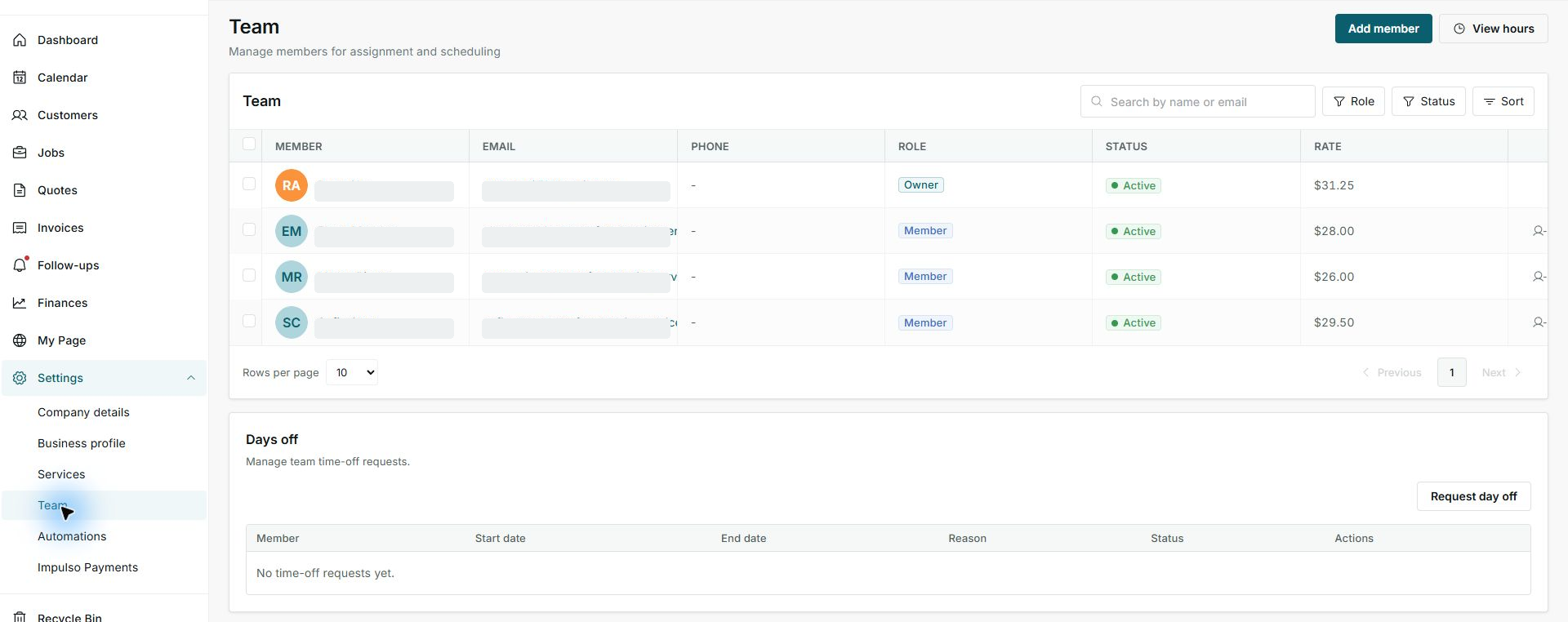
- Open Settings > Team.
- Review the Role column.
- Compare role, status, and rate before making changes.
2. Use the role filter
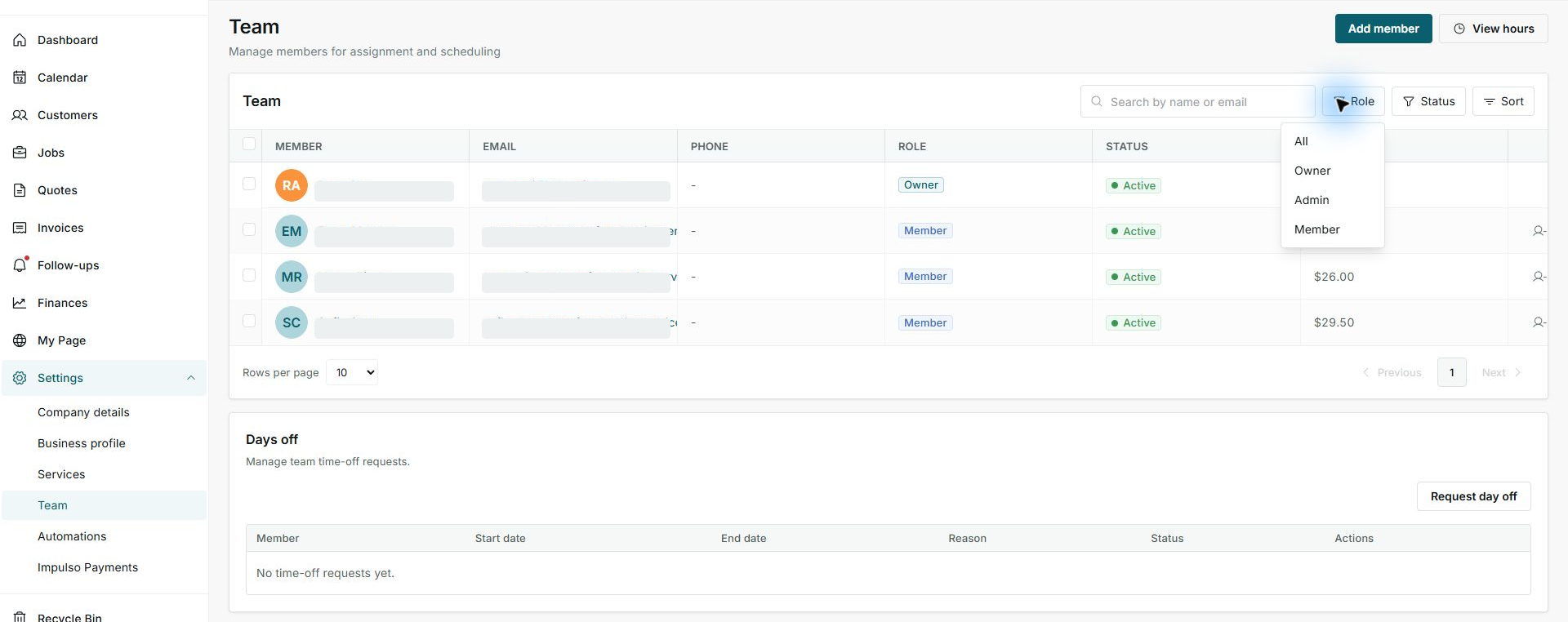
- Click Role.
- You can filter by All, Owner, Admin, or Member.
- Use the filter to review the team without changing data.
3. Decide carefully
- Use Owner for someone who manages the business.
- Use Admin for operational and administrative support.
- Use Member for operational or field staff.
Statuses and options you may see
- Owner
Meaning: Controls main business options.
Next step: Keep it limited to account leaders.
- Admin
Meaning: Helps with operations and administration.
Next step: Use this role for supervisors or office staff.
- Member
Meaning: Works with assignments and operational tasks.
Next step: Use this role for field staff.
- Active
Meaning: The person is available on the team.
Next step: Keep this status if the person currently works with you.
- Inactive
Meaning: The person should not be used for new assignments.
Next step: Review it before reactivating them.