

Before you start
- Review this from an Owner/Admin account.
- Do not change roles or save settings if you are only reviewing access.
- If someone does not see an option, confirm their role in Team first.
1. Review Settings options
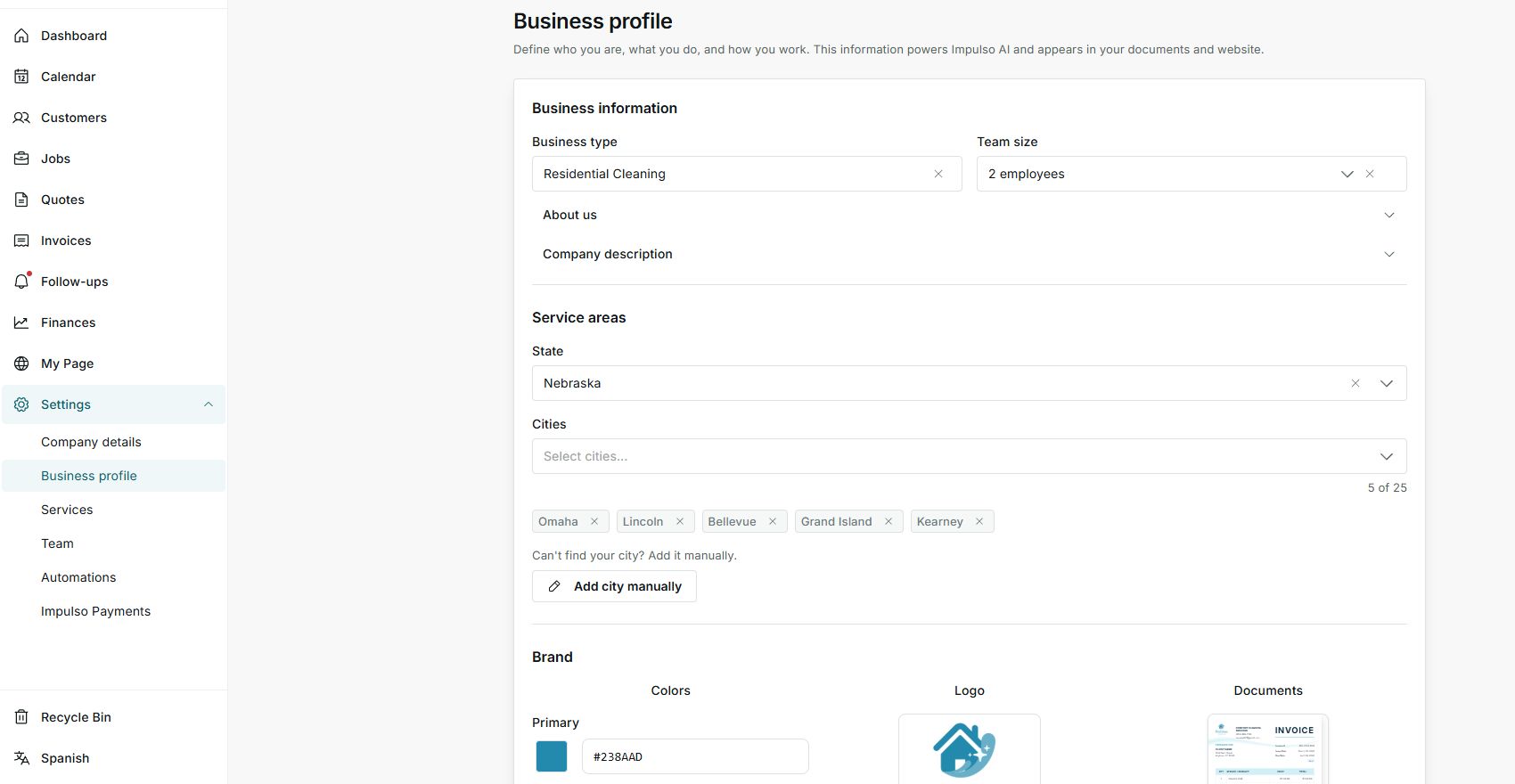
- Open Settings.
- Review visible options: company details, profile, services, team, automations, AI, and payments.
- Before changing anything, confirm whether it affects customers, documents, or payments.
2. Compare with the role in Team
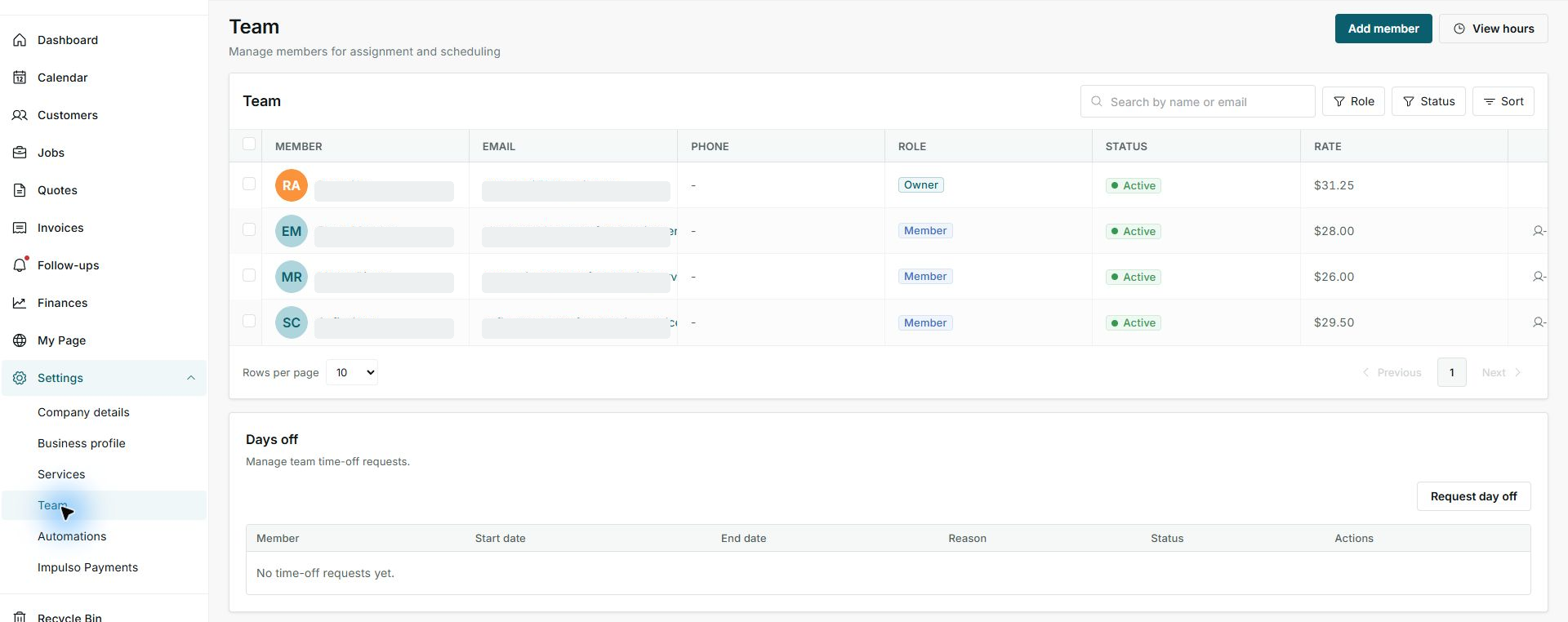
- Open Settings > Team.
- Review the Role column.
- Use Owner for account leaders, Admin for office staff, and Member for operational work.
3. If someone does not see an option
- Confirm the person is in the right business account.
- Review whether their role matches the work they need to do.
- If the change affects billing, payments, integrations, or automations, handle it from Owner/Admin.
Statuses and options you may see
- Owner
Means: Main account leader.
Next step: Use for sensitive business changes.
- Admin
Means: Can support operations and settings.
Next step: Use for office staff or supervisors.
- Member
Means: Focused on operational or field work.
Next step: If they need settings access, review whether the role should change.
- Owner only
Means: The option needs the account leader.
Next step: Ask the owner to review the option.
- Requires setup
Means: A required detail is missing before that area can be used.
Next step: Complete the indicated section before relying on it.