

Before you start
- Open the correct quote from Quotes.
- Confirm whether the customer already received it, viewed it, accepted it, or whether it was converted into a job.
- If the scope changed, review the linked job and invoice before promising a new total.
1. Review the status before changing anything
- Open the quote and look at the badge next to the title.
- Review Sent via, Sent on, and Viewed by client.
- If you see Converted, continue from the linked job or invoice.
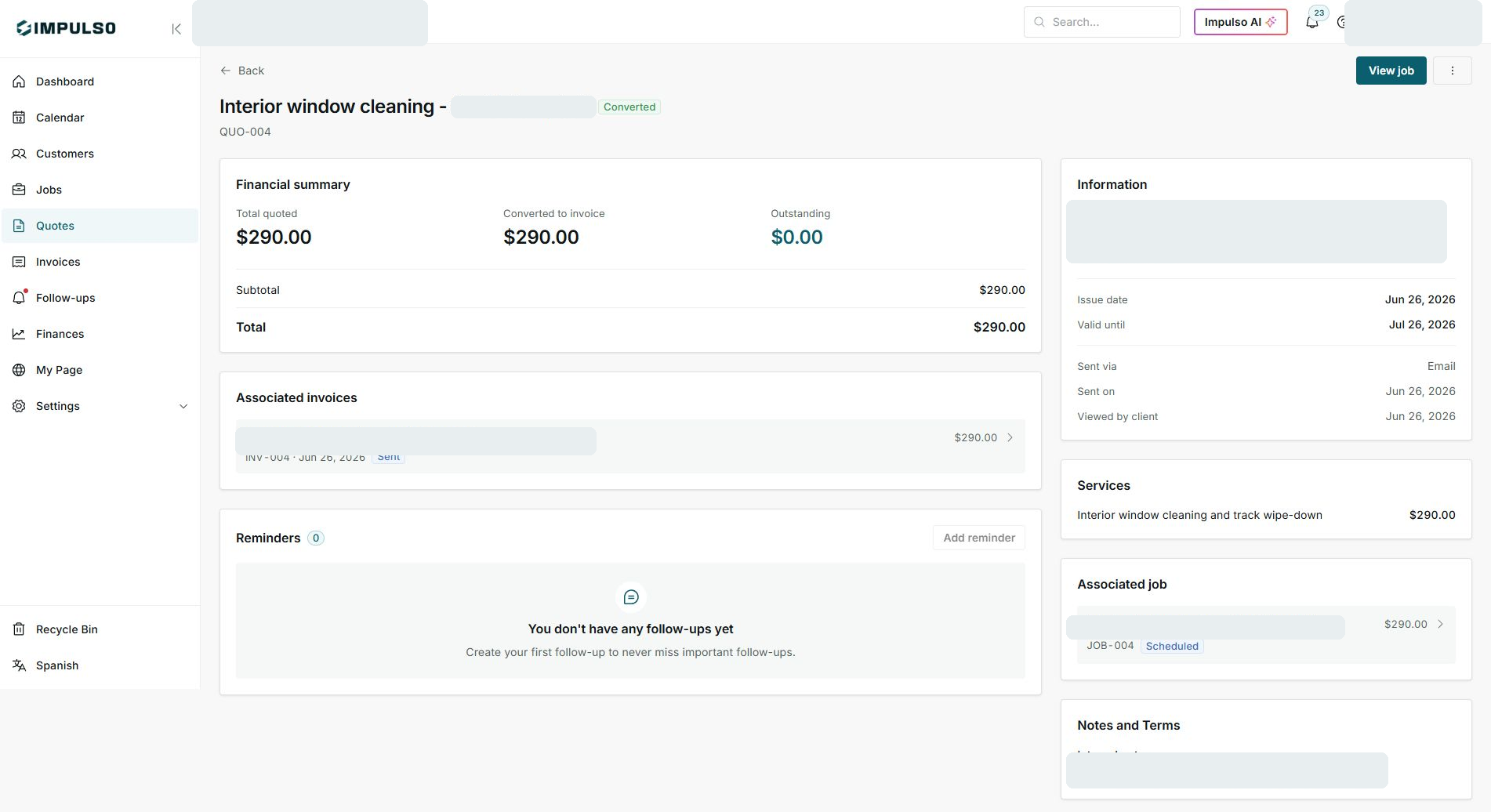
After the quote has moved forward, the detail page works as the history for scope, price, and connected documents.
2. Use the available actions
- Use View job to review schedule, visits, team, and work progress.
- Open the associated invoice if the change is about collection, balance, or payment status.
- Use the more-actions menu only when you know you are not duplicating work or invoices.
3. When to edit and when not to
- If the quote is Draft, you can usually edit services, tax, and total before sending.
- If it is already Sent, change only clear corrections and review the customer message.
- If it is Accepted or Converted, confirm the change with the customer and continue from the job or invoice.
Statuses and options you may see
Meaning: The quote has not been sent to the customer yet.
Next step: Adjust services, tax, discount, and notes before sending.
Meaning: The customer already received the quote.
Next step: Edit carefully and confirm whether you need to resend the updated document.
Meaning: The customer approved the quote.
Next step: Avoid changing price or scope without confirming it with the customer.
Meaning: The quote is already connected to a job.
Next step: Review the associated job and any related invoice.
Meaning: The associated invoice was sent.
Next step: Follow up on the balance or payment from Invoices.
Meaning: The associated job has a planned visit or date.
Next step: Coordinate changes from Jobs or Calendar.
Meaning: No balance remains on the quote shown.
Next step: Review the associated invoice to confirm collection.