

Before you start
- Field shows assigned work for the visible period, not every office job.
- A roofing, gutters, HVAC, or painting job can exist in Jobs and still not appear here if it does not have a field visit assigned.
- Do not create a duplicate job until you check date, visit, and assigned member.
1. Review Field Jobs
- Go to Field > Jobs.
- Start with This week.
- Then review Next 7 days if the work is scheduled for another day.
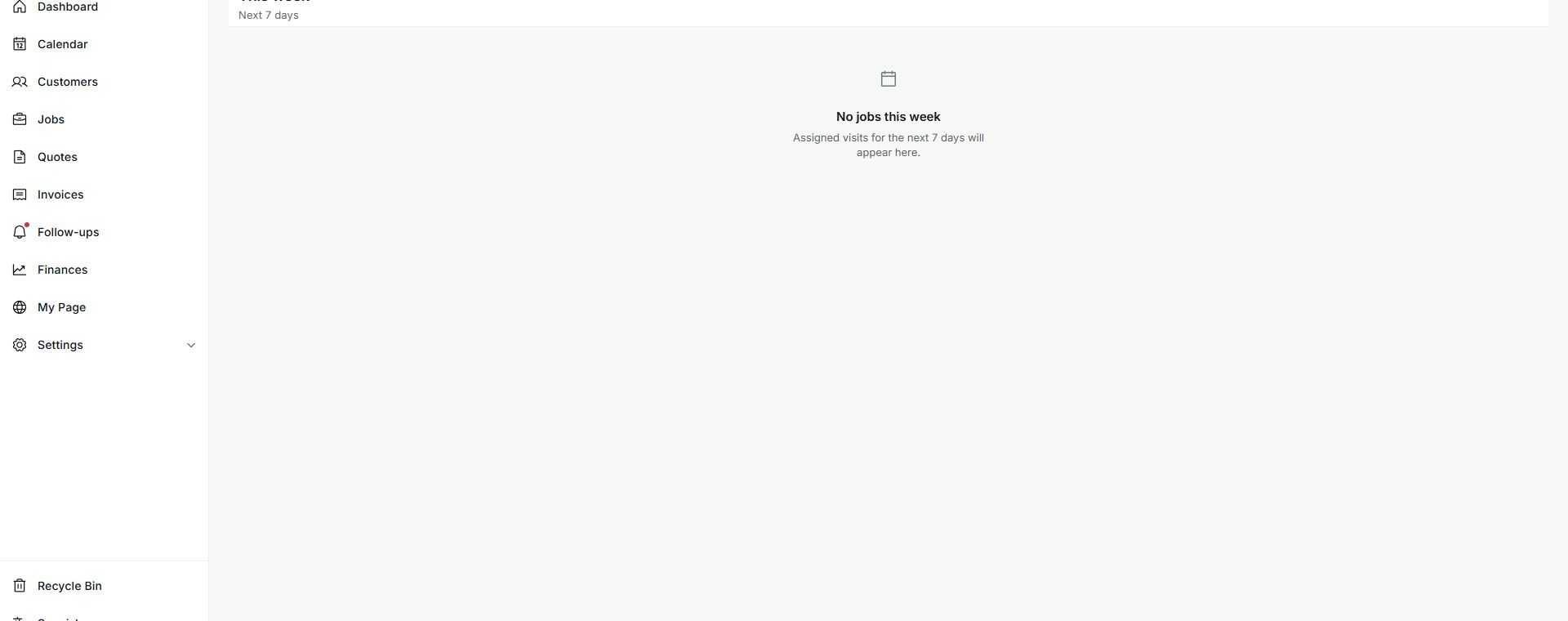
2. What to check when nothing appears
- Confirm the job has a scheduled visit.
- Confirm the correct member is assigned to that visit or job.
- Confirm you are looking at the correct period: this week or the next 7 days.
- If the job is already completed or canceled, review it from the main Jobs list.
Statuses and options you may see
- This week
Meaning: Shows assigned work for the current week.
Next step: Use it for immediate field planning.
- Next 7 days
Meaning: Shows upcoming assignments that may not be for today.
Next step: Switch here when the work is in the future.
- No jobs this week
Meaning: No visits are assigned for the visible period.
Next step: Check assignment and date before assuming the job is missing.