

Before you start
- Do not create duplicate data just to make a button appear.
- First check setup, filters, date, record status, and the person using the screen.
- If the action affects payments, customers, jobs, or messages, ask an owner/admin to confirm before using it.
1. Check whether setup is missing
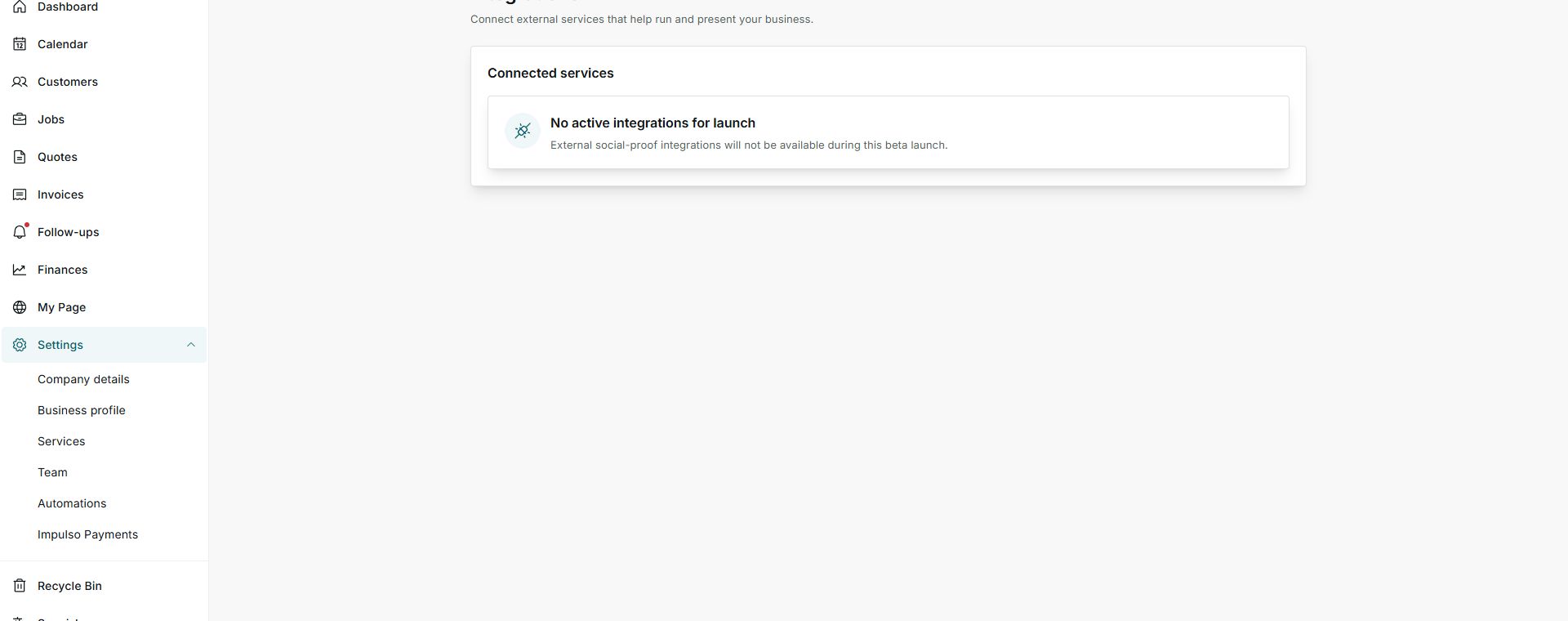
- Open the module where you expect the action.
- Look for availability or setup messages.
- If an option is not available during launch, there is nothing to turn on from that screen.
2. Check filters and period
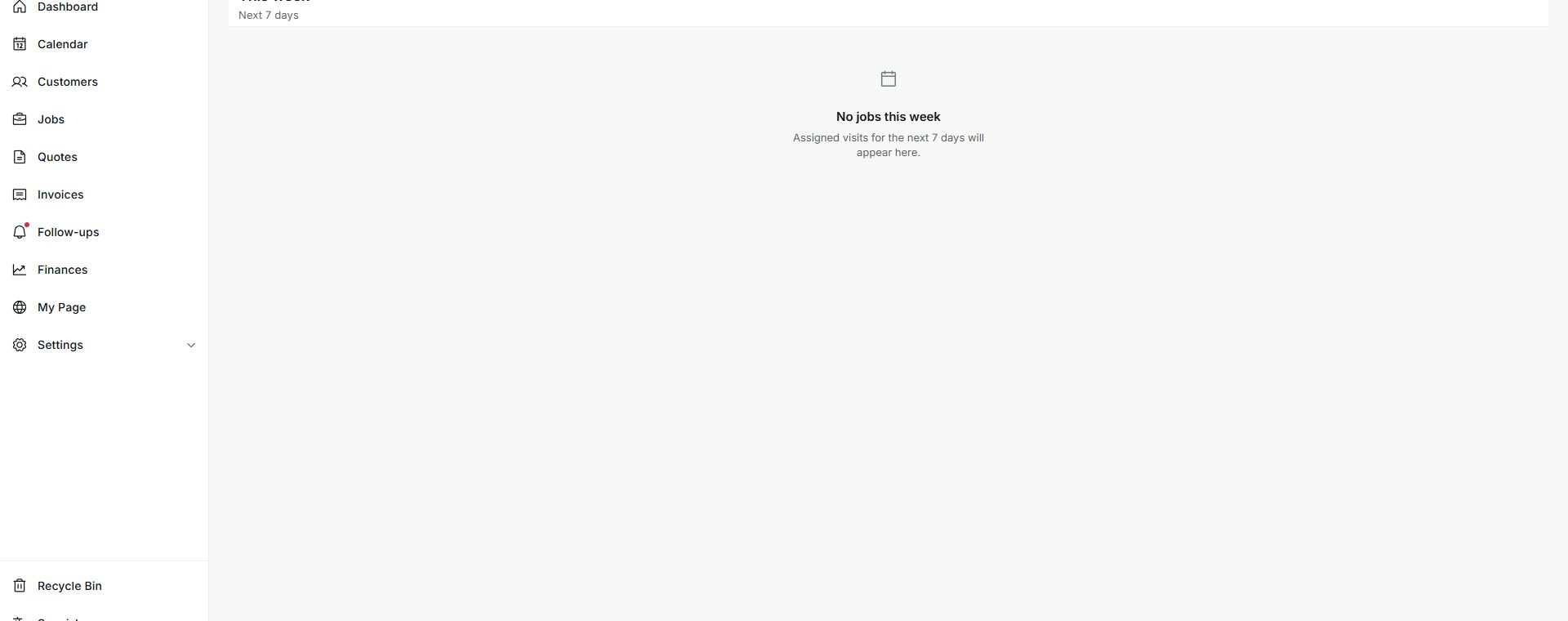
- Confirm you are looking at the right period.
- Check whether records are assigned for that view.
- If there are no records, the related action may not appear.
States you may see
- No active integrations
Meaning: No external services are available at that moment.
Next step: Check whether the option will be available later.
- This week
Meaning: The view shows only the current period.
Next step: Change the period if you expect future work.
- Next 7 days
Meaning: Shows nearby work that may not be for today.
Next step: Use it to confirm whether something comes later.
- No jobs this week
Meaning: No visits are assigned for the visible period.
Next step: Check assignment and date before looking for another action.