

Before you start
- You need Owner/Admin access to review payments.
- Do not open Stripe or save changes when you are only reviewing settings.
- For customer data, use realistic US-market services such as roofing, HVAC, gutters, or exterior painting.
1. Review Impulso Pro Payments
- Go to Settings > Impulso Pro Payments.
- Confirm that Payments active is visible.
- Confirm that Stripe account connected is visible.
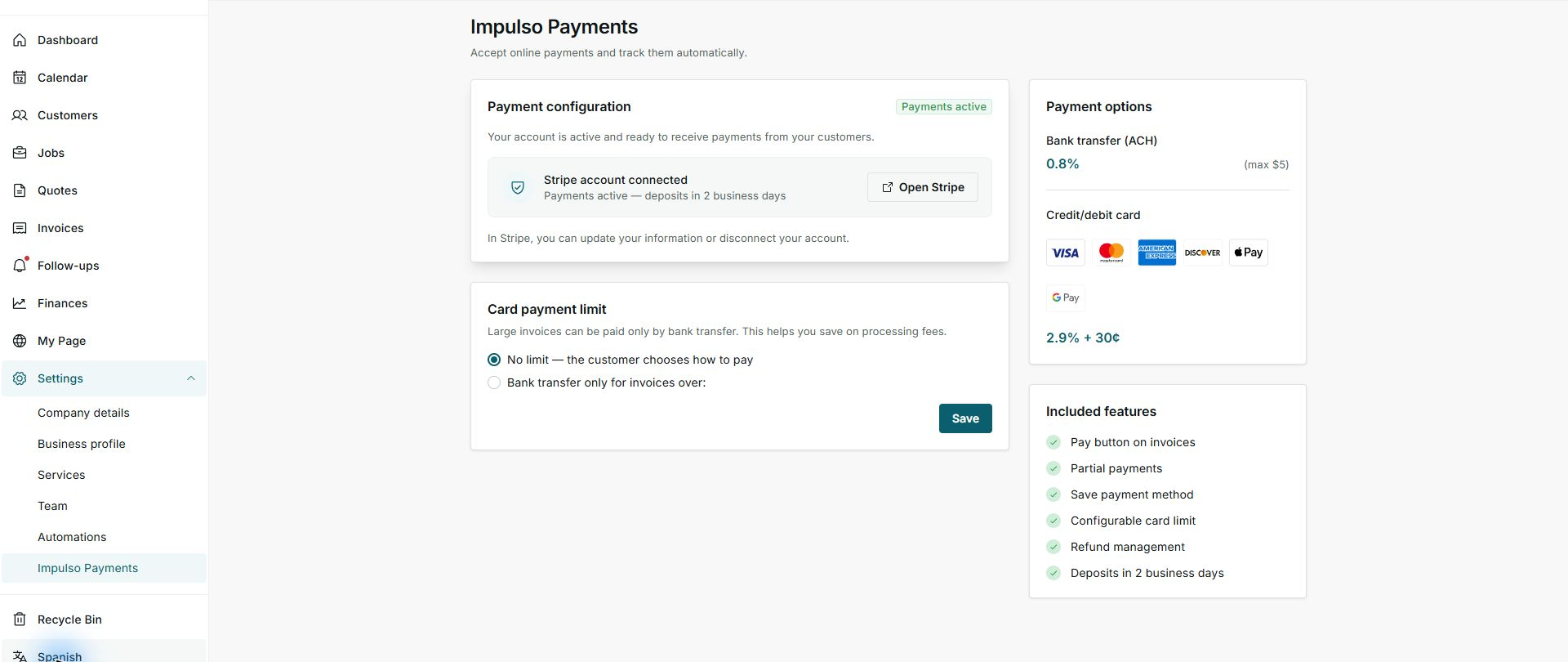
2. Confirm the included feature
- Find the Included features card.
- Check for Pay button on invoices.
- Check card and ACH separately for an active or pending status.
- If ACH is pending, card may stay available; complete the requested information in Stripe to enable ACH.
3. Review the invoice
- Make sure the invoice was sent, has a balance due, and allows online payment.
- If you use a card limit, card may be hidden because of the amount; ACH is not limited by that rule.
- The pay button also appears on the deposit invoice created from a quote.
- The customer invoice and payment screen are shown in English.
Statuses and options you may see
- Card active
Meaning: The pay button can offer card on eligible invoices.
Next step: Review the sent invoice.
- ACH active
Meaning: The pay button can also offer bank transfer.
Next step: The customer chooses a method for each payment.
- ACH pending
Meaning: ACH is not available yet.
Next step: Complete the request in Stripe; this does not disable card by itself.
- Card payment limit
Meaning: It can hide card on large invoices.
Next step: ACH remains available when active.