

Before you start
- You must already be inside Impulso Pro from a computer.
- The language shortcut is at the bottom left of the sidebar.
- The shortcut shows the language you can switch to, not the language you are already using.
- If the sidebar is collapsed, open it first with the button next to the Impulso Pro logo.
1. Find the language shortcut
- Look at the left sidebar in Impulso Pro.
- Go visually to the bottom of the sidebar.
- Under Recycle Bin, find Spanish.
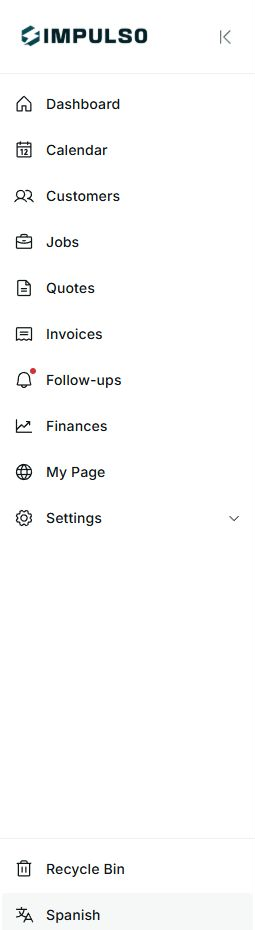
2. Change from English to Spanish
- Click Spanish.
- Impulso Pro changes the interface to Spanish.
- Confirm the change by checking that the sidebar shows labels such as Panel de control, Clientes, Trabajos, and Configuración.
Important
Changing language only adjusts how you see the interface. It does not change your customers, jobs, quotes, invoices, or record details.
3. Switch back to English
- When the app is in Spanish, go back to the same place in the sidebar.
- Click Inglés.
- Confirm that the sidebar returns to Dashboard, Customers, Jobs, and Settings.
4. If you do not see the option
- Check that you are using Impulso Pro from desktop.
- Open the sidebar if you only see icons.
- Go to the bottom of the sidebar.
- If the screen does not change after clicking, wait a few seconds and refresh the page.
5. States you may see
These indicators help you understand what will change and what is not related to language.
- Spanish
Means: the app is in English and you can switch it to Spanish. Next step: click it if you want the interface in Spanish. Does not mean: your data will be translated or changed.
- Inglés
Means: the app is in Spanish and you can switch it back to English. Next step: click it if you want the interface in English. Does not mean: the app is already in English.
- Red dot
Means: something is pending or new in that sidebar section. Next step: open the section if you need to review it. Does not mean: the language change failed.
- Settings arrow
Means: you can open or close settings options. Next step: click it only if you need settings. Does not mean: language changes from that menu.